Verify the WSDL Environment (WSDL-Based APIs)
You can verify your developer environment with a simple C# test application in Visual Studio.
You should have Visual Studio installed and have the WSDL files that you need to use available. You’ll need the Enterprise or Partner WSDL to follow the verification steps.
-
Start Visual Studio.
-
Click File | New Project.
-
In the New Project window, navigate to Installed | Templates | Visual C# | Windows. Select Console Application.
-
In the New Project window, under Name, name the project VerifyWSDLTest. Under Solution name, name the solution VerifyWSDLTest. Under Location, pick a file location that you’ll remember. Click Ok. A solution is created, and Program.cs is opened for editing.
-
Click Project | Add Service Reference.
-
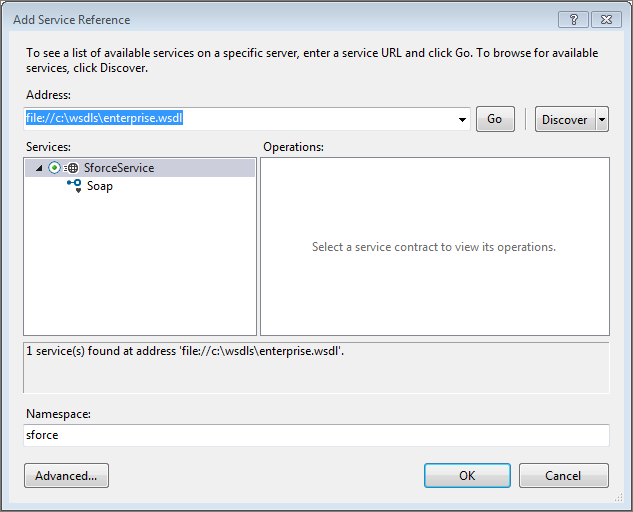
In the Add Service Reference window, under Address, enter the file URL path to your Enterprise or Partner WSDL file. For example, if enterprise.wsdl is saved in c:\wsdls, enter file://c:\wsdls\enterprise.wsdl. Click Go. The Services list is populated with an entry that is named SforceService.
-
Select SforceService. Under Namespace enter sforce. Your Add Service Reference window should look something like the following image.
Click Ok. The WSDL services are imported under the sforce namespace in your project.
-
Replace the code in Program.cs as described in the following section.
Use the following simple login example code for your Program.cs contents. Replace YOUR DEVORG USERNAME with your developer organization username, and replace YOUR DEVORG PASSWORD AND SECURITY TOKEN with your developer organization password appended with your security token. If you did not set a security token in your organization, just provide your password. A GitHub Gist of this code is available here: https://gist.github.com/anonymous/7d533cf2b4822fb29317.
1using System;
2using System.Collections.Generic;
3using System.Linq;
4using System.Text;
5using System.Threading.Tasks;
6using System.ServiceModel;
7using VerifyWSDLTest.sforce;
8
9namespace VerifyWSDLTest
10{
11    class Program
12    {
13
14        private static SoapClient client;
15        private static LoginResult loginResult;
16
17        private static bool login()
18        {
19
20            client = new SoapClient();
21
22            string acctName = "YOUR DEVORG USERNAME";
23            string acctPw = "YOUR DEVORG PASSWORD AND SECURITY TOKEN";
24            try
25            {
26                loginResult = client.login(null, acctName, acctPw);
27            }
28            catch (Exception e)
29            {
30                Console.WriteLine("Unexpected login error: " + e.Message);
31                Console.WriteLine(e.StackTrace);
32                return false;
33            }
34            return true; // success
35        }
36
37        static void Main(string[] args)
38        {
39            if (login())
40            {
41                // display some current login settings
42                Console.Write("Service endpoint: " + loginResult.serverUrl + "\n");
43                Console.Write("Username: " + loginResult.userInfo.userName + "\n");
44                Console.Write("SessionId: " + loginResult.sessionId + "\n");
45                Console.Write("Press any key to continue:\n");
46                Console.ReadKey();
47            }
48        }
49    }
50}
The following example output shows a typical successful run of this code.
1Service endpoint: https://yourInstance.salesforce.com/services/Soap/c/29.0/00DU0000000T5f0/0DFU00000008XpB
2Username: myUser@my_devedition.com
3SessionId: 00DU0000000L5f0!ARoAQOYUBIRHn9tDOCf...zESyoJ2JwHN2ovyY2vIP1TGjc8vn_C
4Press any key to continue:
If the verification project runs and displays output that matches your organization, your developer environment is set up and you can start developing .NET applications that integrate with Salesforce. If you have additional WSDL files you can add them to your project via the Add Service Reference dialog as described in steps 5 and 6 above.
If you are using Microsoft Visual Studio 2010 or earlier, in step 5, Add Service Reference might be unavailable. Use Add Web Reference instead. Under URL, enter the file path to your WSDL, such as file://c:\wsdls\enterprise.wsdl. Name the web reference sforce, and click Add Reference. If you have to use a web reference, use an instance of SforceService to call SforceService.login() instead of SoapClient.login().


 j
j