Get Flow Variable Values to a Visualforce Page
Flow variable values can be displayed in a Visualforce page. Once you’ve embedded your flow in a Visualforce page, you can use Visualforce markup to get values for variables or record variables. To display values for a collection variable or a record collection variable, you can use Visualforce markup to get the individual values contained in the collection.
You can get only variables that allow output access. If you reference a variable that doesn’t allow output access, attempts to get the variable are ignored. Compilation can fail for the Visualforce page, its <apex:page> component, or the Apex class.
The following example uses an Apex class to get a record variable value from a flow and then displays it in a Visualforce page.
1public class FlowController {
2    public Flow.Interview.flowname myflow { get; set; }
3    public Case apexCaseVar;
4    public Case getApexCaseVar() {
5        return myflow.caseVar;
6    }
7}
1<apex:page controller="FlowController" tabStyle="Case">
2    <flow:interview name="flowname" interview="{!myflow}"/>
3    <apex:outputText value="Default Case Priority: {!apexCaseVar.Priority}"/>
4</apex:page>
This example uses an Apex class to get the values that are stored in a string collection variable (emailsCollVar) in the flow. Then it uses a Visualforce page to run the flow interview. The Visualforce page iterates over the flow’s collection variable and displays the values for each item in the collection.
1public class FlowController {
2    public Flow.Interview.flowname myflow { get; set; }
3
4    public List<String> getVarValue() {
5        if (myflow == null) {
6            return null;
7        }
8        else {
9            return (List<String>)myflow.emailsCollVar;
10        }
11    }
12}
1<apex:page controller="FlowController">
2    <flow:interview name="flowname" interview="{!myflow}" />
3        <apex:repeat value="{!varValue}" var="item">
4        <apex:outputText value="{!item}"/><br/>
5        </apex:repeat>
6</apex:page>
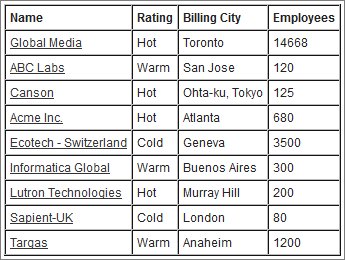
The following example uses an Apex class to set the flow to {!myflow} and then uses a Visualforce page to run the flow interview. The Visualforce page uses a data table to iterate over the flow’s record collection variable and display the values for each item in the collection.
1public class MyCustomController {
2   public Flow.Interview.flowname myflow { get; set; }
3}
1<apex:page controller="MyCustomController" tabStyle="Account">
2 <flow:interview name="flowname" interview="{!myflow}" reRender="nameSection" />
3
4 sets that variable to the value for the "var" attribute, so that instead of
5 referencing {!myflow.collectionVariable} in each column, you can simply refer
6 to "account".-->
7 <apex:dataTable value="{!myflow.collectionVariable}" var="account"
8 rowClasses="odd,even" border="1" cellpadding="4" id="nameSection">
9
10 <apex:column >
11 <apex:facet name="header">Name</apex:facet>
12 <apex:outputlink value="/{!account['Id']}">
13 {!account['Name']}
14 </apex:outputlink>
15 </apex:column>
16 <apex:column >
17 <apex:facet name="header">Rating</apex:facet>
18 <apex:outputText value="{!account['Rating']}"/>
19 </apex:column>
20 <apex:column >
21 <apex:facet name="header">Billing City</apex:facet>
22 <apex:outputText value="{!account['BillingCity']}"/>
23 </apex:column>
24 <apex:column >
25 <apex:facet name="header">Employees</apex:facet>
26 <apex:outputText value="{!account['NumberOfEmployees']}"/>
27 </apex:column>
28 </apex:dataTable>
29</apex:page>
Depending on the contents of the record collection variable in your flow, here’s what that data table looks like.


 j
j