


The Trailblazer Community in Slack is now in Open Beta—join and connect in real time. [Join us in Slack]
User Interface API Quick Start
Use the Postman desktop app or web-based UI to easily explore and test the UI API and other Salesforce APIs against your orgs.
Where possible, we changed noninclusive terms to align with our company value of Equality. Because changing terms in our code can break current implementations, we maintained this object’s name.
Important
If you don’t already have an org, you can sign up for a Salesforce Developer Edition, also known as a DE org.
This quick start makes a request to the List Info resource, /ui-api/list-info/${objectApiName}. This resource returns a collection of list info summaries for an object.
Before you connect Postman to Salesforce, fork and configure the collection.
These steps use the Postman desktop app to send a request. Alternatively, you can connect the Postman web app to Salesforce using the Trailhead quick start, which requires a CORS configuration in Salesforce.
-
Open the Postman desktop app.
-
Expand the collection, and select UI | List Views | Get List Views for an Object.
-
Update the {{_endpoint}} and {{version}} values if needed.
-
Go to the Authorization tab to choose your Auth Type and update required information.
-
Click Send.
The query returns a 200 OK status. If you receive an error, check your configuration and try again.
The List Info Summary Collection response body includes an array of list info summaries.
1{
2    "count": 6,
3    "currentPageToken": "0",
4    "currentPageUrl": "/services/data/v62.0/ui-api/list-info/Account?pageSize=20&pageToken=0",
5    "lists": [
6        {
7            "apiName": "AllAccounts",
8            "id": "00B58000002ssinEAA",
9            "label": "All Accounts",
10            "url": "/services/data/v62.0/ui-api/list-info/Account/AllAccounts"
11        },
12        {
13            "apiName": "MyAccounts",
14            "id": "00B58000002ssivEAA",
15            "label": "My Accounts",
16            "url": "/services/data/v62.0/ui-api/list-info/Account/MyAccounts"
17        },
18        {
19            "apiName": "NewLastWeek",
20            "id": "00B58000002ssiHEAQ",
21            "label": "New Last Week",
22            "url": "/services/data/v62.0/ui-api/list-info/Account/NewLastWeek"
23        },
24        {
25            "apiName": "NewThisWeek",
26            "id": "00B58000002ssi6EAA",
27            "label": "New This Week",
28            "url": "/services/data/v62.0/ui-api/list-info/Account/NewThisWeek"
29        },
30        {
31            "apiName": "PlatinumandGoldSLACustomers",
32            "id": "00B58000002ssiXEAQ",
33            "label": "Platinum and Gold SLA Customers",
34            "url": "/services/data/v62.0/ui-api/list-info/Account/PlatinumandGoldSLACustomers"
35        },
36        {
37            "apiName": "RecentlyViewedAccounts",
38            "id": "00B58000002ssimEAA",
39            "label": "Recently Viewed Accounts",
40            "url": "/services/data/v62.0/ui-api/list-info/Account/RecentlyViewedAccounts"
41        }
42    ],
43    "nextPageToken": null,
44    "nextPageUrl": null,
45    "objectApiName": "Account",
46    "pageSize": 20,
47    "previousPageToken": null,
48    "previousPageUrl": null,
49    "queryString": null,
50    "recentListsOnly": false
51}
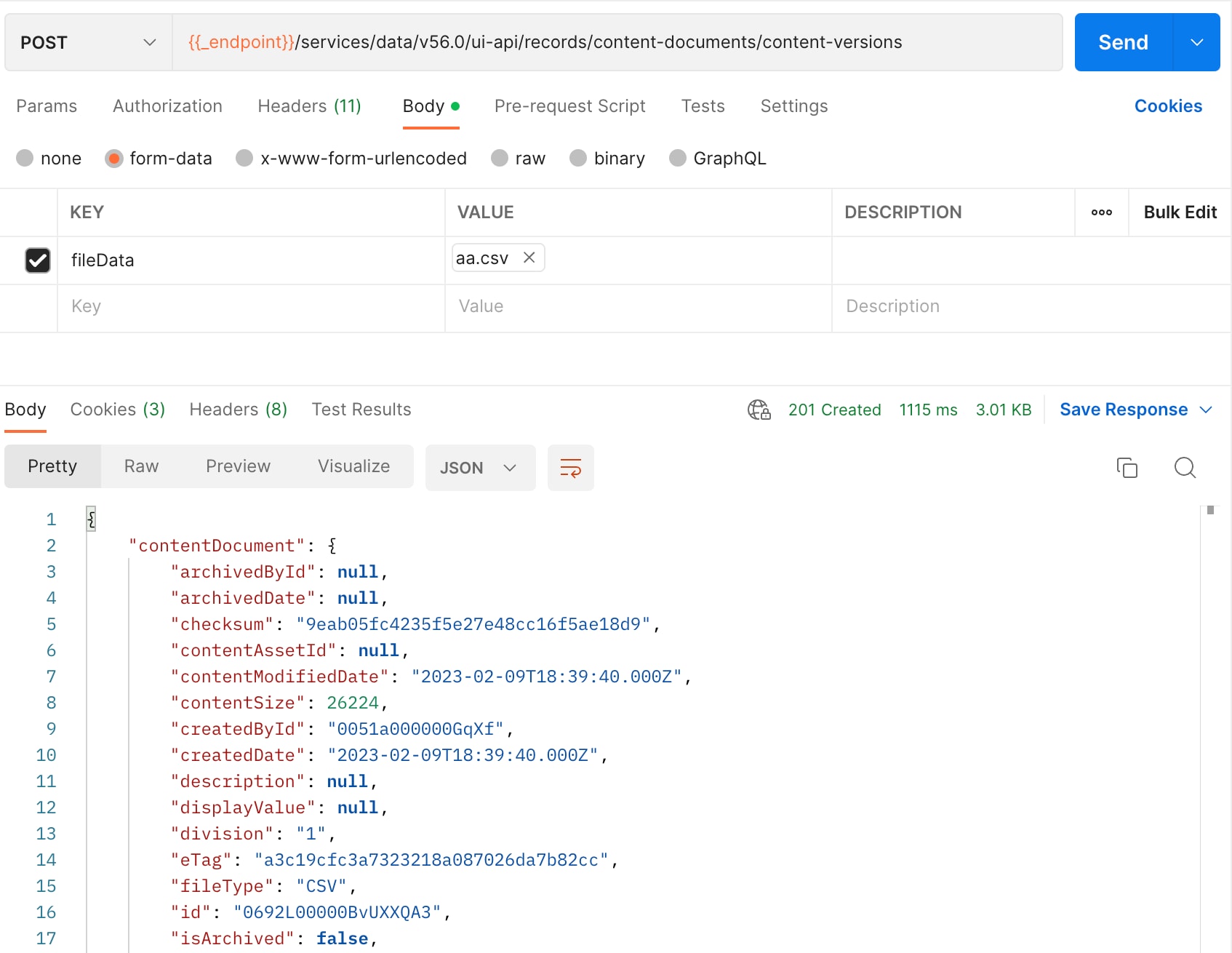
You just sent a UI API request using Postman! You can do more with UI API using Postman, such as sending a cURL command to upload a file to your Salesforce org.
To send a cURL command, import the request using raw text.
- In Postman, click the Import tab on the top left side.
- Select the Raw text tab.
- Paste your cURL command and click Continue.
- Verify your request name and format, then click Import.
- Send your request.
Consider the following guidelines.
- If you’re sending any JSON data as part of your cURL command, the import adds the JSON string as a key on the Body | form-data tab by default. Move the JSON string from the Body | form-data tab to the Body | raw tab, and delete it from the Body | form-data tab.
- If you’re sending a file using the
-Foption, upload your file under the Body | form-data tab. For example, you can upload files by adding thefileDatakey and selecting a local file.
 j