
Appearance
Exercise 1: Build a Partner Performance Dashboard
In this Exercise, you will use Agentforce Vibes to build a custom CRM app using natural language prompts. This approach to software development is called enterprise vibe coding.
Scenario
The Partner Management team needs visibility into the performance of their integration partners. Partners are represented as Accounts, and their sales activity is tracked in Leads and Opportunities. Leadership needs a single place to see KPIs across all partners, including revenue, pipeline, and win rates.
You have been tasked with building a Partner Performance Dashboard to surface these insights.
Activity
This activity is designed to be completed in several steps. Each step builds on the previous one to create a complete Salesforce application.
- Plan: Create a project plan with Agentforce Vibes
- Build: Generate the Partner Performance Dashboard using Apex and Lightning Web Components
- Deploy: Deploy the generated application to your Salesforce org
- Preview and Test: Open and test your new dashboard
- Next Steps: Explore optional improvements
Step 1: Plan your app with Agentforce
While you can build an app with individual prompts, it is more effective to start with a complete plan. In this step, you will use Agentforce Vibes in Plan mode to generate a project specification for the Partner Performance Dashboard.
Click the + button in the Agentforce Vibes Sidebar to start a new task.
Switch the mode toggle to Plan.

Copy and enter the following prompt into the Agentforce Vibes input box:
Here’s a simpler, plain‑language Plan‑mode prompt you can use:
textAnalyze the metadata in this Salesforce DX project and write a project plan for a "Partner Performance Dashboard." Look at what already exists in this project: - Objects, fields, and record types (especially Account, Lead, and Opportunity) - Lightning Web Components - Apex classes - Tabs - Permission sets, including the existing permission set named Partner_Management Use only existing fields and metadata. Do NOT plan to create any new custom fields. Write the plan with EXACTLY 6 sections, using these headings: 1) Scope Describe the overall goal: a Partner Performance Dashboard built as a Lightning Web Component. It should have KPI summary tiles and a sortable detail table. List the main deliverables: - One new dashboard LWC - One Apex service class - One new Custom Tab for the dashboard - Updates to the existing Partner_Management permission set 2) Data Model Explain how the dashboard will use the existing Account, Lead, and Opportunity objects to measure partner performance. List which existing fields and relationships you will use for things like Tier, Leads, Opportunities, Won deals, and Revenue. If a useful field is missing, call it out as an assumption, but do NOT add a step to create it. 3) LWC Describe the design of the new dashboard LWC: - It should run in a lightning__Tab. - It should use lightning-card tiles for high-level KPIs. - It should use a lightning-datatable with columns like Rank, Partner, Tier, Leads, Opps, Won, Revenue, etc. - It should call an Apex method with @wire to get the data. - It should describe how loading, empty, and error states will look. 4) Custom Tab Describe a new Custom Tab: - Label: "Partner Performance" - Use a chart-style icon - Point the tab to the new dashboard LWC 5) Permission Set Explain how to update the existing Partner_Management permission set: - Give access to the new LWC - Give access to the new Apex class - Give access to the new "Partner Performance" tab - Make sure it has field-level access for all fields used by the dashboard - Include visibility to the Partner_Account record type if it already exists; if not, mention it as an assumption 6) Apex Service Describe one Apex service class: - Mark it as "with sharing" - Include a single @AuraEnabled(cacheable=true) method - Query Accounts and related Leads and Opportunities - Aggregate the data into a list of partner metrics (for example: Rank, Partner, Tier, Leads, Opps, Won, Revenue, Win Rate) - Sort the results in a useful way (for example, by Revenue or number of Won opportunities) Important: - Do NOT include testing or deployment steps. - Do NOT propose creating new custom fields. - Do NOT use GraphQL. Use Apex for the main data logic and aggregation. - DO NOT expose custom properties for specific targets in the LWC metadata. - Only produce the 6-section plan. Do not take any direct actions.Review the generated plan. While you are still in Plan mode, request updates or refinements before saving it.
Switch the mode toggle to Act.
Enter the following prompt:
Output the plan in a file called PartnerPerformanceDashboardSpec.mdAgentforce Vibes will create a file named
PartnerPerformanceDashboardSpec.mdin your project.Wait for the confirmation message
✓ Task Completed
Step 2: Build your Partner Performance Dashboard
Scaffold the Lightning Web Component
Click the + button in the Agentforce Vibes Sidebar to start a new task.
Ensure the mode toggle is set to Act.
Enter the following prompt:
Build the first version of the Partner Performance Dashboard as a new Lightning Web Component that uses the existing genericPageHeader LWC at the top (with a title like “Partner Performance Dashboard” and a short subtitle explaining that it tracks key KPIs for integration partners), and below the header create a simple SLDS-based layout with placeholder areas for KPI tiles and a detail table, without adding any Apex, data queries, or complex logic yet. Use the existing project metadata and refer to the full project description in @/PartnerPerformanceDashboardSpec.md for context, but in this step only implement the basic UI shell and header using the existing genericPageHeader component.Approve file access when prompted.
Wait for the confirmation message
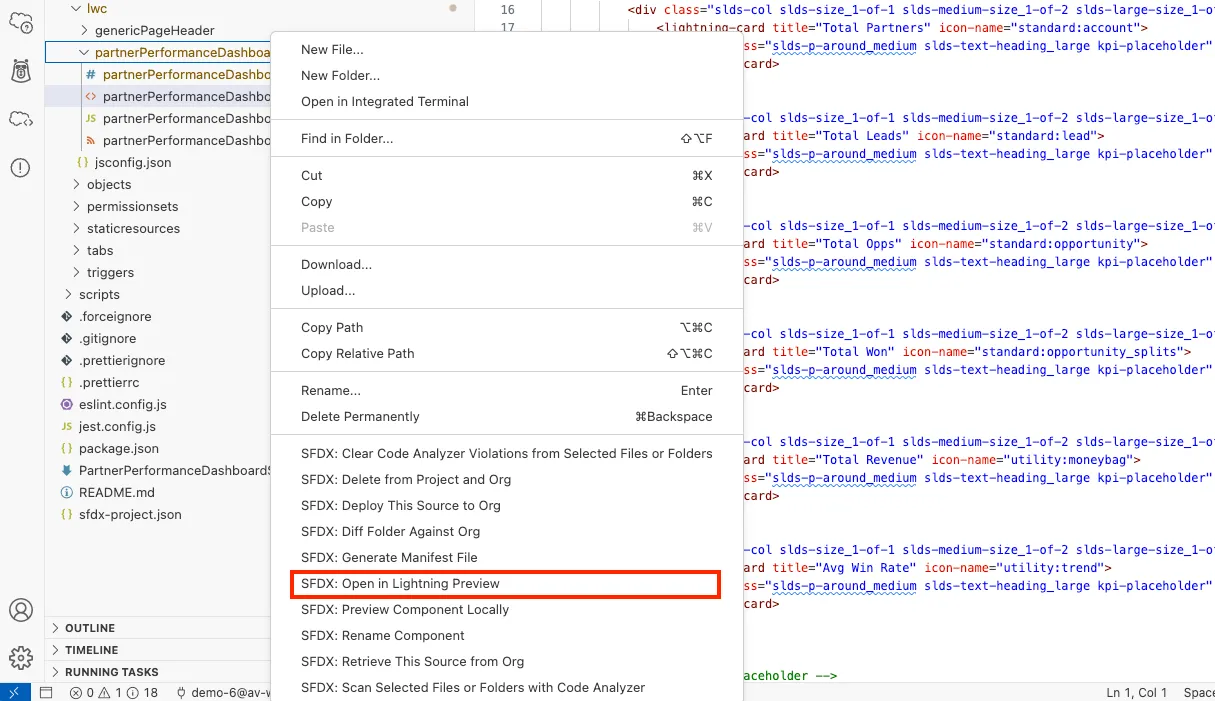
✓ Task CompletedOpen the Explorer Sidebar and locate the new Lightning Web Component.
Right click the folder and click on SFDX: Open in Lightning Preview.
TIP
If the component does not load, you may need to Reload the window by opening the command pallet and searching for
Reload Windowand hit enter. If you still don’t see the component, you can always copy thepreviewUrlshown in the terminal and paste it into a new browser tab.
Add Data to the Component
Click the + button in the Agentforce Vibes Sidebar to start a new task.
Ensure the mode toggle is set to Act.
Enter the following prompt:
Use the existing PartnerPerformanceDashboard LWC and the full project description in @/PartnerPerformanceDashboardSpec.md to connect real data: create the Apex service class and @AuraEnabled(cacheable=true) method described in the spec, query and aggregate Account, Lead, and Opportunity data using only existing fields and metadata, and wire this method into the LWC so the KPI tiles and detail table show live partner performance (including loading, empty, and error states). Update the component, tab, and Partner_Management permission set behavior as needed to match the plan in @/PartnerPerformanceDashboardSpec.md, but do not introduce any new custom fields.Approve file access when prompted.
Wait for the confirmation message
✓ Task CompletedDeploy the Apex Class by pasting in the following prompt:
Deploy the new apex class to the Salesforce org associated to this project.Verify the component fetching data correctly using the Lightning Preview.

In the Agentforce Sidebar, suggest a change to the dashboard. It can be something simple like renaming the metrics, the dashboard or asking to move the table to the top.
Can you rearrange the metrics.Wait for the confirmation message
✓ Task Completed
Step 3: Deploy your app
Click + in the Agentforce Vibes Sidebar.
Enter the following prompt:
Deploy the full app to my target org.Approve the deployment.
TIP
If there are any deployment errors you can use Agentforce vibes to help debug the changes.
Wait for the confirmation message
✓ Task Completed
Step 4: Test your app in Salesforce
Click + to start a new task.
Enter the following prompt:
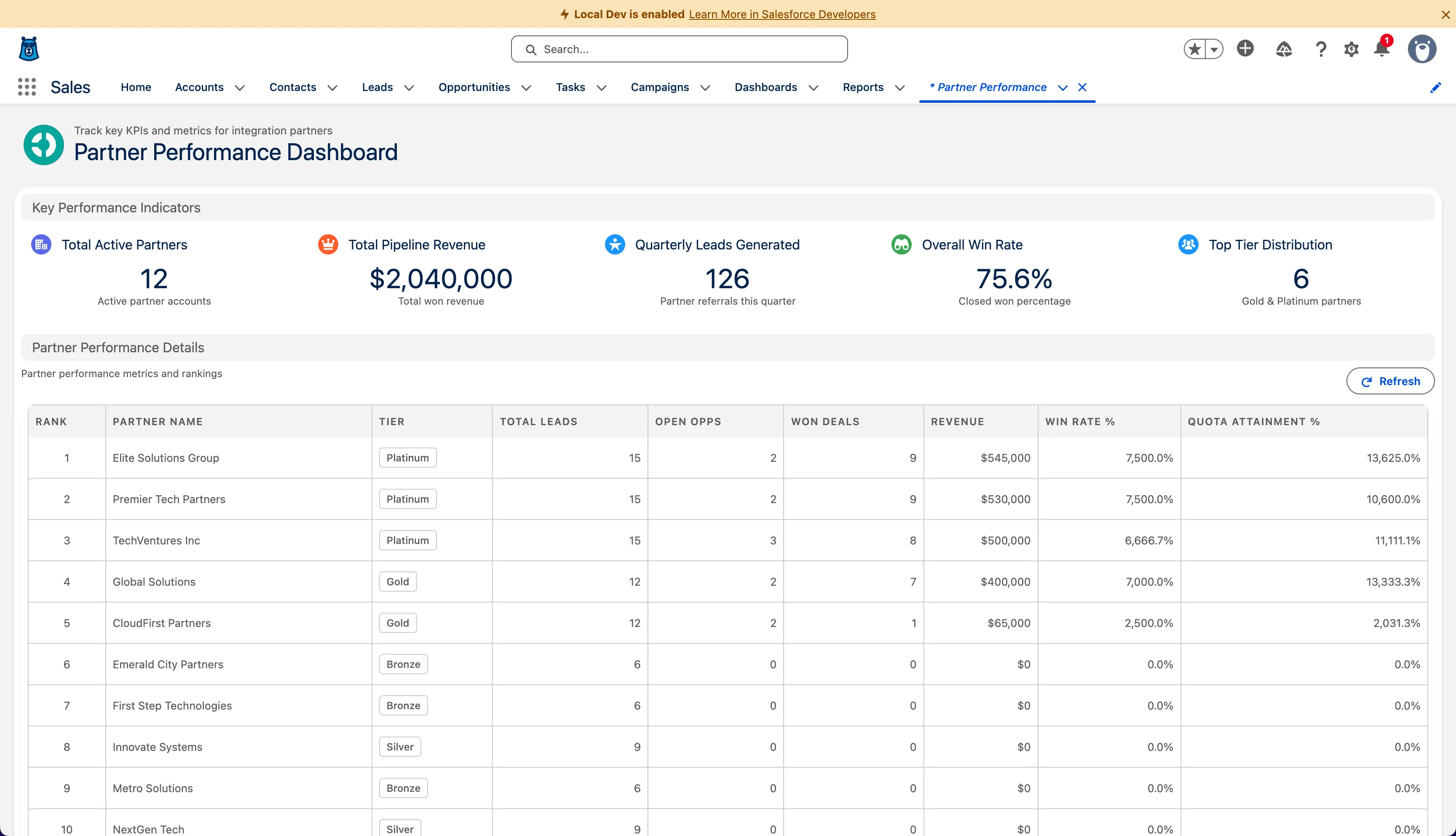
Open the Partner Performance Dashboard tab in local dev mode for desktop using org.Approve when prompted.
Open the preview link.
Validate dashboard metrics and layout.
Wait for the confirmation message
✓ Task Completed
Step 5: Enhance the Dashboard
Back in Agentforce Vibes, Open the Agentforce Sidebar and Click + to start a new task.
Enter the following prompt:
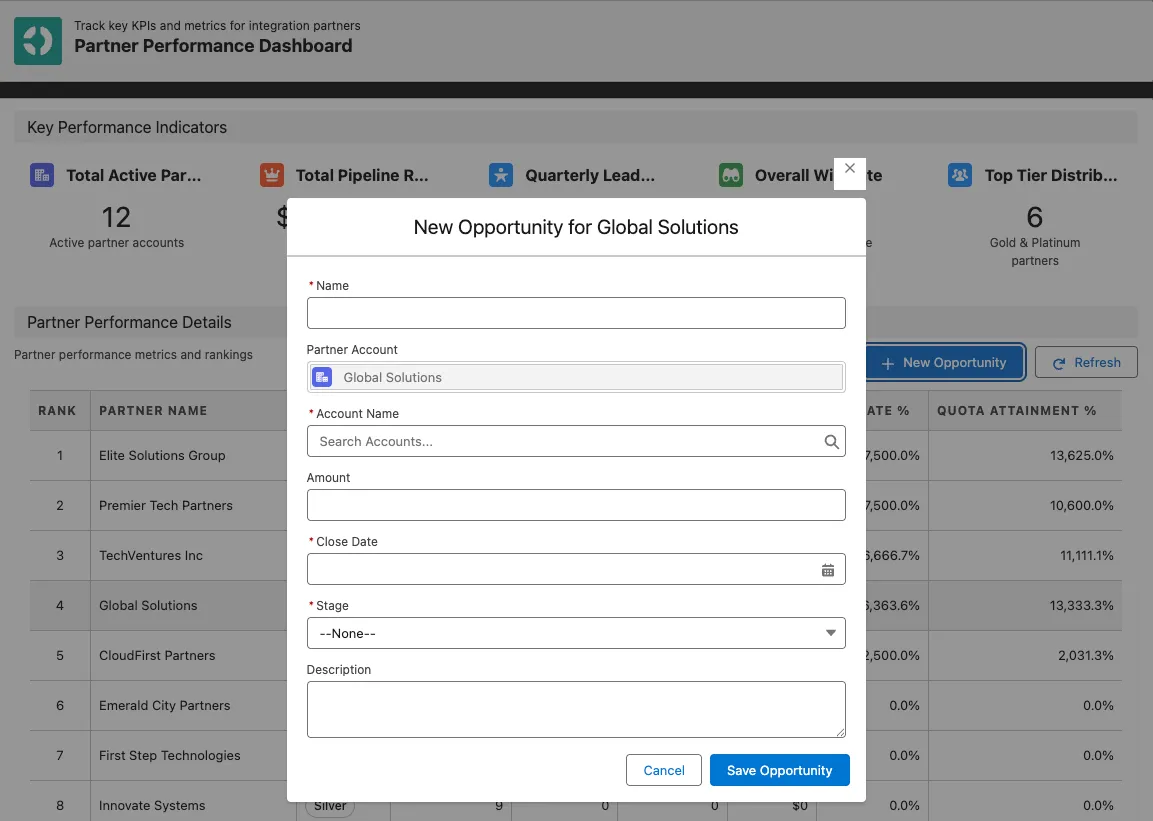
Enhance the existing PartnerPerformanceDashboard LWC (based on @/PartnerPerformanceDashboardSpec.md) so that a user can create a new Opportunity for one of the partner Accounts listed in the table: allow the user to select a row in the partner performance table, add a “New Opportunity” button that becomes enabled when a partner is selected, and when clicked open a modal containing a lightning-record-edit-form prefilled with the selected partner’s Account for the new Opportunity. When the Opportunity is successfully saved, close the modal and refresh the dashboard data so the new deal is reflected in the partner’s metrics, using only existing objects, fields, and metadata.Approve file access when prompted and continue to iterate changes when you need.
Enter the following prompt:
Deploy the changes to my target org.Approve the deployment.
Wait for the confirmation message
✓ Task Completed
Summary
In this exercise, you created a complete Partner Performance Dashboard using Agentforce Vibes. You generated a project plan, asked the agent to build the application, previewed the Lightning Web Component in the IDE, deployed the metadata to Salesforce, and tested the dashboard live. By following these steps, you used enterprise vibe coding to plan, generate, deploy, and validate a fully functioning CRM application built from natural language prompts.