
Appearance
Exercise 1: Launch and Configure Agentforce Vibes
In this Exercise, you'll launch Agentforce Vibes and configure it for use.
Step 1: Launch Agentforce Vibes
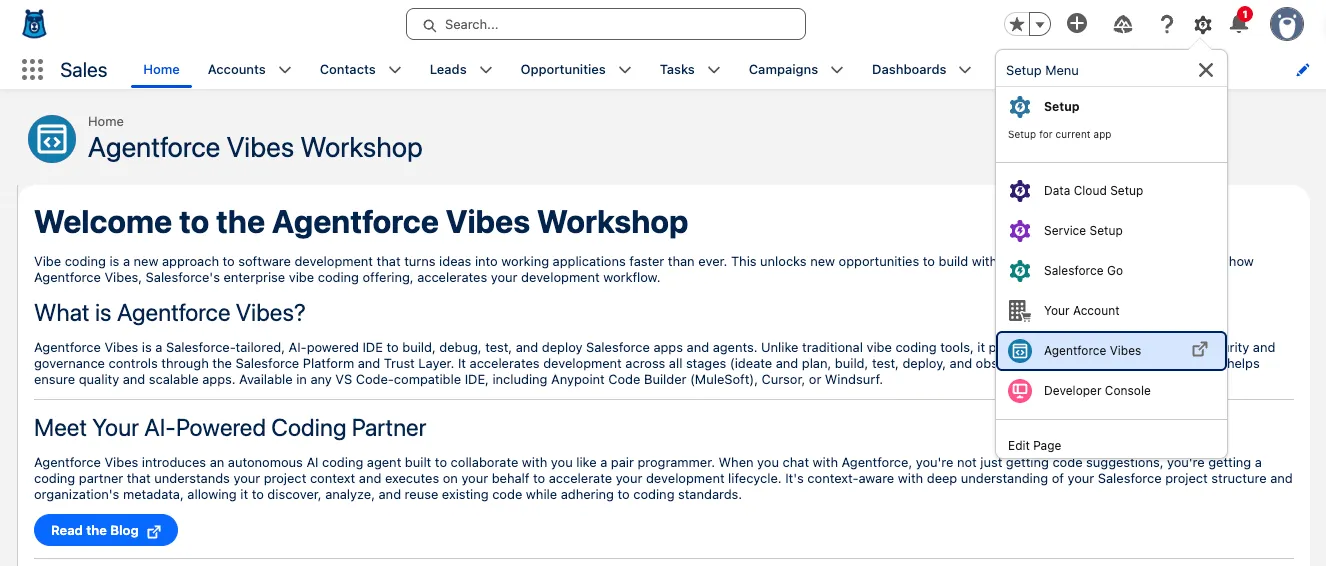
Open the Setup Menu and click Agentforce Vibes.
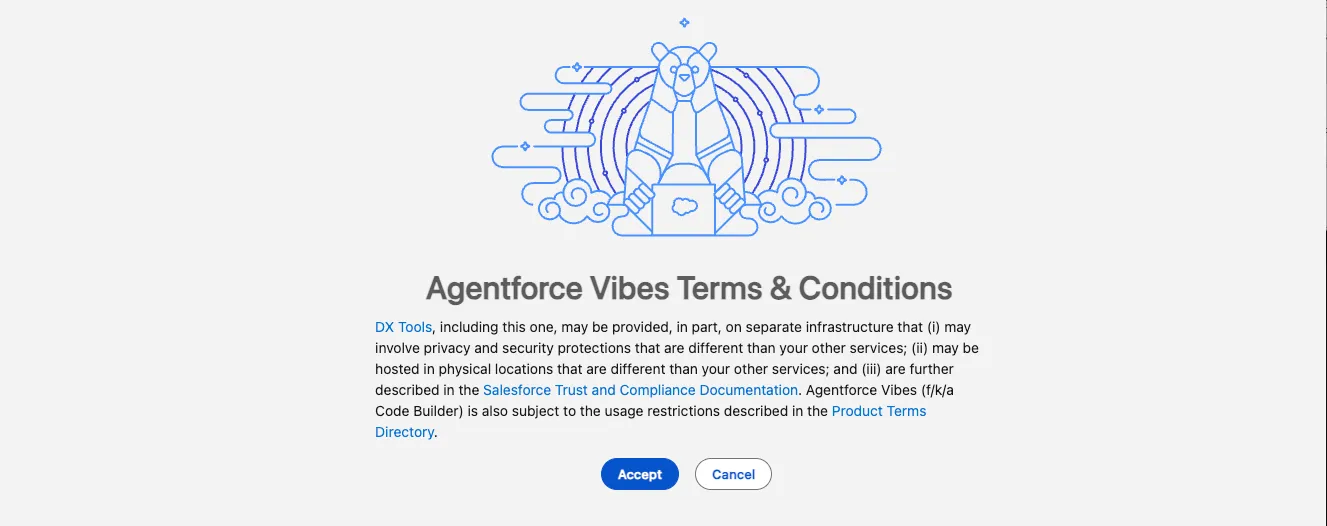
Accept the Terms and Conditions.
TIP
It will take a few minutes for Agentforce Vibes to fully initialize. A Salesforce DX project will be automatically created for you and your org will be authorized by default.
TIP
You may see a large number of notifications in the bottom right of the IDE. This is where any IDE or Extension notifications will be published. You can close any that have appeared on launch.
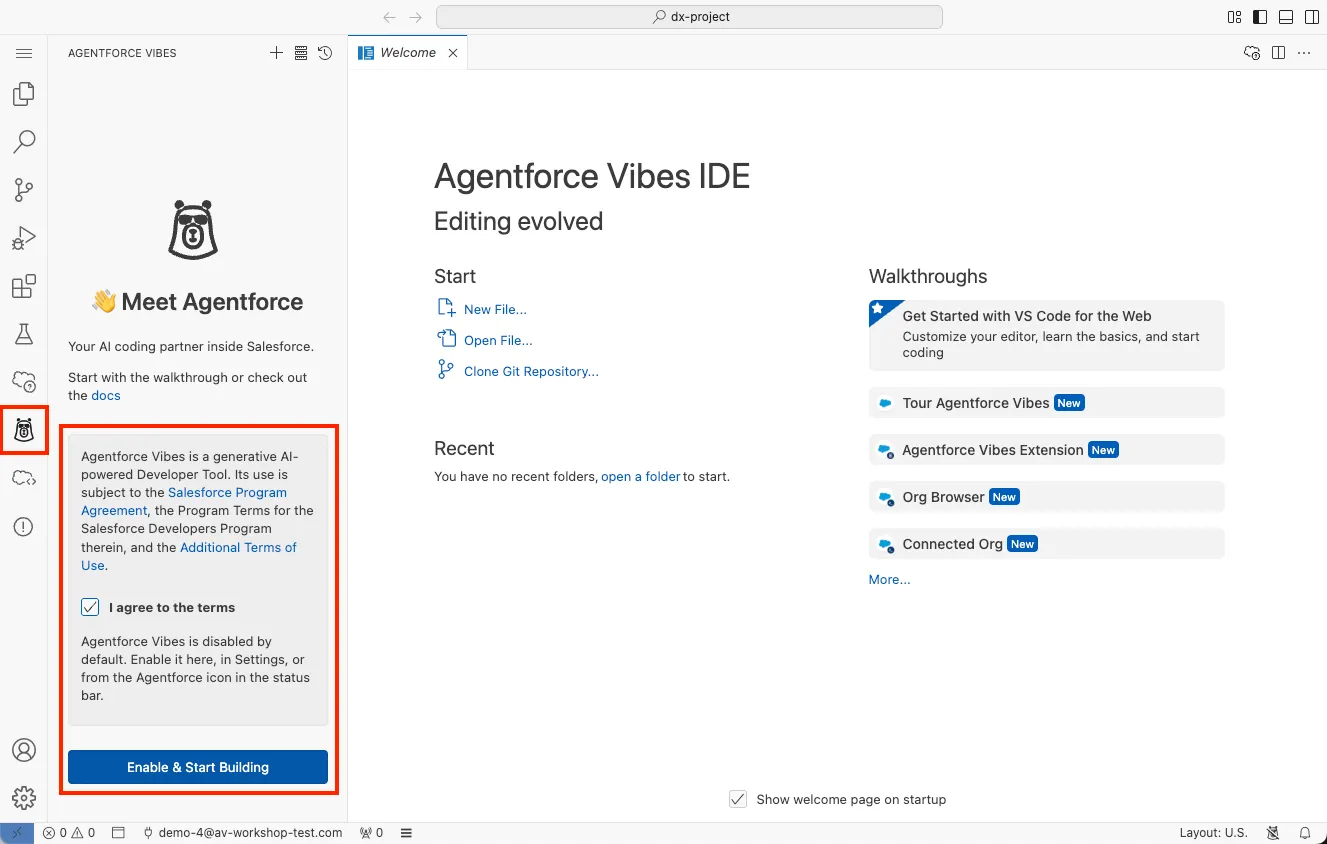
The Agentforce Sidebar should be open by default, if it is not you can select the Agentforce Vibes Icon in the sidebar to open.
Select I agree to the terms and click Enable and Start Building.
Step 2: Get Familiar with the Agentforce Vibes IDE
Open the command palette (press
CMD+SHIFT+Pon Mac orCTRL+SHIFT+Pon PC). Use the Command Palette to access:- Agentforce Vibes commands
- SFDX commands
- Lightning Preview
- Project tools and utilities
(Optional) Change your IDE theme by opening the command palette and searching for
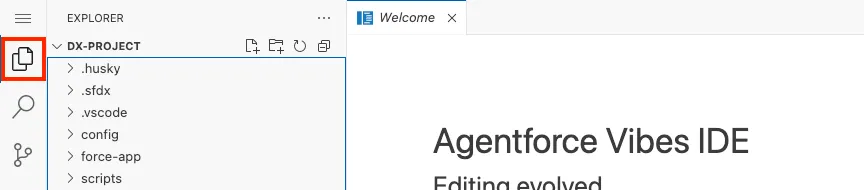
Color Theme. You can navigate down the list with the down arrow key. Then hit return/enter when you would like to select a theme.Open the the Explorer Sidebar to view your project files. This is where all generated Apex classes, Lightning Web Components, and metadata will appear.
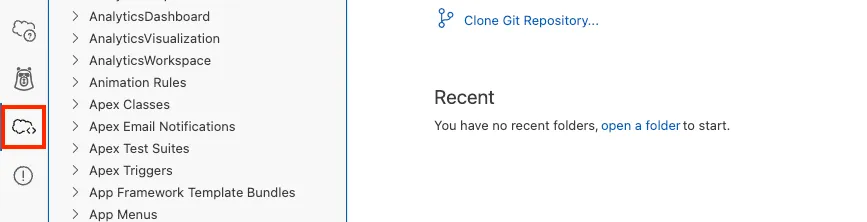
Open the Org Browser Sidebar (click the cloud icon in the Activity Bar or search for
Org Browser: Focus on Metadata Viewin the Command Palette).The Org Browser lets you:
- Browse metadata in your org
- Expand objects, fields, Apex classes, and LWCs
- Download metadata directly into your SFDX project
TIP
Downloaded metadata gives Agentforce Vibes the context it needs for accurate planning and code generation.
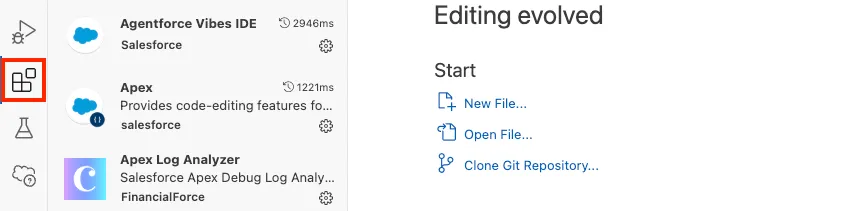
Open the Extensions Sidebar to confirm the Salesforce Extension Pack is installed.
This includes tools for:
- SFDX commands
- Org Browser
- Lightning Preview
- MCP support
Open the Integrated Terminal (press
CTRL+`on both Mac and Windows).You can use this terminal to:
- View output from SFDX commands
- Run optional CLI commands
- Inspect logs or deployment messages
Check the Status Bar at the bottom of the IDE.
The Status Bar shows:
- Your authorized org
- Active project
- Lightning Preview activity
- MCP server status
TIP
If something appears to be “stuck,” the Status Bar is usually where you'll see what the IDE is waiting on.
Summary
In this exercise, you launched Agentforce Vibes and activated it in your Salesforce org. You walked through the initial setup flow, enabled the agent, and confirmed that your development environment and sidebar were initialized correctly. With Vibes now running inside your IDE, you’re ready to begin exploring the tools and features that support AI-assisted development.