You’ve likely hit this performance wall before or know someone who has. Standard object storage starts creeping toward its limits. Queries slow down. Compliance asks for seven years of audit history. An Internet of Things (IoT) integration wants to push ten thousand events a minute. The platform wasn’t designed to take that load on transactional objects, and you start wondering if you’re supposed to move everything off-platform just to keep up.
Well, you don’t have to. Big Objects were built for exactly this scenario. In this post, we’ll look at what makes them tick and explore how to avoid the design traps that bite most developers.
What are big objects?
A big object is a specialized Salesforce object designed to store hundreds of millions, or even billions of records, without degrading query performance. Unlike custom objects, they don’t count against your org’s standard storage limits. They end in __b instead of __c, and that one character signals a fundamentally different contract with the Salesforce Platform.
With the growing conversation around Data 360, some developers assume that the Big Objects feature is on its way out. That is not the case. Big Objects continues to be the right tool for high-volume, append-heavy, write-once-query-later workloads, and it is still the only native tool that can handle that level of scale.
There are two types of big objects:
- Standard Big Objects: These are predefined by Salesforce and cannot be customized. An example is
FieldHistoryArchiveused by Field Audit Trail. - Custom Big Objects: These are defined by developers through the Setup UI or the Metadata API. That’s where most of the interesting work happens.
Adopting big objects means accepting strict trade-offs. For example, you lose platform automation (no triggers or flows) and out-of-the-box UI (no standard reports, list views, or sharing rules), and frontends require custom Lightning web components (LWC). Big objects are not transactional database tables, instead they are a durable, queryable ledger. Once you adopt that framing, they become an incredibly powerful tool.
Big Objects can be used to implement advanced architectural patterns. Let’s take a look at a pattern that captures and logs your org’s platform events using a big object, for improved traceability and error handling.
Architectural pattern with big objects: Payload capture and replay
Modern Salesforce orgs act as integration hubs. Platform events stream in from Enterprise Resource Planning (ERP) systems. Outbound callouts push data to marketing platforms, and webhooks arrive from payment gateways. Platform events are retained only briefly — up to 72 hours for high-volume platform events. When things fail, payloads can disappear silently as the platform event bus moves on. The data is effectively gone.
In this pattern, you write a copy of every platform event that your org publishes to a big object before any business logic runs, so the big object becomes a durable ledger of every event that has crossed the platform event bus. A platform event Apex trigger subscribes to the event (or a platform event–triggered flow) and persists it to the big object. There’s no extra publishing step, you simply log the event that you already received. After an event is captured and processed, if anything fails, the error details are written to a lightweight custom object. This improves error visibility and lets failures be replayed automatically.
The flowchart below shows integration traffic captured to the IntegrationPayloadLog__b big object before processing, failures logged to the IntegrationError__c custom object, and a daily batch job replaying failed payloads. The two objects are linked by EventUuid__c.
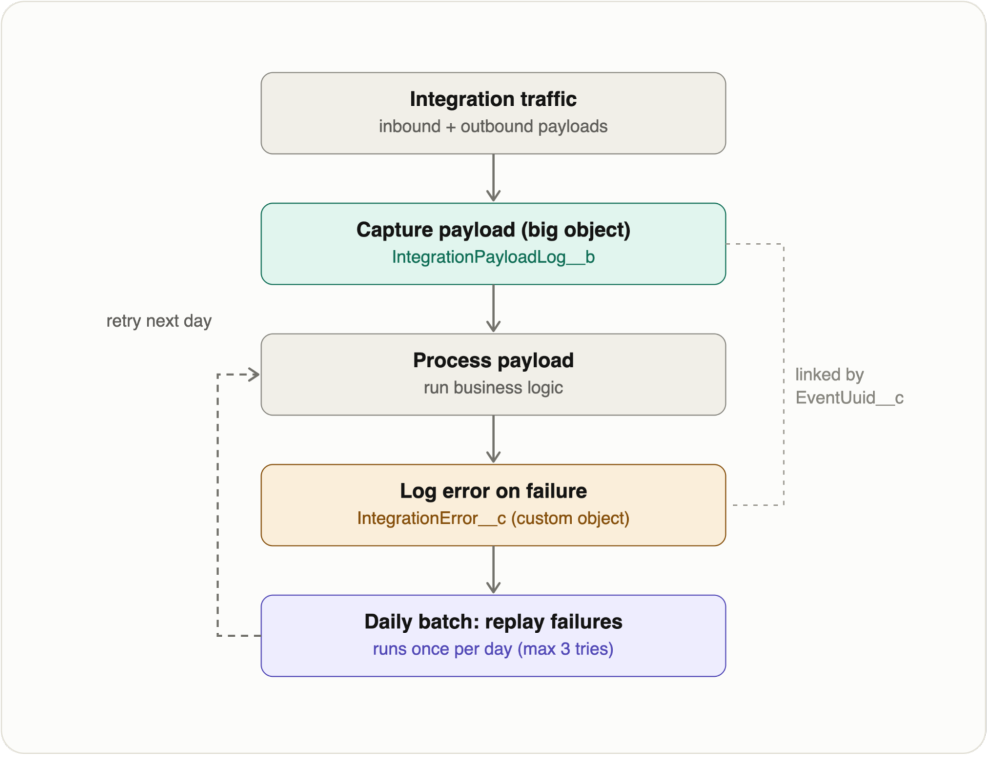
Let’s take a look at how to build this flow in six steps: define each of the two objects, capture every payload, log failures, automate retries, and add visibility.
Step 1: Define the Integration Payload Log big object
A robust payload log requires a well-structured big object schema. For instance, a big object like IntegrationPayloadLog__b can capture essential data. Key fields include:
IntegrationName__c: A label for the integration or channel (for example, ERP_Inbound) and part of the composite indexTransactionId__c: The source system’s correlation or transaction ID, when one is availableEventUuid__c: The platform event’s globally unique ID, linking the record back to the original event and leading the composite indexTimestamp__c: When the payload was capturedDirection__c: Whether the payload was Inbound or OutboundPayloadBody__c: The raw request or response body, stored as a Long Text Area
Because this pattern logs platform event traffic, we store the platform event’s EventUuid__c. EventUuid__c is a system-generated, globally unique identifier that Salesforce assigns to each platform event upon publishing. Storing it on your big object gives you an unbreakable link between the durable payload record and the original event on the platform event bus.
Something key in this architectural pattern is to design your composite primary index right. The composite primary index is the only entry point into your big object. Queries must filter on indexed fields as full table scans don’t work at this scale. The mistake that most developers make is designing the index around what the data looks like. Instead, design it around the question you’ll ask most often.
For instance, if you want to build a system in which the core question is, “Give me the exact payloads for these specific failed events,” then the composite index should become EventUuid__c → IntegrationName__c. Set the most highly selective identifier first (the UUID), followed by the integration name. This order can map directly to the WHERE clause in SOQL queries to retrieve specific records.
Designing the composite primary index is the most important design decision that you’ll make, and unlike almost everything else on the platform, you can’t change it after deployment.
Step 2: Define the Integration Error custom object
Next, you define a lightweight custom object — for example, IntegrationError__c — specifically for capturing platform event processing failures. To ensure that your support team has exactly what they need to troubleshoot and retry the payload, we recommend creating the following fields on this custom object:
IntegrationName__c: Name of the integrationEventUuid__c: The shared ID linking directly to theEventUuid__con the big object recordException_Type__c: The specific class of error (e.g.,CalloutException,DmlException)Error_Message__c: The detailed system error messageStack_Trace__c: The developer stack trace for deep debuggingFailed_Record_IDs__c: A text field capturing the specific Salesforce record IDs that failed during processingStatus__c: A picklist (e.g., Open, Retrying, Resolved) to manage the recovery workflowRetryCount__c: Number of times the error is reprocessed
At first glance, creating two separate objects might seem redundant. Why not just track errors in the big object? The answer comes down to the fundamental differences between big objects and standard custom objects. Think of IntegrationPayloadLog__b as your Universal Ledger (the filing cabinet that permanently stores everything) and IntegrationError__c as your Action Queue (the daily to-do list for your support team).
Here is the breakdown of when to use what:
- IntegrationPayloadLog__b (The Ledger):
- What it stores: Every payload, regardless of success or failure. It holds the heavy, bulky JSON/XML data.
- Volume: Millions to billions of records.
- Platform features: No standard UI, no list views, no declarative automation (flows/triggers). It is strictly for massive-scale storage and code-based retrieval.
- IntegrationError__c (The Action Queue):
- What it stores: Only the failures. It is extremely lightweight and does not store the heavy payload, it only stores error metadata and a pointer (
EventUuid__c) back to the big object. - Volume: Hundreds to thousands of records (only your active, unresolved errors).
- Platform features: Full Salesforce Platform power. You get standard list views, reportable error trends, and flow-driven escalations.
- What it stores: Only the failures. It is extremely lightweight and does not store the heavy payload, it only stores error metadata and a pointer (
By splitting the architecture, the custom object gives you everything that big objects lack (visibility and automation). When reprocessing is needed, your retry logic queries the custom object for open errors, uses the UUID to retrieve the massive payload from the big object, and replays it. This separation keeps your human-facing error management inside the platform’s declarative tooling while preserving Big Objects as your high-volume storage engine.
Step 3: Capture the payload (the code)
Here’s the capture step for an inbound platform event. The trigger writes each event to the big object before any downstream logic runs.
1trigger OrderEventCaptureTrigger on Order_Event__e (after insert) {
2
3    List logsToInsert = new List();
4
5    // 1. Map each incoming platform event to a big object record
6    for (Order_Event__e event : Trigger.new) {
7        logsToInsert.add(new IntegrationPayloadLog__b(
8            EventUuid__c       = event.EventUuid,    // Index field 1
9            IntegrationName__c = 'ERP_Inbound',      // Index field 2
10            Direction__c       = 'Inbound',
11            Timestamp__c       = System.now(),
12            PayloadBody__c     = event.Payload__c    // The raw JSON/XML message
13        ));
14    }
15
16    // 2. Persist to the big object BEFORE any business logic runs.
17    //    insertImmediate commits immediately, so the payload is safely
18    //    stored even if processing later fails.
19    if (!logsToInsert.isEmpty()) {
20        Database.insertImmediate(logsToInsert);
21    }
22
23    // 3. Now run the business logic. The processor handles each event in a
24    //    try/catch and writes any failures to IntegrationError__c,
25    //    linked back to the stored payload by EventUuid__c.
26    OrderEventProcessor.process(Trigger.new);
27}
The trigger does two things in order: it captures every event to the big object, then hands the same events to OrderEventProcessor.process() (shown in the next step) to run the business logic. Because Database.insertImmediate() commits the big object record immediately — outside the normal Apex transaction, so it can’t be rolled back — the payload survives even if processing throws later. That’s the whole point of capturing before the logic runs.
When managing records across both standard custom objects and big objects, it is important to understand their different DML requirements. While standard objects rely on typical DML operations like update, Big Objects does not support the update statement at all. Instead, they require the specialized Database.insertImmediate() method. To modify an existing record in a big object ledger, you simply insert a new record with the exact same Composite Primary Key. The system treats this as an upsert, overwriting the non-indexed fields with your new values without raising a duplicate error.
Step 4: Log the errors
When processing of a platform event fails, you write the error details to IntegrationError__c. The shared EventUuid__c lets your team trace the error to the exact platform event, and you can then pull the exact payload from the big object for reprocessing.
How you detect a failure depends on where the processing runs:
- Apex: Wrap the processing logic in
try/catchand create theIntegrationError__crecord in the catch block - Flow: Add a Fault path to any element that can fail, and create the error record there
In every case, store the same EventUuid__c so the error points back to the exact payload in the ledger. Here’s the Apex version, where a shared IntegrationReplayService.handle() method holds the actual processing logic:
1public class OrderEventProcessor {
2
3    // Runs AFTER the payload has been captured to the big object
4    public static void process(List events) {
5        List errors = new List();
6
7        for (Order_Event__e event : events) {
8            try {
9                // Business logic that may fail: parsing, DML, callouts, etc.
10                IntegrationReplayService.handle(event.Payload__c);
11            } catch (Exception ex) {
12                // Record the failure, linked to the payload by EventUuid__c
13                errors.add(new IntegrationError__c(
14                    IntegrationName__c = 'ERP_Inbound',
15                    EventUuid__c       = event.EventUuid,
16                    Exception_Type__c  = ex.getTypeName(),
17                    Error_Message__c   = ex.getMessage(),
18                    Stack_Trace__c     = ex.getStackTraceString(),
19                    Status__c          = 'Open',
20                    RetryCount__c      = 0
21                ));
22            }
23        }
24
25        if (!errors.isEmpty()) {
26            insert errors;   // Standard DML on the custom object
27        }
28    }
29}
Step 5: Automate error recovery and retries
To maintain data integrity, resilient systems rely on automated mechanisms to periodically query for failures and attempt reprocessing. Now that our failures are neatly tracked in IntegrationError__c, we can use Batch Apex to drive our automated retry logic.
Driving the retry process from your custom error object, rather than querying the big object directly, is highly scalable. Standard custom objects support clean Batch Apex chunking and governor limit management. Your batch job simply queries the Action Queue for open errors and only queries the massive big object ledger when a payload actually needs to be reprocessed.
Schedule PayloadRetryBatch to run once a day — say, at 2:00 a.m — using a scheduled Apex class. Each run picks up every error still marked Open with fewer than three attempts, pulls the matching payload from the ledger by EventUuid__c, and replays it. If a payload succeeds, its error is marked Resolved. If it fails again, RetryCount__c is incremented and the record stays Open, so the next day’s run retries it. After three failed attempts it’s marked PermanentFailure and skipped, so a persistently broken payload can’t loop forever.
Here is what the Batch Apex pattern looks like:
1public class PayloadRetryBatch implements Database.Batchable {
2
3    public Database.QueryLocator start(Database.BatchableContext BC) {
4        // 1. Drive the logic from the standard custom object (The Action Queue)
5        return Database.getQueryLocator([
6            SELECT Id, EventUuid__c, RetryCount__c
7            FROM IntegrationError__c
8            WHERE Status__c = 'Open'
9            AND RetryCount__c < 3
10        ]);
11    }
12
13    public void execute(Database.BatchableContext BC, List scope) {
14        List errorsToUpdate = new List();
15
16        // 2. Gather the single key field (EventUuid__c) to retrieve the heavy payloads
17        Set eventUuids = new Set();
18
19        for (IntegrationError__c err : scope) {
20            eventUuids.add(err.EventUuid__c);
21        }
22
23        // Retrieve the payloads from the Ledger using the EventUuid__c index
24        List payloads = [
25            SELECT EventUuid__c, PayloadBody__c
26            FROM IntegrationPayloadLog__b
27            WHERE EventUuid__c IN :eventUuids
28        ];
29
30        // Map payloads by EventUuid__c for easy access
31        Map<String, IntegrationPayloadLog__b> payloadMap = new Map<String, IntegrationPayloadLog__b>();
32        for (IntegrationPayloadLog__b p : payloads) {
33            payloadMap.put(p.EventUuid__c, p);
34        }
35
36        // 3. Attempt to reprocess each failed payload
37        for (IntegrationError__c err : scope) {
38            IntegrationPayloadLog__b originalPayload = payloadMap.get(err.EventUuid__c);
39            if (originalPayload == null) {
40                continue; // Payload not found; leave the error Open for investigation
41            }
42
43            try {
44                // Re-run the SAME logic the original handler uses, with the stored payload
45                IntegrationReplayService.handle(originalPayload.PayloadBody__c);
46                err.Status__c = 'Resolved';
47            } catch (Exception ex) {
48                // Failed again — increment and let the next daily run pick it up
49                err.RetryCount__c += 1;
50                err.Error_Message__c = ex.getMessage();
51                if (err.RetryCount__c >= 3) {
52                    err.Status__c = 'PermanentFailure';
53                }
54            }
55            errorsToUpdate.add(err);
56        }
57
58
59        // 4. Commit changes to both systems
60        if (!errorsToUpdate.isEmpty()) {
61            update errorsToUpdate;     // Standard DML for the custom object
62        }
63    }
64
65    public void finish(Database.BatchableContext BC) {
66        // Optional: Send notifications for any records that reached PermanentFailure
67    }
68}
Because big object queries rely entirely on your composite primary index to handle massive data volumes, your WHERE clauses are strictly governed. Standard SOQL only permits direct matches or range filters (=, <, >, <=, >=, and IN). By structuring the batch job to collect a consolidated list of identifiers into sets, we can fully leverage the IN operator to query our EventUuid__c index field efficiently.
It’s worth understanding how this rule scales when your index has two or more fields. You don’t have to filter on every index field in every query; you can use any leading subset of your index fields, as long as you respect the order in which they were defined. In this pattern, the composite index is EventUuid__c → IntegrationName__c. That means two valid query shapes are supported:
1// Valid — filters on the first index field only
2WHERE EventUuid__c IN :eventUuids
3
4// Also valid — filters on both index fields, in order
5WHERE EventUuid__c IN :eventUuids AND IntegrationName__c = 'ERP_Inbound'
6
7// Invalid — skips EventUuid__c and jumps straight to IntegrationName__c
8WHERE IntegrationName__c = 'ERP_Inbound'
The retry batch uses the first shape — filtering on EventUuid__c alone — because the UUID is precise enough to locate the exact records needed. If you ever needed to narrow a query further (for example, to isolate a specific integration channel), you could add IntegrationName__c as a second filter and the query would remain valid. What you can never do is filter on a later index field while omitting an earlier one — the platform enforces strict left-to-right ordering, and any violation returns an error at runtime.
Step 6: Ensuring system observability
For daily monitoring, use standard list views on your IntegrationError__c object. Build an LWC to add deep payload inspection and one-click replay capabilities. The LWC should list open failures from IntegrationError__c and fetch the full payload from the big object by EventUuid__c on demand, with a Retry Now button. To track operational metrics like failure rates, build reports and dashboards on IntegrationError__c. Finally, fire a proactive notification when a record reaches PermanentFailure, so your team doesn’t discover dropped payloads by accident.
The same pattern, across every domain
After you’ve built this once, you’ll start seeing the same shape everywhere. Use a big object wherever you need to write at high volume, hold data durably, and query on a predictable access pattern.
- Telecom / call detail records (CDRs): Carriers use big objects for call detail records, where billions of immutable, subscriber-keyed events need to be queryable for billing and retained for regulatory compliance
- Financial services / transaction history: Write-once records, queried by account and date range, are retained for years without nightly batch jobs copying data into standard objects
- IoT / device telemetry: High-frequency sensor readings, indexed by device ID and timestamp, are fed into CRM Analytics to surface health trends to service teams
- SaaS metered billing: Every API call and feature activation written to a durable ledger is rolled up on a schedule, with full history available if a charge is ever disputed
- Marketing engagement history: Email sends, opens, and clicks are stored at scale and queryable by campaign or subscriber, without bloating transactional objects, and are ready to feed into Data 360 for attribution modeling
In all of these cases, the index question is the same: what filter will you apply most often? Start there, and the schema design follows naturally.
Big object limits and constraints
Note, in addition to the behaviour we already described, Big Objects have the following limits to take into account:
- Each org supports up to 100 big objects
- Field types are limited to Text, Number, DateTime, Lookup, Email, Phone, URL and Long Text Area — no picklists, formulas, or checkboxes
- Fields cannot be deleted after creation
- Triggers, flows, and Process Builder don’t fire on big object records
These aren’t blockers, but they make upfront planning non-negotiable.
Conclusion
Big Objects isn’t a legacy feature waiting to be replaced. It’s a precision tool for a specific class of problem, and that problem keeps getting bigger. The payload capture system above is a starting point, but the same principles apply anywhere you need platform-native, durable, high-scale data storage.
Salesforce is also working on deeper integration between Big Objects and Data 360, which will make high-volume, on-platform data an even more powerful foundation for real-time analytics and AI-driven workflows. Keep an eye on the Salesforce Product Roadmap for upcoming Big Object and Data 360 integration capabilities.
Have questions or want to share how you’re using big objects? Join the conversation in the
Salesforce Developer Community or on Salesforce Stack Exchange.
Resources
- Implementation Guide: Big Objects
- Apex Reference: Database Class
- Trailhead: Large Data Volumes
- Developer Guide: CRM Analytics
- Developer Guide: Platform Events
About the author
Laxman Vattam is a Senior Technical Architect at Salesforce focused on AI enablement, digital transformation, and large-scale platform modernization. He has spent over a decade designing scalable architectures for regulated industries. You can follow Laxman on LinkedIn.