Upgrading a tech stack is rarely anyone’s favorite project, especially when it involves tedious, manual work. Previously, migrating your Omnistudio components from a managed package runtime to the Omnistudio standard runtime meant facing a mountain of manual steps. It was notoriously time-consuming, frustrating, and error-prone.
Nevertheless, the Omnistudio standard runtime is the future, offering new innovations and faster performance. Whether you’re migrating from a Vlocity Industries managed package or the Omnistudio Foundation package, the standard runtime removes the need for managed package installations. And now you can simplify this process. The Omnistudio Migration Assistant (OMA) tool is specifically designed to automate the heavy lifting, making your move to the standard runtime fast and simple.
Note: Package uninstallation is not recommended as existing org workflows and custom components may still rely on package schema or underlying metadata.
Omnistudio evolution: From managed packages to the standard runtime
Before we dive into the “how,” let’s review a brief history of where Omnistudio started, where it’s going, and where you might fit in:
Before the acquisition: Initially, customers were dependent on Vlocity Industries managed packages, such as Communications, Media, and Energy (CME), Insurance, and Public Sector, to use Omnistudio components on the Vlocity Industries managed package runtime.
After the acquisition: Following the acquisition, these Vlocity Industries managed packages remained, but the Omnistudio Foundation package was created for customers using solutions like Financial Services Cloud (now Agentforce Financial Services) or Health Cloud (now Agentforce Health). Now, some customers are on the managed package runtimes and some are on the standard runtime.
The future: Our goal is to bid goodbye to the managed packages and their runtimes and move toward a package-free Omnistudio experience by transitioning all customers to the Omnistudio standard runtime.
Benefits of migrating to the standard runtime
Here are the benefits of making the switch to the Omnistudio standard runtime:
Massive performance gains
Who doesn’t want a faster system? Moving to the Omnistudio standard runtime delivers incredible runtime performance gains for your end-users on the Salesforce platform. Depending on your configuration, your runtime architecture will execute 2x to 5x faster, with Flexcards delivering up to 5x better performance, Integration Procedures processing data up to 4x faster, Data Mappers providing up to 3x faster data mapping and transformation, and Omniscripts delivering up to 2x faster interactive guided experiences.
Note: All data presented above is derived from internal testing, which showed that execution averaged 2112 ms on the standard runtime versus 5061 ms on a managed package runtime.
Zero functionality loss
The standard runtime completely supports all critical business functions, providing a faster experience with no compromise on capability.
Access to the latest innovations
Business logic and components can transition directly to the standard runtime, which offers a more native experience within the Salesforce platform, reducing the overhead typically associated with managed packages.
Staying on a managed package runtime means you risk missing out on the new product innovations, including Agentforce integration for your Integration Procedures, design assistance, and Lightning Web Runtime (LWR) support for your Experience Cloud implementations.
Simplified deployment
Deploying changes is significantly easier. Standardized Salesforce CLI-based deployments replace the older, complex Vlocity build tools. This reduces the time and complexity of your deployments, ensuring that future patches, bug fixes, and upgrades are smooth.
Find your transition path
Every business has a slightly different setup. Use the following table to identify the transition path for your specific setup:
| Customer Segment | Current Setup | Transition Path |
| Vlocity Industries managed packages (CME, Insurance, and so on) | Custom data model pointing to the managed package runtime. | Migration required. Use the Omnistudio Migration Assistant (OMA) tool to move to the standard runtime. |
| Omnistudio Foundation packages (Financial Services Cloud, Health Cloud, and so on) | Standard data model pointing to the managed package runtime. | Migration required. Use the OMA tool to move to the standard runtime. |
| Customers on the standard runtime | Already using the standard runtime. | No action needed. The OMA tool is not required. |
Note: Beginning with Summer ’25, Omnistudio is package-free for new customers. Designers and runtime are available natively with supported cloud licenses.
Managed package runtime versus standard runtime
Let’s briefly review the core differences between the managed package runtime and the standard runtime. The runtime describes the look and feel of your configured Omnistudio components:
- Managed package runtime: This legacy environment is highly flexible but relies on an older architecture. It supports both the custom data model (which uses custom objects provided by Industries managed packages) and the standard data model.
- Standard runtime: This is the native, modernized environment on the Salesforce platform. It operates strictly on the standard data model (using standard Salesforce objects) and does not support custom objects from the legacy managed packages.
What is the Omnistudio Migration Assistant (OMA)?
The OMA is a handy Salesforce command-line interface (CLI) plugin built specifically to help you automatically move your Omnistudio components from a custom data model (industry-specific or package-based data structures, such as those from managed packages, where objects and relationships are predefined within the package) to the standard data model (the native Salesforce data structure, using standard objects and custom objects built directly on the platform). It takes the components you’ve already built, such as Flexcards, Omniscripts, Data Mappers, and Integration Procedures, and smoothly shifts them to the standard runtime.
| Custom Data Model | Standard Data Model |
OmniScript__c, Element__c |
OmniProcess, OmniProcessElement |
OmniScriptDefinition__c |
OmniProcessCompilation |
OmniScriptInstance__c |
OmniScriptSavedSession |
DRBundle__c / DRMapItem__c |
OmniDataTransform |
VlocityCard__c / GeneralSettings__c |
OmniUiCard / OmniInteractionConfig |
No one wants to manually update hundreds of components piece by piece. Luckily, the OMA tool automates most of the migration effort. It handles the tedious, repetitive tasks for you, such as automatically updating namespace references and managing complex dependencies. This enables a much faster migration process and significantly reduces the chance of human error.
Using the OMA tool can reduce your team’s manual efforts in migration by 95%. While it handles much of the migration, a few unique items (such as rebuilding older Angular-based components or mapping industry-specific objects) will still need manual attention.
How the migration process works
Migrating your entire system might sound like a massive undertaking, but the process is highly structured and controlled. To make the transition as smooth as possible, let’s understand it in three manageable phases: development, testing, and production.
First things first. Before jumping into the first phase, install the plugin. Open your terminal and install the recommended OMA plugin version: sf plugins install @salesforce/plugin-omnistudio-migration-tool@2.0.0-rc.57
Next, assess exactly where you currently stand and plan how you will migrate. You should never run a migration directly on your live system. Instead, start by creating and refreshing a sandbox from your production org to provide a safe environment for the migration. In this environment, you will set up your detailed test flows and outline all of your critical business workflows to prepare for the move.
Note: Upgrade to the Vlocity Industries managed package version Winter ’26 or later before starting the migration process, regardless of your transition path.
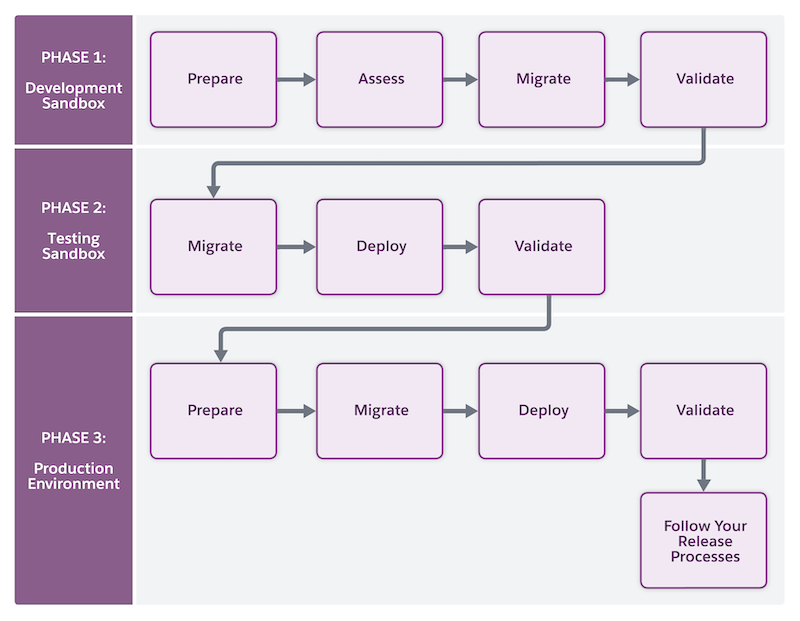
Phase 1: Development (with Assess and Migrate modes)
This is the phase where the OMA really gets to work. It has four steps.
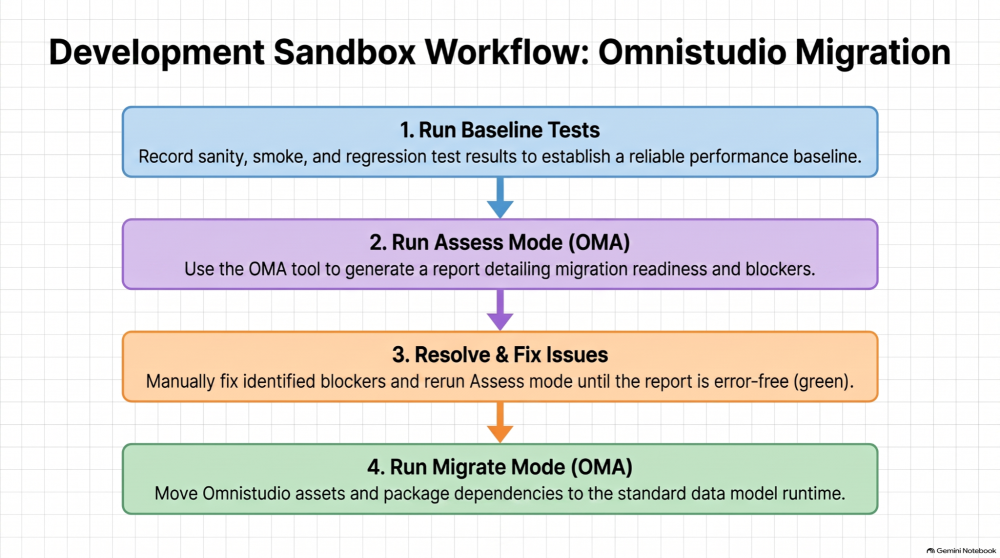
- Run your baseline tests: Before you even touch the OMA tool, you should run your full automation suite, including sanity checks, business workflows, smoke tests, and regressions, and carefully record the results. This gives you a reliable baseline to compare against later.
- Run Assess mode: Next, run the OMA tool in Assess mode. It generates a highly detailed report of your Omnistudio configuration, flagging exactly what needs your attention, such as namespace issues or older Angular-based components. Analyze your components for potential migration blockers without modifying any data. Use the -a flag to assess all component versions:
sf omnistudio:migration:assess -u dev_sandbox_username@domain.com -a
Tip: You can isolate the analysis by appending –only=dm,ip to target specific components.
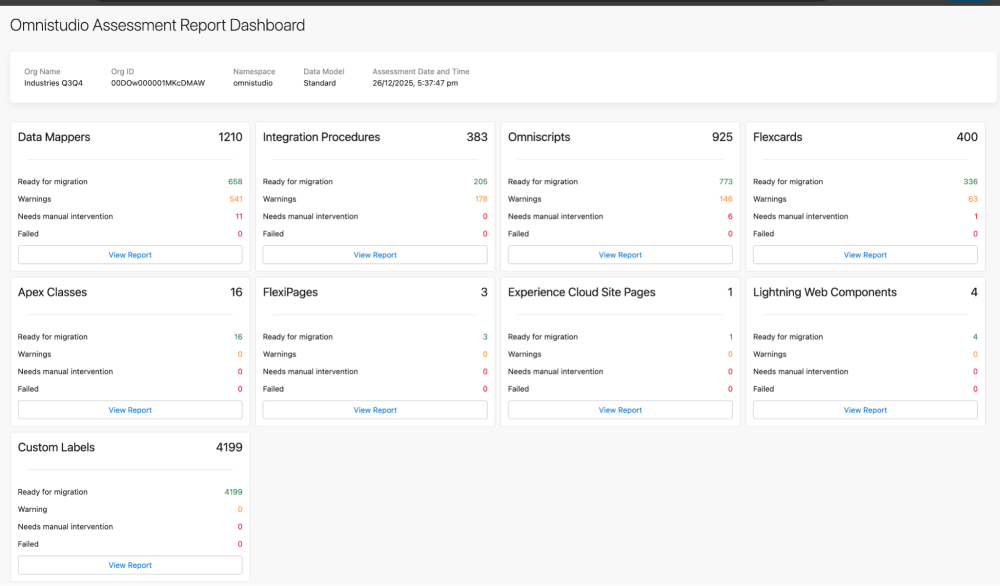
- Fix issues: Now it is time for a little manual intervention. Your team will manually fix the specific issues identified in the assessment report. Once fixed, simply rerun Assess mode until the report comes back completely “green” and error-free.
- Run Migrate mode: With a green light, you can now run the tool in Migrate mode to actually move your components over to the standard runtime. What gets moved depends on your current setup: if your Omnistudio Metadata setting is enabled, the tool will only migrate your package dependencies. If your setting is disabled, the tool will migrate both your Omnistudio assets and the package dependencies. Once your assessment report is green, use the following command to execute the actual metadata migration:
sf omnistudio:migration:migrate -u dev_sandbox_username@domain.com -a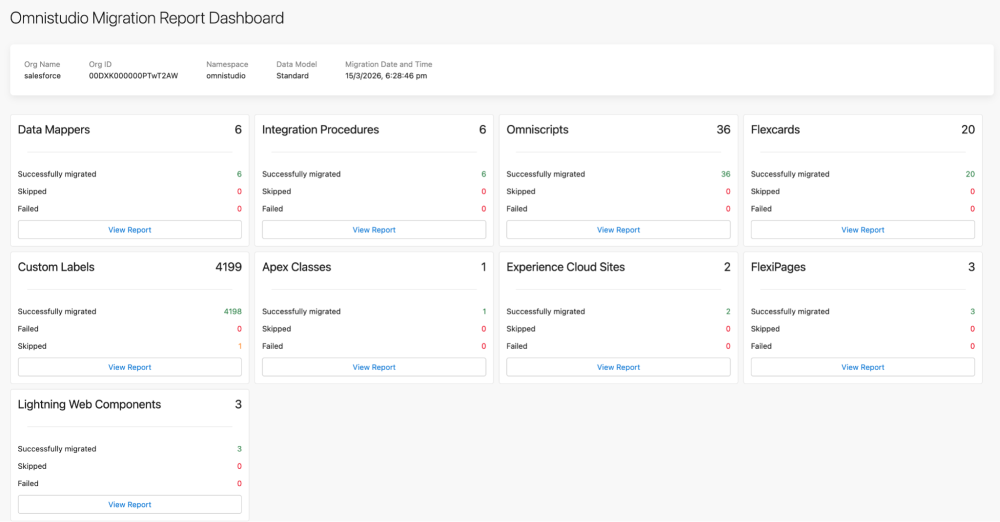
Phase 2: Validation
This phase is all about testing. Once the migration steps are complete in your development sandbox, you’ll deploy those freshly migrated components over to a new, clean test sandbox. In this environment, you need to perform thorough regression testing, running all of the automation test suites you recorded back in Phase 1. This ensures that every single business flow works flawlessly before your users ever see the changes.
Phase 3: Production
You’ve made it to the finish line! After your sandbox and test-environment validations are complete, it’s time to deploy those tested changes into your production environment. Once deployed, you’ll perform a few final readiness checks, like assigning the proper permission sets to your users, and perform post-deployment validation. Congratulations, you’re now officially running on the Omnistudio standard runtime!
Scenario-specific migration process variations
The three-phase migration process described above applies across scenarios, but some steps differ depending on your current managed package and data model configuration.
For customers using Vlocity Industries managed packages with the standard data model, the process looks like:
- Development phase: After upgrading your sandboxes to the latest release and migrating any older calculation logic to the Business Rules Engine (BRE), run the OMA tool in Assess mode. Then, after you have manually resolved any flagged issues, run the tool in Migrate mode to convert your components. Finally, turn off the “Managed Package Runtime” and “Managed Package Designer” settings.
- Validation phase: Here’s the key difference in the validation phase: you only run the OMA tool to move your Omni Global Auto Numbers. For everything else (like Flexcards and Omniscripts), you’ll manually switch your settings to the standard runtime and use standard deployment tools (like VS Code) to push the migrated components over from your development sandbox. Test everything thoroughly.
- Production phase: Prepare your production org by enabling Omnistudio Metadata API support. Just like in the Validation phase, you only run the OMA tool to migrate your Global Auto Numbers. Then, deploy your fully tested components from the test sandbox, switch off the “Managed Package Runtime” and “Managed Package Designer” settings, and validate your live workflows.
For customers using the Omnistudio Foundation package with the standard data model, the migration is a bit more streamlined.
- Development phase: Start by upgrading your Foundation package and moving calculation logic to the BRE. Run OMA in Assess mode, fix any flagged issues manually, and run it again in Migrate mode. The tool will automatically update references and strip away package dependencies for you.
- Validation phase: There’s a notable difference here: Omni Global Auto Numbers aren’t supported in this use case because they don’t exist in the Omnistudio namespace. Because of this, you don’t run the OMA tool at all in this phase. Simply switch your sandbox settings to the standard runtime and use standard deployment tools (like VS Code) to bring your migrated components over from the development sandbox. Run your full suite of regression tests.
- Production phase: In your production org, enable Omnistudio Metadata API support. Switch your settings to the standard runtime, deploy your successfully tested components from the test sandbox, validate your workflows, and you’re officially live on the standard runtime.
Migrate to all-new Omnistudio today
Migrating your Omnistudio components from the managed package runtime to the Omnistudio standard runtime is no longer the daunting, manual chore it used to be. OMA does most of the heavy lifting. Moving to the standard runtime means you can enjoy up to 5x better runtime performance, vastly simplified deployments, and immediate access to cutting-edge features like Agentforce integration.
Don’t let a managed package runtime hold you back from the platform’s latest innovations. Download the OMA tool via the Salesforce CLI and migrate to standard Omnistudio to future-proof your business workflows today.
Resources
- Trailhead: Omnistudio Development Essentials
- Trailhead: Omnistudio Omniscript Fundamentals
- External site: YouTube: Build Low-Code Digital Experiences with All-New OmniStudio | TDX Bengaluru
- Documentation: Migrate Omnistudio Components from Vlocity Industries Managed Packages and Custom Data Model to Omnistudio Standard Runtime
About the author
Kishore Kumar Kurri is a Principal Member of Technical Staff (PMTS) at Salesforce with nearly 20 years of software engineering experience. He’s part of the Industries Common Services – OmniStudio team, specializing in cloud performance, AI-driven features, and developer tooling at platform scale. Kishore has led key initiatives, including Omnistudio’s Connect API modernization, the OmniStudio Migration Assessment (OMA) tool, and Command Center Live Cards for OmniSupervisor. His work focuses on scalability, customer trust, and engineering excellence across Salesforce’s intelligent cloud experiences. Connect with him on LinkedIn.
Krishna Kruthiventi is a Senior Product Manager at Salesforce, specializing in Industries Cloud solutions. His primary focus is on the Omnistudio product suite on simplifying complex enterprise workflows and elevating Omnistudio to deliver best-in-class, consumer-grade digital experiences for both administrators and end users. Follow him on LinkedIn.
Payal Verma is a Content Marketing Analyst at Salesforce with over 4 years of professional experience in product, brand, and content marketing. She’s worked across both B2B and B2C markets, developing and executing content strategies for a wide range of formats, including blogs, social media, scripts, e-books, guides, etc. Follow her on LinkedIn.