If you use AI tools to write code, you probably rely on documentation to give them the context they need. But documentation on the web isn’t always AI-friendly. HTML pages are often bloated with navigation, styling, and other markup that wastes tokens, while client-rendered docs can return little more than an empty shell, leaving AI tools with nothing useful to read. The result? Documentation that’s easy for humans to browse isn’t necessarily easy for AI tools to consume.
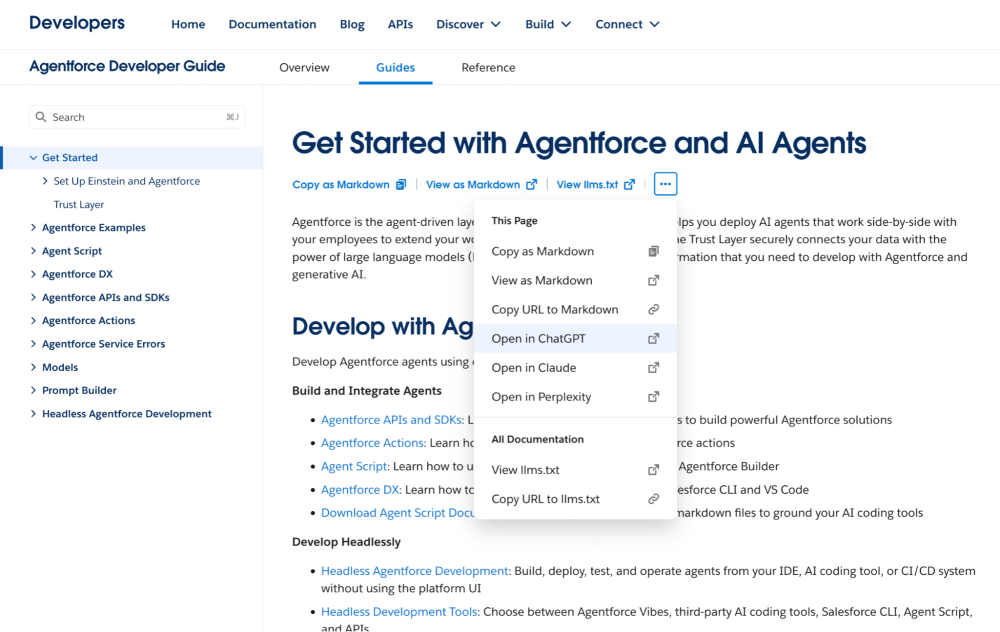
Now every page in the newer docs on the Salesforce Developers website has a row of actions right below its title. With one click, you can copy a page as clean Markdown, open it in an AI assistant, or get a map of all our docs that AI tools can read. The first actions arrived in June 2026, with options to copy a page as Markdown, view its Markdown version, or copy a Markdown link to it. In October 2026, we expanded the toolbar with AI-focused options, including viewing the site’s llms.txt file and opening documentation directly in tools like ChatGPT, Perplexity, and Claude.
This post reviews how docs worked before, explains what each new action does, and shows how you can use the actions in your daily work.
The old way: Docs built only for browsers
For human readers, it doesn’t matter how the page is generated, how the underlying markup looks, or how much text it contains. They see and read the final rendered result. AI tools need something different, because many receive only the underlying HTML, which may be little more than a shell if the page is client-rendered.
To give a page to an AI assistant, you had two options. You could copy the text from the page. That often dropped the headings, mixed up lists, and pulled code samples out of their code blocks. Alternatively, you could share the page URL and hope the tool could read it. Depending on the tool, page layouts, navigation elements, and scripts could get in the way, leaving the AI with only part of the content.
AI tools also had no simple way to find the right page. Our docs cover dozens of products and tens of thousands of pages. Without a map, a tool had to search the web and guess.
The new way: Actions at the top of the page
The actions sit in one row, right below the page title, so they are there as soon as you open a page.
![A row of buttons below a doc page title: Copy as Markdown, View as Markdown, View llms.txt, and a More actions menu.]](https://d259t2jj6zp7qm.cloudfront.net/images/20261119105858/image2_21b71b-e1795114750819.png)
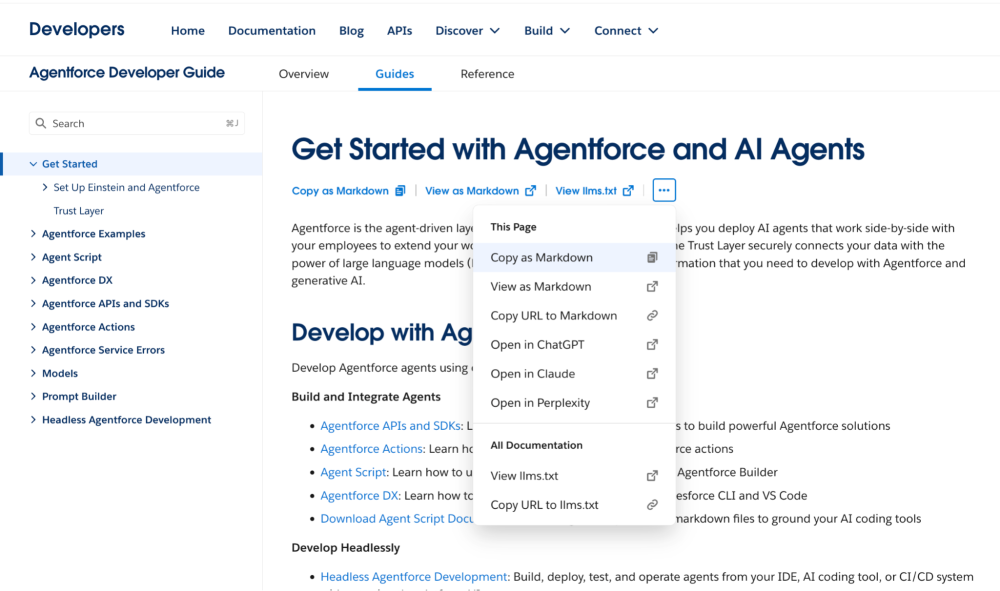
Three buttons are always in view: Copy as Markdown, View as Markdown, and View llms.txt. The More actions menu (⋯) provides access to the full set of actions, organized into two groups: This Page and All Documentation.
Get this page in Markdown
Every page in the newer docs now has a Markdown version. Markdown is a plain-text format that keeps headings, lists, links, and code blocks. It’s well suited to LLMs and often uses fewer tokens than the equivalent full web page.
You can work with a page in three ways:
- Copy as Markdown copies the whole page to your clipboard as Markdown. Paste it into a chat, a prompt, or your IDE’s AI agent, such as Agentforce Vibes. Code samples stay in code blocks, so the agent can tell code from prose.
- View as Markdown opens the Markdown in a new tab. Use it to scan the source text, save a copy, or check what your AI tool will see.
- Copy URL to Markdown copies a direct link to the Markdown version. Put it in a prompt, the command line, a project rules file, or a script, so your tools always get the current page.
Give your tools a map of all our docs
Finding the right page can be challenging when documentation spans dozens of products and tens of thousands of pages. That’s where llms.txt comes in. The llms.txt format is an open standard that gives AI tools a short, readable index of a website. Our main llms.txt file lists more than 40 products, from Lightning Web Components to Agentforce. Each product has its own llms.txt file that links to the Markdown version of each doc page. You can access these product llms.txt files from the page actions:
- View llms.txt opens the main index in a new tab.
- Copy URL to llms.txt copies the link, so you can add it to your AI tool’s sources or your agent’s instructions.
With the index, an agent can find the right page for your question on its own. It doesn’t need to search the web.
Ask an AI assistant about this page
Sometimes you want to ask questions about a page right away. Select Open in ChatGPT, Open in Claude, or Open in Perplexity from the More actions menu. The assistant opens in a new tab with a prompt already written for you:
1I'm reading "Make a Component Aware of Its Context" at
2https://developer.salesforce.com/docs/platform/lwc/guide/use-context.html.
3Read this page so I can ask questions about it. For broader context,
4see https://developer.salesforce.com/docs/llms.txt
The prompt names the page and links to our docs map, so the assistant starts with the right source. You skip the copy-and-paste steps and go straight to your question.
What to know before you start
A few things to know as you use the new actions:
- Where they appear: The actions are on English pages in the newer Salesforce Developers docs. They aren’t on translated pages.
- API reference pages: Some API reference pages are built from a spec, not from Markdown. On those pages, the actions are not available.
- AI assistants: The Open in options pass links, not the page text. The assistant reads the links itself, so it needs web access turned on. Your own account and settings in that tool apply.
Under the hood: How we built it
We wanted a way for AI tools to access our documentation without creating a separate version of the content. Instead of scraping published pages or converting HTML into Markdown, we built the capability directly into SFDocs, the framework behind our developer documentation.
Here’s a quick look at how it works.
1. Generating Markdown from the original content
Our docs are authored in Markdown. We extended the build process to publish a clean .md file alongside every .html page. Both versions are generated from the same source and share the same URL path, with different file extensions.
2. Generating llms.txt files
Every product build generates its own llms.txt file, structured around the product’s table of contents. The file gives AI tools an overview of the product, along with links to the Markdown version of each page.
We also build the main llms.txt file that brings together the individual product indexes. Because our documentation builds are incremental, each build contributes its updates without replacing entries from other products.
3. Connecting everything through the toolbar
The toolbar below the page title makes these capabilities accessible to readers. It locates the corresponding Markdown file and provides options to copy the content, view the file, or open it in an AI assistant.
All of this is handled during the documentation build, so the Markdown files and llms.txt files are updated alongside the documentation itself.
Conclusion
The new actions on every doc page help you bring trusted Salesforce docs into the AI tools you already use. Copy a page as clean Markdown, open it in an AI assistant in one click, or point your agent to our llms.txt map. Try the actions on a supported documentation page and see how they fit into your workflow. Have an idea for making them more useful? Use the Share your feedback button at the bottom of the page to let us know.
Resources
About the authors
Kyle Jackson is a Lead UX Designer; Content Experience Technologies at Salesforce. With Salesforce for over a decade, Kyle is focused on delivering best-in-class content experiences to our customers through user centered design and modern agentic design-to-development systems and workflows. He is a deeply curious problem solver and loves to learn, explore and discuss new things. Connect with him on LinkedIn.
Madhura Hegde is a Senior Software Engineer; Content Experience Technologies at Salesforce. She’s a full-stack engineer who enjoys building scalable systems, solving problems nobody asked for, and occasionally questioning architectural decisions made by my past self. Connect with her on LinkedIn.