


 j
jGet Started with the Tableau Next Embedding SDK
Use Cases for Tableau Next Embedding
Browser Requirements for Tableau Next Embedding
Troubleshooting for Tableau Next Embedding
Tableau Next Embedding SDK Release Notes
The Embedded SDK supports these web browsers.
For embedding to work as expected in these browsers, ensure your browser has the correct settings
To render embedded Tableau Next components in Chrome browsers successfully, users must enable use of third-party cookies.
On your device, launch the Chrome browser.
Click the customize menu icon  in the top-right corner of the browser window.
Select Settings, then select Privacy and security in the left-hand menu.
Click Third-party cookies and enable Allow third-party cookies.
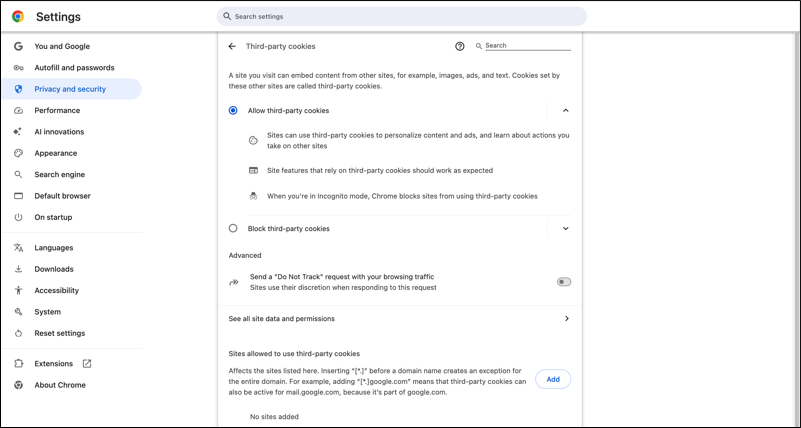
Changes are saved automatically.
To render embedded Tableau Next components in Firefox browsers successfully, users must enable use of third-party cookies.
On your device, launch the Firefox browser.
Click the app menu icon  in the top-right corner of the browser window.
Select Settings, then select Privacy & Security in the left-hand menu.
Under Enhanced Tracking Protection, select Custom.
Disable Cookies to allow third-party cookies.
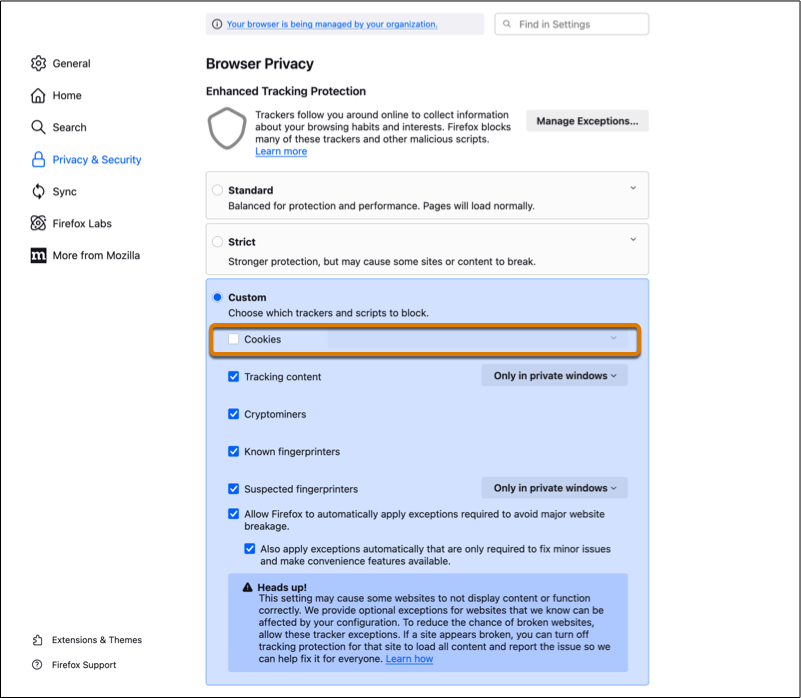
Changes are saved automatically.
To render embedded Tableau Next components in Edge browsers successfully, users must update the tracking prevention settings.
On your device, launch the Edge browser.
Click the menu icon in the top-right corner of the browser window.
Select Settings, then select Private, Search, and Services in the left-hand menu.
In the Tracking prevention section, select the Basic option.
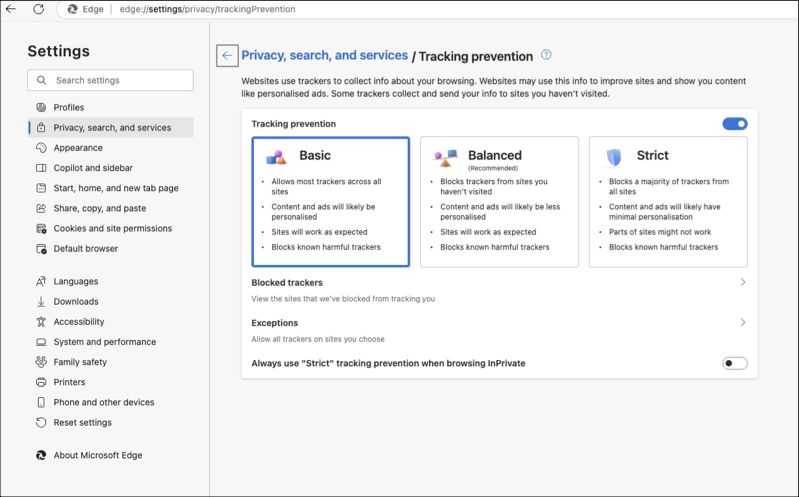
Restart the browser to ensure the updated settings are applied properly.
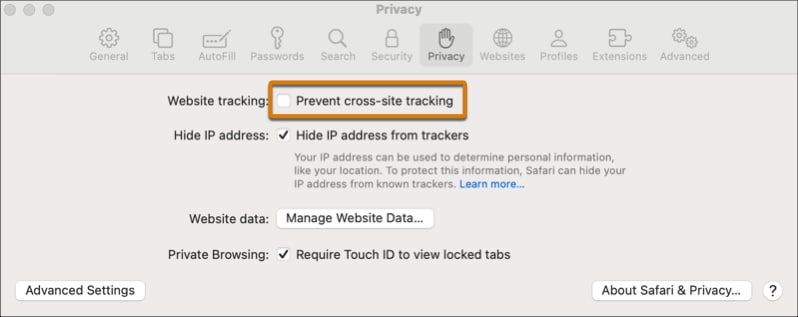
To render embedded Tableau Next components in Safari browsers successfully, users must update the cross-site tracking setting.
j