


Salesforce1 App Developer Guide
 j
j
No Results
Search Tips:
- Please consider misspellings
- Try different search keywords
About Offline Access in Salesforce1
The Salesforce1 downloadable apps cache users' most recently used records for access offline. All data that is handled by the Salesforce1 downloadable apps is encrypted and secured through persistent storage. Offline access is currently read-only. Offline access is available starting with the version 6.0 release of the Salesforce1 downloadable apps in Summer '14.
Offline access is enabled by default when you install one of the Salesforce1 downloadable apps. You can manage these settings in Setup from .
When offline access is enabled, data is downloaded to each user’s mobile device based on the objects in the Recent section of the Salesforce1 navigation menu, and on the user’s most recently viewed records. Data is encrypted and stored in a secure, persistent cache. This table lists the elements that are available offline.
| Salesforce1 Element | Available for Offline Use |
|---|---|
| Navigation Menu | Yes |
| Global Search | Previous searches only |
| Notifications | Previously viewed only |
| Feeds, Groups, and People | Previously viewed only |
| Today | Event list is available; individual events are available only if previously viewed |
| Salesforce Events | No |
| Recent Objects | Yes (top five) |
| Other Objects | No |
| Record Details | Yes (15 most recent records) |
| Related Records | Previously viewed only |
| List Views | No |
| Tasks | Only tasks from the first page of the My Tasks list (up to 10 tasks), and only if the list was previously viewed or after the user syncs |
| Dashboards | Previously viewed only |
| Approvals (submit, approve, or reject) | No |
| Visualforce pages | No |
| Canvas Apps | No |
| Flexible Pages | No |
| Settings | Yes |
When users switch to Salesforce1, their data is cached, which refreshes the local data store. Users can manually cache their data and refresh that cache at any time (for example, before entering an area with no service). When a user switches to another app, the user’s data is cached automatically if the existing cache is over one hour old.
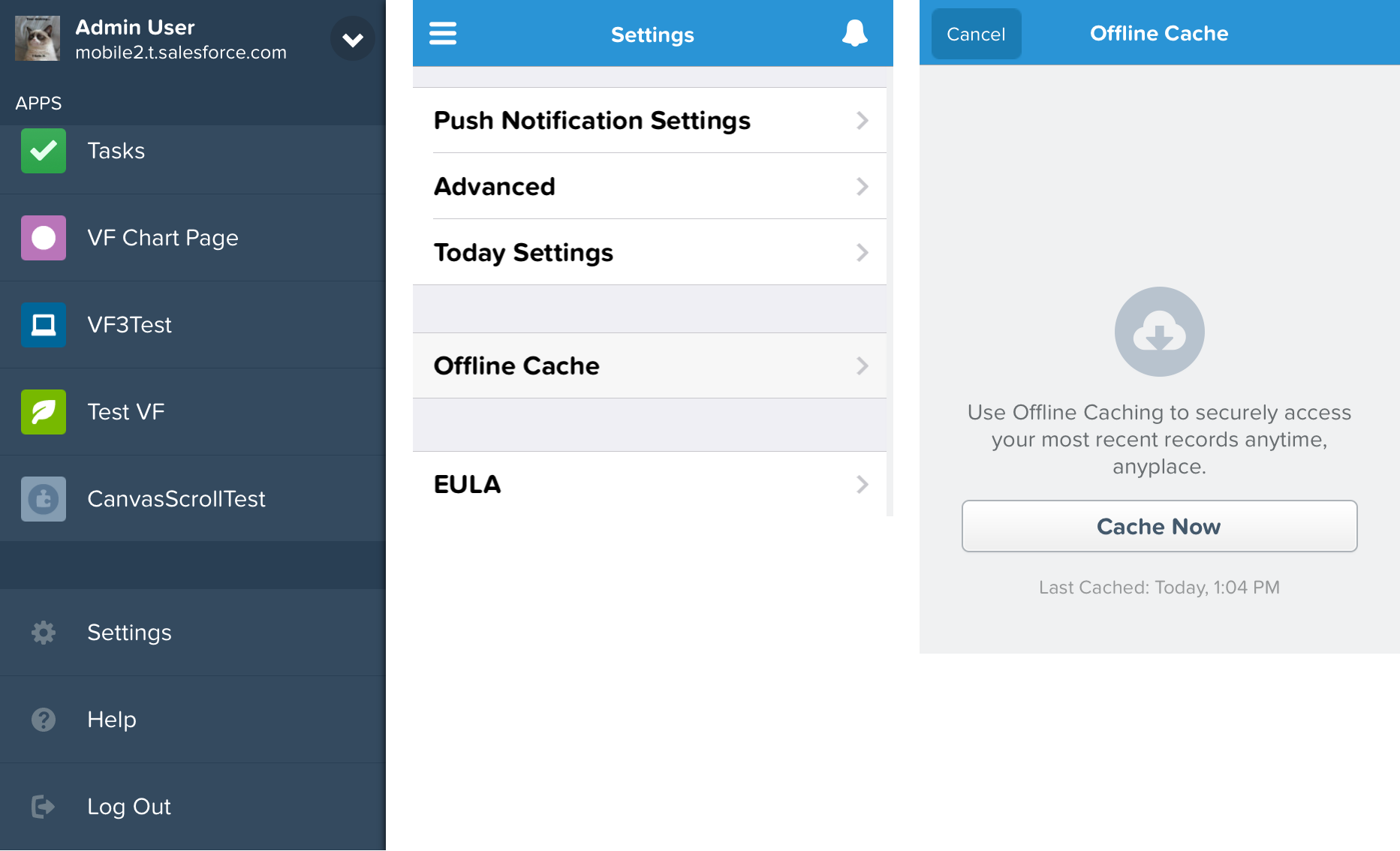
Users can view the status of cached data, and can manually cache data, from in the Salesforce1 navigation menu.
All right! We’ve addressed notifications and offline access, now let’s look at the Salesforce1 navigation menu.