Visualforce Developer’s Guide
 j
j
No Results
Search Tips:
- Please consider misspellings
- Try different search keywords
Newer Version Available
Rendering a Visualforce Page in PDF Format
Render a Visualforce page in PDF format to generate downloadable, printable versions
of your pages, by setting renderAs="pdf" on the <apex:page> tag.
Pages can be converted to PDF format by changing only the <apex:page> tag:
1<apex:page renderAs="pdf">Here’s a simple example of a page that displays some account
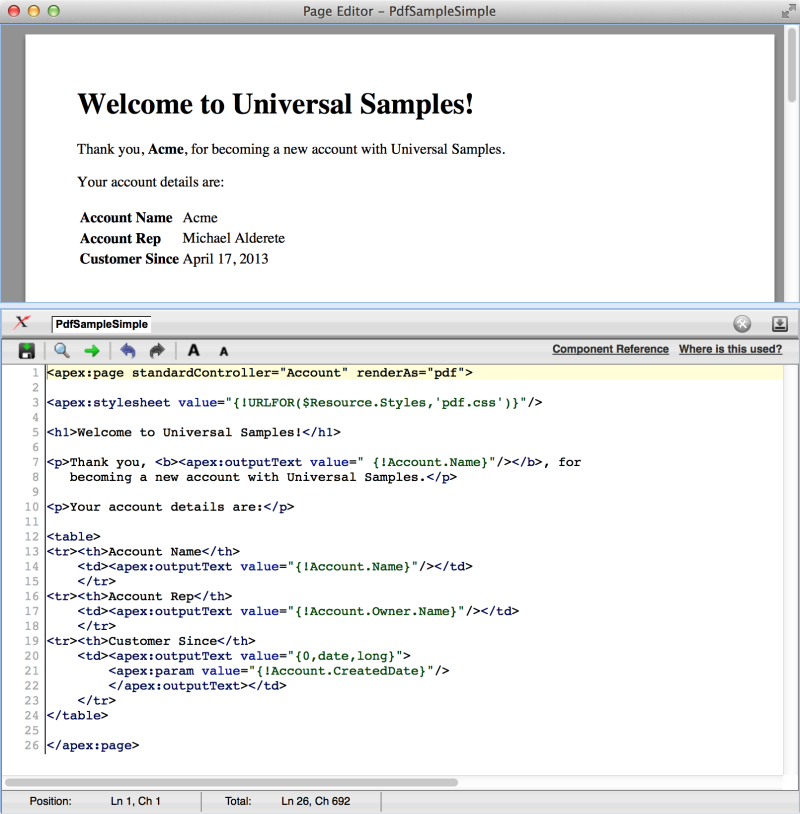
details and renders as a PDF:
1<apex:page standardController="Account" renderAs="pdf">
2
3<apex:stylesheet value="{!URLFOR($Resource.Styles,'pdf.css')}"/>
4
5<h1>Welcome to Universal Samples!</h1>
6
7<p>Thank you, <b><apex:outputText value=" {!Account.Name}"/></b>, for
8   becoming a new account with Universal Samples.</p>
9
10<p>Your account details are:</p>
11
12<table>
13<tr><th>Account Name</th>
14    <td><apex:outputText value="{!Account.Name}"/></td>
15    </tr>
16<tr><th>Account Rep</th>
17    <td><apex:outputText value="{!Account.Owner.Name}"/></td>
18    </tr>
19<tr><th>Customer Since</th>
20    <td><apex:outputText value="{0,date,long}">
21        <apex:param value="{!Account.CreatedDate}"/>
22        </apex:outputText></td>
23    </tr>
24</table>
25
26</apex:page>
A Visualforce Page Rendered as PDF