


Visualforce Developer’s Guide
 j
jNewer Version Available
Overriding an Existing Page with a Visualforce Page
Suppose you want to change the format of an existing page, such as the standard account detail page. All the information for an account displays on a single page. If there's a lot of information, you might end up doing a lot of scrolling. Using a Visualforce page you can make each section for an account display in a tab, such as contacts, opportunities, and so on.
First, create a new Visualforce page using the quick fix.
- In your browser, add the text /apex/tabbedAccount to the URL for your Salesforce instance.
For example, if your Salesforce instance
is https://na1.salesforce.com, the new URL would
be https://na1.salesforce.com/apex/tabbedAccount. You will get the following error message:
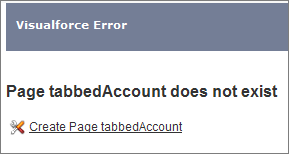
- Click Create Page tabbedAccount to create the new page.
- Click the Page Editor link in the bottom left corner of the page.
This displays the code for the new page, which should look like this:
1<apex:page> 2<!-- Begin Default Content REMOVE THIS --> 3<h1>Congratulations</h1> 4This is your new Page: tabbedAccount 5<!-- End Default Content REMOVE THIS --> 6</apex:page> - Replace the existing code with the following and click Save:
1swfobject.registerObject("clippy.codeblock-1", "9"); 2 3 4 5 6 7 8 9 10 11 12 13 14 15 16 17<apex:page standardController="Account" showHeader="true" 18 tabStyle="account" > 19 <style> 20 .activeTab {background-color: #236FBD; color:white; 21 background-image:none} 22 .inactiveTab { background-color: lightgrey; color:black; 23 background-image:none} 24 </style> 25 <apex:tabPanel switchType="client" selectedTab="tabdetails" 26 id="AccountTabPanel" tabClass='activeTab' 27 inactiveTabClass='inactiveTab'> 28 <apex:tab label="Details" name="AccDetails" id="tabdetails"> 29 <apex:detail relatedList="false" title="true"/> 30 </apex:tab> 31 <apex:tab label="Contacts" name="Contacts" id="tabContact"> 32 <apex:relatedList subject="{!account}" list="contacts" /> 33 </apex:tab> 34 <apex:tab label="Opportunities" name="Opportunities" 35 id="tabOpp"> 36 <apex:relatedList subject="{!account}" 37 list="opportunities" /> 38 </apex:tab> 39 <apex:tab label="Open Activities" name="OpenActivities" 40 id="tabOpenAct"> 41 <apex:relatedList subject="{!account}" 42 list="OpenActivities" /> 43 </apex:tab> 44 <apex:tab label="Notes and Attachments" 45 name="NotesAndAttachments" id="tabNoteAtt"> 46 <apex:relatedList subject="{!account}" 47 list="CombinedAttachments" /> 48 </apex:tab> 49 </apex:tabPanel> 50</apex:page> - Notice that there is no data in the Account page. You need to
specify the ID of a particular account in the URL, as you've done
with previous pages, for example, https://Salesforce_instance/apex/tabbedAccount?id=001D000000IRt53. After you add
in an account ID, your page should display as follows:

Things to note about the page markup:
- <style> is actually part of CSS markup, not Visualforce markup. It defines the styles for two types of tabs: activeTab and inactiveTab.
-
<apex:tabPanel> is
used to generate the tabs. Notice how it uses the following attributes:
- tabClass attribute: specifies the style class used to display a tab when it is active.
- inactiveTabClass attribute: specifies the style class used to display a tab when it is inactive.
- Within the definition of the tab panel, is the definition of each
child tab component, <apex:tab>. The first tab uses the <apex:detail> tag to return that portion of the detail view for the page:
1<apex:tab label="Details" name="AccDetails" id="tabdetails">
2         <apex:detail relatedList="false" title="true"/>
3      </apex:tab>
While the rest of the tabs use the <apex:relatedList> to specify the different parts of the account page. The following is the tab for contacts. It uses an existing list of contacts.1<apex:tab label="Contacts" name="Contacts" id="tabContact"> 2 <apex:relatedList subject="{!account}" list="contacts" /> 3 </apex:tab>
Now that you've created a page to display an account with tabs,
you can use this page to override the detail view for all accounts.
- From Setup, click .
- Click Edit next to View.
- For Override With select Visualforce Page.
- From the Visualforce Page drop-down list, select tabbedAccount.
- Click Save.
Click the Account tab, and select any account. The detail for the account is now displayed with tabs.