


Salesforce1 Mobile App Admin Guide
 j
jWorking with Quick Actions
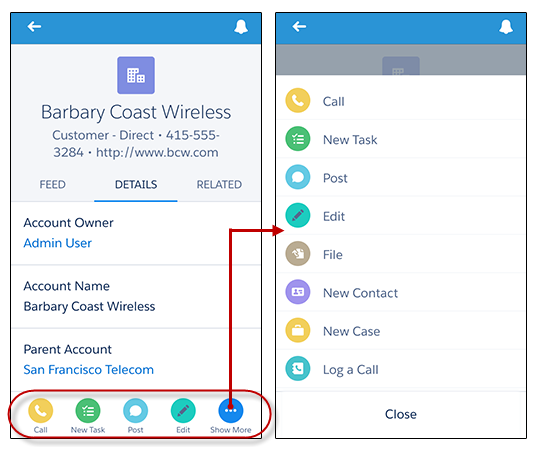
Create actions and add them to the Chatter publisher on the home page, on the Chatter tab, in Chatter groups, and on record detail pages. In Salesforce Classic, actions appear in the Chatter publisher. In Lightning Experience, actions appear in different areas of the user interface, depending on the action’s type. In Salesforce1, actions appear in the action bar, its associated action menu, and as list-item actions.
After creating quick actions, you can customize them. Quick actions have their own action layouts, which let you specify which fields are included in the action, and in which order.
- Create a global or object-specific action.
- Customize the action’s layout, choosing the fields users see when they use it.
- If you created an object-specific action, add it to one or more of that object’s page layouts. If you created a global action, add it to a global publisher layout.
- Set predefined field values for required fields, where possible.
Let’s learn a little more about the types and categories of actions. First we’ll look at global and object-specific actions.