


Lightning Communities Developer Guide
 j
jNewer Version Available
Package and Distribute Lighting Bolt Solutions or Pages
After you export a Lightning Bolt solution
or a page, you can create a managed package to distribute it to other users or orgs, including
those outside your company. You can also upload solutions for distribution on
AppExchange.
| Available in: Salesforce Classic and Lightning Experience |
| Available in: Enterprise, Performance, Unlimited, and Developer Editions |
| User Permissions Needed | |
|---|---|
| To customize or publish a community: | Create and Set Up Communities |
| To create and upload packages: | Create AppExchange Packages AND Upload AppExchange Packages |
A package is a container for something as small as an individual component or as large as a set of related apps. Although packages come in two forms—unmanaged and managed—we recommend using only managed packages to avoid naming conflicts with other packages in your customer’s org or your own. To create a managed package, use a Developer Edition org.
- From Setup, enter Package in the Quick Find box, and then click Packages.
-
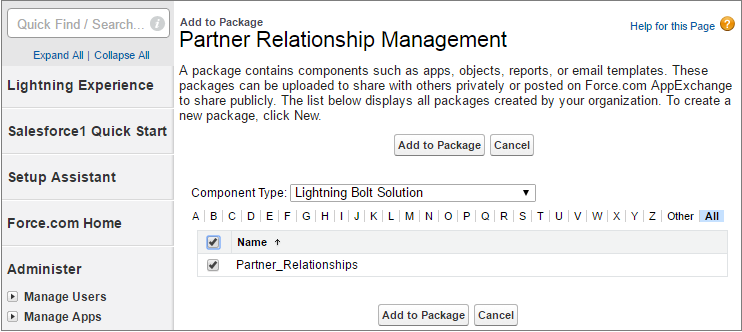
To package an exported Lightning Bolt solution, select Lightning Bolt Solution as the
component type and add your solution to the package. Alternatively, to package an exported
page, select Lightning Page as the component type.
All supported dependencies are automatically included.
- Upload the package. Then distribute it on AppExchange, or share the link privately with your clients, customers, or partners.