


Force.com IDE Developer Guide
 j
jEnable My Domain in Your Development Org
Enable My Domain in Your Org
If you already have My Domain enabled in your DE org or use a Trailhead Playground org, skip this section and the next one. You already have My Domain set up.
If you don’t have a subdomain yet, it’s easy to set one up.
Every Salesforce org is set up within the salesforce.com domain with a URL like https://na30.salesforce.com. With My Domain, you define your own domain, or a subdomain, within the salesforce.com domain. Your new URL looks something like: https://yourDomain.my.salesforce.com.
Use the My Domain wizard to create a subdomain. 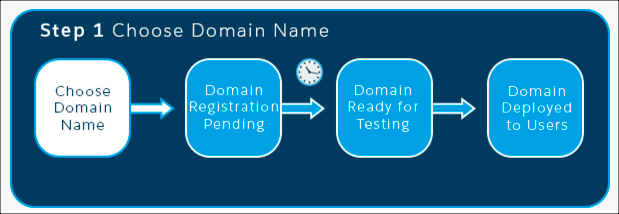
- From Setup, enter My Domain in the Quick Find box, then select My Domain.
- Enter the name for your subdomain after https:// and click Check Availability. Typically, a subdomain is your company name, but you can use any name as long as it’s unique. If this name is already taken, choose another one.
- Click Register Domain.
Salesforce updates its domain registries with your new subdomain. When it’s done, you receive an email with a subject like, “Your Developer Edition domain ready for testing.” It takes just a few minutes.
Roll Out My Domain to Your Org
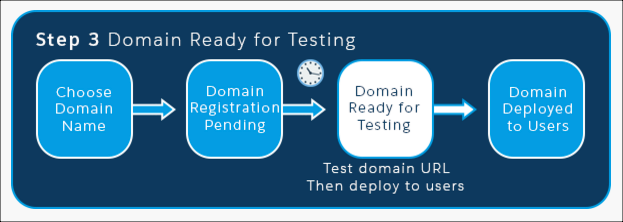
-
Click the link in the activation email to log in to your Salesforce
subdomain. It takes you to your Salesforce
org.
Notice that the URL in the browser address bar shows your new subdomain name. Right now, you’re the only one who has this URL.

- Click around your org to make sure that links point to your new domain. You probably haven’t created links in your DE org, so we can go on. (When creating a domain in a production org, this important step is easily overlooked.)
- From the My Domain page, click Deploy to Users, and then click OK. Deploying a subdomain rolls out the new subdomain URL throughout your org. Now all your users see the subdomain URL in the browser address bar.
- Step 4 of the wizard displays configuration options, which we can ignore for now.