


Force.com IDE Developer Guide
 j
jEnable My Domain in Your Development Org
Enable My Domain in Your Org
If you already have My Domain enabled in your DE org or use a Trailhead Playground org, skip this section and the next one. You already have My Domain set up.
If you don’t have a subdomain yet, it’s easy to set one up.
Every Salesforce org is set up within the salesforce.com domain with a URL like https://na30.salesforce.com. With My Domain, you define your own domain, or a subdomain, within the salesforce.com domain. Your new URL looks something like: https://yourDomain.my.salesforce.com.
Use the My Domain wizard to create a subdomain. 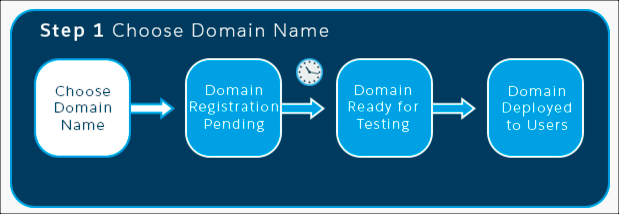
- From Setup, enter My Domain in the Quick Find box, then select My Domain.
- Enter the name for your subdomain after https:// and click Check Availability. Typically, a subdomain is your company name, but you can use any name as long as it’s unique. If this name is already taken, choose another one.
- Click Register Domain.
Salesforce updates its domain registries with your new subdomain. When it’s done, you receive an email with a subject like, “Your Developer Edition domain ready for testing.” It takes just a few minutes.