


Salesforce Console Developer Guide
 j
jNewer Version Available
Get to Know the Lightning Console
Use workspace API methods from Lightning pages either in the utility bar or in Lightning console app. Here’s how a Lightning console app works:
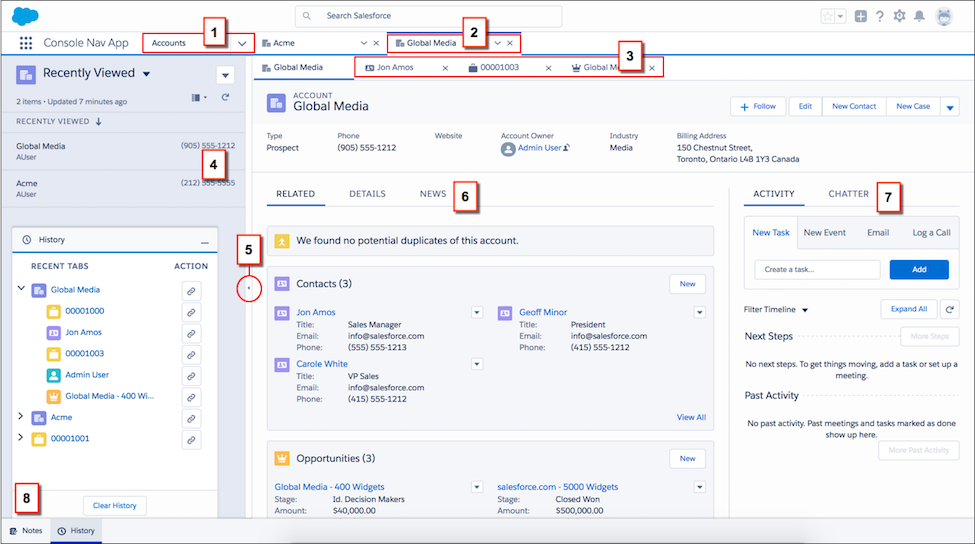
To select objects, use the item menu in the navigation bar (1). Records selected from the table list view or split view open as workspace tabs (2). When you click related records from the workspace tab, those records open as subtabs (3). To keep you efficient and productive, split view lets you work with a list view while still working on other records (4). You can close and open split view whenever you want—click the arrow on the split view pane (5). You can also click anywhere in the vertical divider between split view and record page. You can view and update a record using the details area (6) and the feed (7). Keep in mind that page layouts can be different for each type of record. Finally, utilities let you access common processes and tools, like History and Notes (8).
In this example, there are two workspace tabs open—Acme and Global Media. Under the Global Media workspace tab, there are three subtabs open—the contact record for Jon Amos, a related case, and a related opportunity. In the History utility, you can easily access your recently opened records.