


Salesforce Console Developer Guide
 j
jNewer Version Available
Get to Know Lightning Console
Get started with the Salesforce console in Lightning Experience.
Use workspace API methods from Lightning pages either in the utility bar or in a Lightning console app. Here’s how a Lightning console app works:
Lightning Console App User Interface
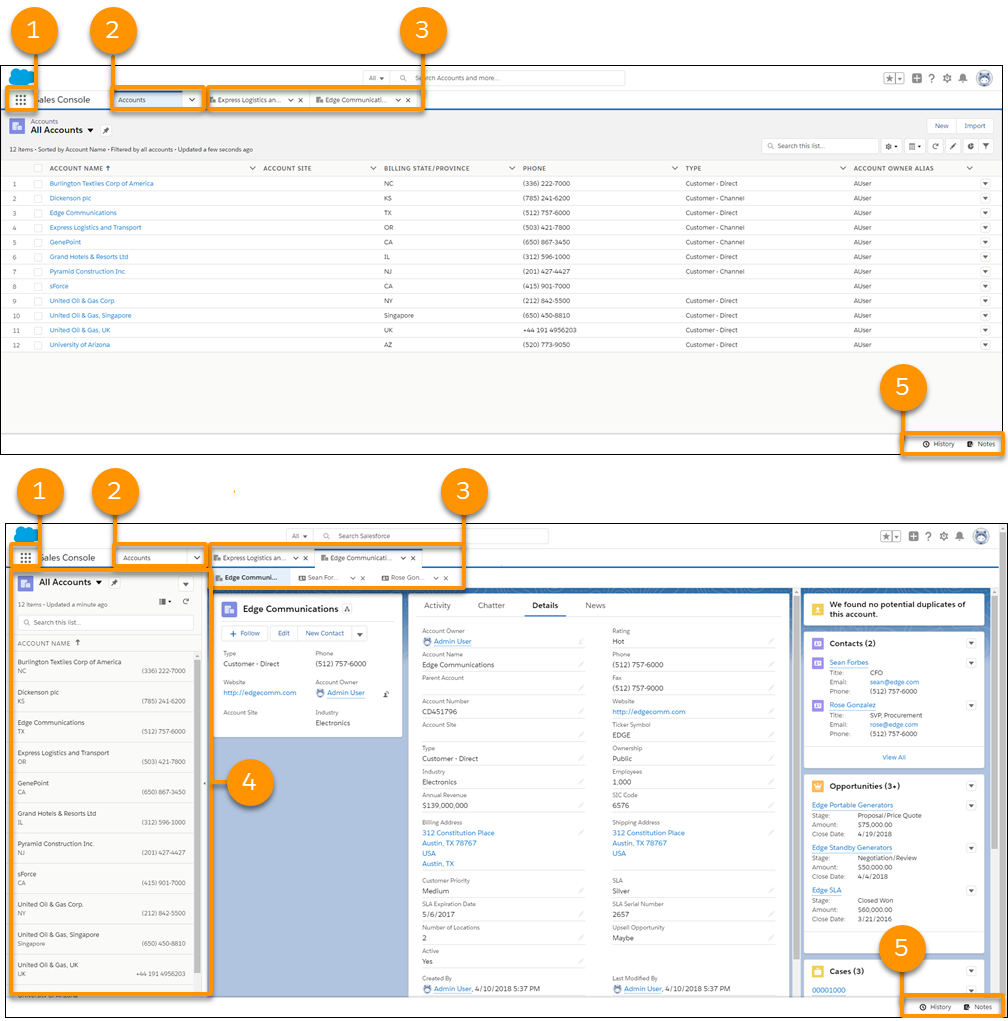
- The App Launcher
 (1) lets you switch between apps. To switch to another console app
or back to a standard app, use the App Launcher. The name of the app you’re currently
in is displayed next to the App Launcher.
(1) lets you switch between apps. To switch to another console app
or back to a standard app, use the App Launcher. The name of the app you’re currently
in is displayed next to the App Launcher. - The navigation menu (2) displays the navigation item you currently have selected. To
open the navigation menu, click
 . From there, you can view or edit
your navigation items. Selecting a navigation item opens the navigation item’s home
page. Objects open in table view
. From there, you can view or edit
your navigation items. Selecting a navigation item opens the navigation item’s home
page. Objects open in table view  . Opening a record changes the view to split
view
. Opening a record changes the view to split
view  .
Once in split view, click the navigation item again to switch back to table view, or
use the Display as dropdown.
.
Once in split view, click the navigation item again to switch back to table view, or
use the Display as dropdown. - Records open in workspace tabs, and related records opened from inside a workspace
tab open in subtabs (3). You can refresh, pin, customize, and close a tab using the
tab menu . You can also open navigation items in a new
workspace tab by using Ctrl+click or
Cmd+click.
- The split view panel (4) can be hidden with
 . Records opened from the split view panel open
in new workspace tabs.
. Records opened from the split view panel open
in new workspace tabs. - The utility bar (5) lets you access common processes and tools like History and Notes.