


Salesforce App Developer Guide
 j
jAbout Quick Actions
Create actions and add them to the Chatter publisher on the home page, on the Chatter tab, in Chatter groups, and on record detail pages. Choose from standard actions, such as create and update actions, or create actions based on your company’s needs. In addition, actions have their own action layouts, which let you specify which fields are included in the action, and in which order.
Where Do Actions Appear?
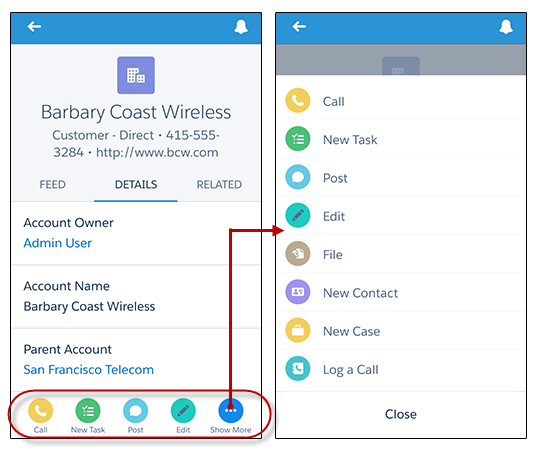
In the Salesforce app, actions appear in the action bar and its action menu.
Actions also appear in an action bar on list items such as task lists and related record lists. This gives your mobile users the ability to work with records directly from lists and update records without having to open them. To access list item actions, navigate to the task list or open a related list from an object’s related information page. Then swipe left on the desired record.
Types of Actions
- Create actions let users create records. They’re different from the Quick Create and Create New features on the Salesforce home page, because create actions respect validation rules and field requiredness, and you can choose each action’s fields.
-
Send email actions are supported in Lightning Experience only. They can't
be added to the Cases layout or used with cases.
For cases, add the case-specific Send Email action, which gives users access to a simplified version of the Case Feed Email action in the Salesforce app. The case-specific Send Email action can be used in Salesforce Classic, Lightning Experience, and the Salesforce app.
- Log a call actions let users record the details of phone calls or other customer interactions. These call logs are saved as completed tasks.
- Question actions enable users to ask and search for questions about the records that they’re working with.
- Update actions let users make changes to a record.
For create, log-a-call, and custom actions—which we’ll go over at the end of this chapter—you can create either object-specific quick actions or global quick actions. Update actions must be object-specific.
Object-Specific Quick Actions
Object-specific actions let users quickly create or update records, log calls, send emails, and more, in the context of a particular object. For example, you add an object-specific action on the Account object that creates contacts. If a user creates a contact with that action on the detail page for the Acme account, that new contact is automatically associated with Acme. You can only add an object-specific action to page layouts for that object.
Global Quick Actions
You can add global actions to almost any page that supports actions. Global create actions enable users to create object records, but the new record has no relationship with other records.
Add Log a Call actions to global layouts to let users record call details. For example, users can log calls from global pages in Salesforce Classic such as the Home page and the Chatter tab, or in the Salesforce app from the Feed or Groups pages. In Lightning Experience, Log a Call actions on global layouts display in the Global Actions menu. They can also record call details directly from their phone while in Salesforce.
For a list of supported objects for object-specific and global actions, see “Object-Specific Actions” and “Global Actions” in Salesforce Help.