The Force.com IDE includes lots of cool features to make working with Lightning
components easier. Here are a few of our favorites.
Force.com IDE is in a
maintenance-only state. We still provide support for the product through our official
channels, but updates prior to October 12, 2019 will be only for critical security
issues that arise. On October 12, 2019, we will no longer provide support or updates of
any kind for Force.com IDE. On that date, we will also begin archiving documentation and
removing download links for the product. We recommend that you start migrating to Salesforce Extensions for Visual
Studio Code or one of the great tools made by our partners. For more
information, see The Future
of Salesforce IDEs on the Salesforce Developers Blog.
Multi-Page Editor
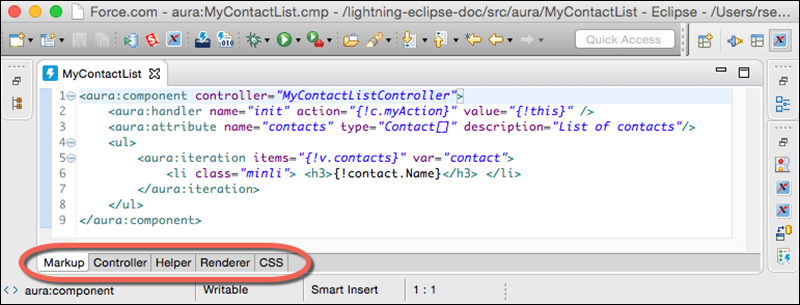
Easily access and edit all the files resources in your Lightning
component bundle. The multi-page editor opens by default when you open a component
bundle.
Documentation Browser
Everyone loves
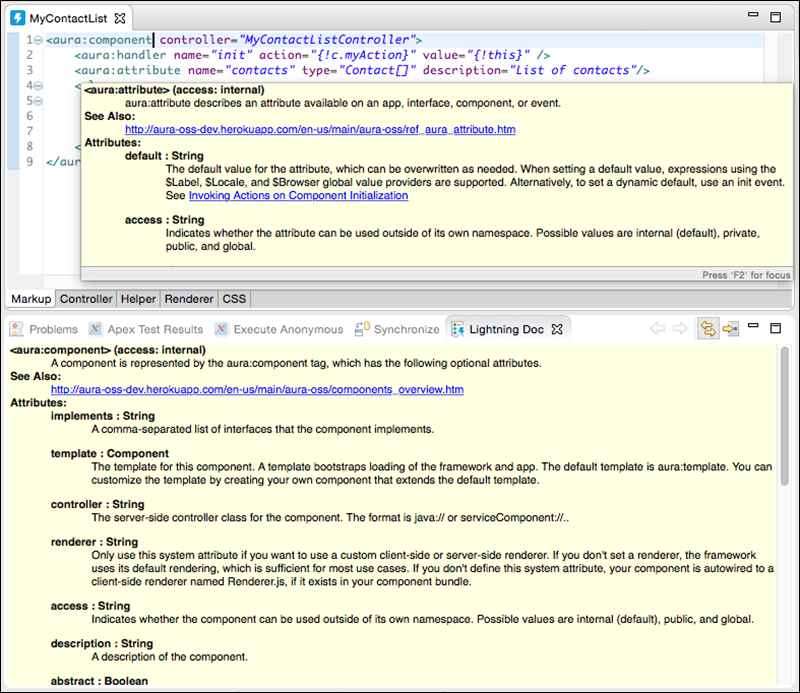
documentation! In the Force.com IDE, we give you two handy ways to peruse it.
Access documentation for built-in tags and functions without leaving the
IDE. To open the Lightning Doc view, select .
You can also view an element’s documentation by hovering over the
element in your code.
Add a description attribute to each aura:component that you create, so that you can take full advantage of these useful
documentation-related features.
Navigation
Outline View
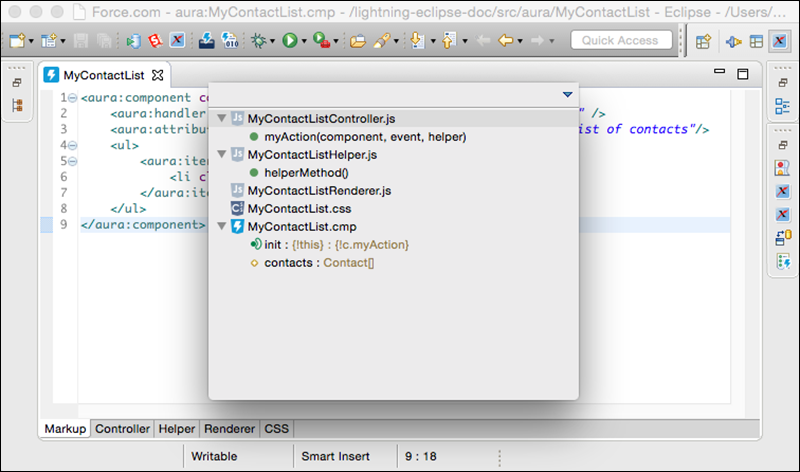
Quickly locate and navigate
between the elements in your Lightning component bundle. To open Outline View, press Ctrl+O
(Cmd+O on macOS).
Open Dialog
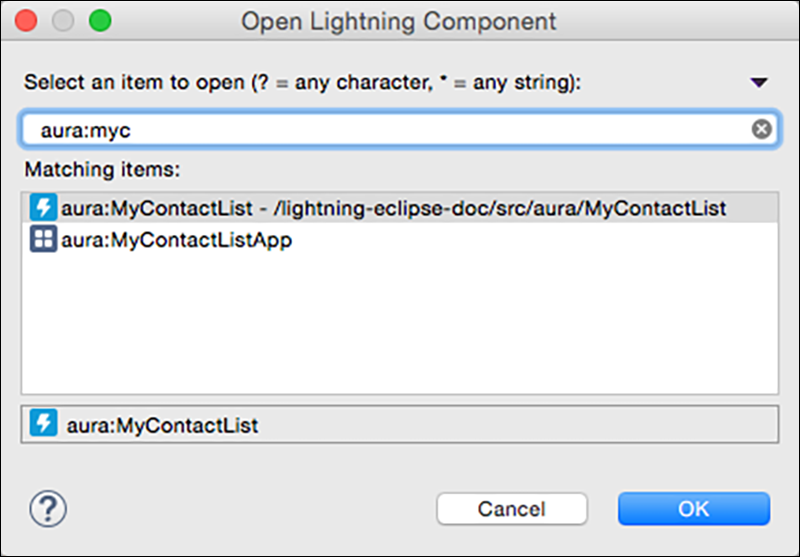
Quickly locate and navigate between your Lightning component bundles. To display the Open
Dialog, press Ctrl+Shift+A (Cmd+Shift+A on macOS).
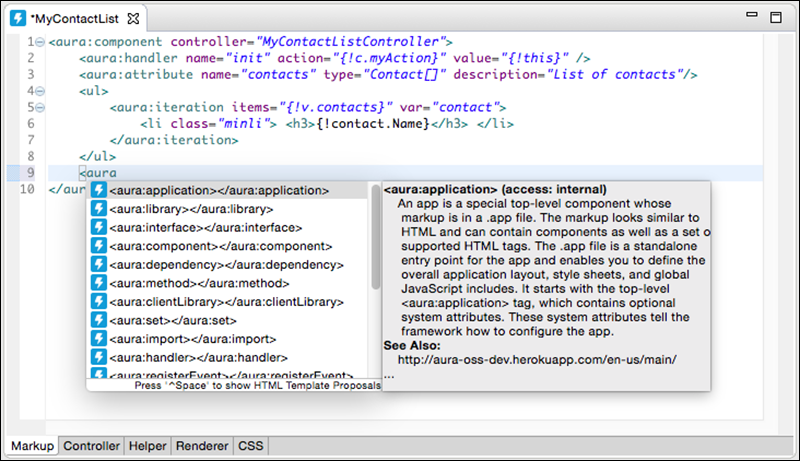
Auto-Completion
Save time and avoid typos with the auto-completion feature for
markup, JavaScript, and CSS files. Some auto-completion is provided by default as you type. To
invoke more auto-completion options, press Ctrl+Space when you’re editing a
file.


 j
j