Salesforce App Admin Guide
 j
jAccess Data in the Salesforce App While Offline
Caching in the Salesforce app is enabled the first time someone in your org installs Salesforce for Android or Salesforce for iOS.
The contents of a user’s cache determines the data that’s accessible when the user’s mobile device is offline. Let’s look at how the cache is initially populated and then updated throughout a Salesforce app session.
- When a user logs in, the cache is empty. If the user’s device goes offline with an empty cache, no Salesforce data is available.
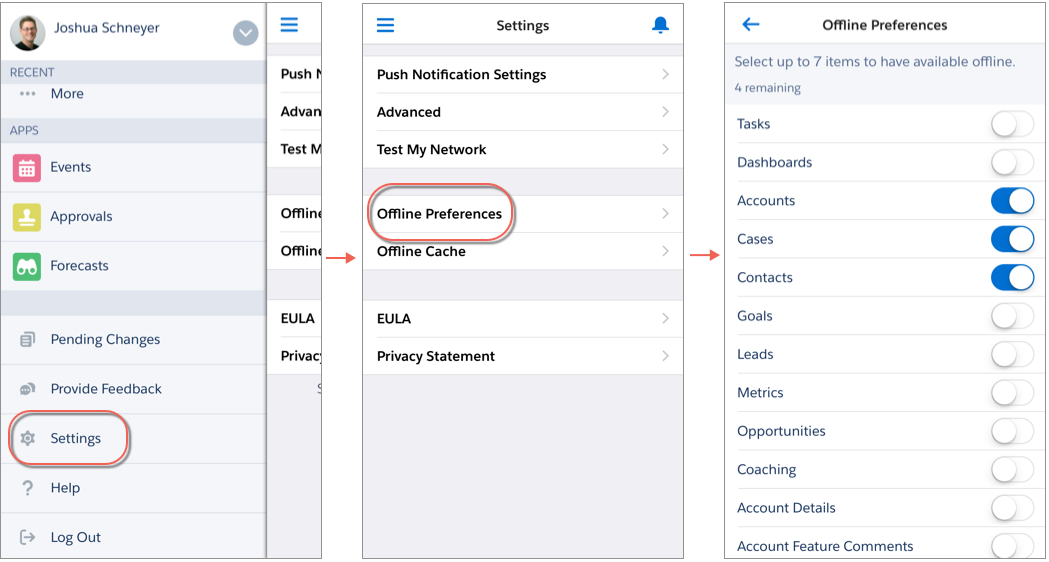
- To customize their cache, users can go to the navigation menu, select , and then select up to seven items that they want to be available offline. If
users change their minds, they can easily go back and choose new items.
If a user chooses not to customize their cache, Salesforce populates the user’s cache with up to 30 recently accessed records for their five most recently accessed objects. In addition to these records, the user’s tasks listed under My Tasks and their five most recently accessed dashboards are cached. However, if the user chooses at least one item from the Offline Preferences page, this selection replaces the existing cache with their new preferences.
Recently accessed records are determined by a user's activities in both the app and the full Salesforce site, including Salesforce Classic and Lightning Experience.
Whether users customize their cache or stick with their recently accessed records, they can quickly populate their cache in two ways. Users can put Salesforce in the background by switching away to a different app or navigating to their device’s home screen to populate their cache. Or users can go to the Salesforce navigation menu, select .
After users initially populate their cache, users can refresh their cache in two ways. If the last cache refresh is more than one hour old, users can put Salesforce in the background by switching away to a different app or navigating to the device home screen to refresh the cache. Or users can manually refresh the cache by going to the navigation menu, select .
- Throughout a session, many of the other records that the user accesses are also added to the cache.
- A record remains in the user’s cache for 30 days. Each time the same record is accessed, the clock resets. But if the record isn’t touched within 30 days, it’s automatically removed from the cache and won’t be available offline until the user accesses the record again.
- Logging out of Salesforce removes all data from the cache. The next time the user logs in, the process of generating the cache starts over.