


Feeds and Feed Elements
A feed is a container of feed elements. Feed elements can be feed items, such as specific posts, or generic feed elements, such as bundled posts or recommendations in the feed.
Salesforce Help refers to feed items as posts and bundles as bundled posts.
Note
Capabilities
As part of the effort to diversify the feed, pieces of functionality found in feed elements have been broken out into capabilities. Capabilities provide a consistent way to interact with the feed. Don’t inspect the feed element type to determine which functionality is available for a feed element. Inspect the capability, which tells you explicitly what’s available. Check for the presence of a capability to determine what a client can do to a feed element.
All feed elements have a capabilities property, which holds a Feed Element Capabilities response body. The Feed Element Capabilities response body can have one or more properties, each holding a capability of the feed element.
A capability includes both an indication that a feature is possible and data associated with that feature. If a capability exists on a feed element, that capability is available, even if there isn’t any data associated with the capability yet. For example, if the chatterLikes capability property exists on a feed element, the context user can like that feed element. If the capability property doesn’t exist on a feed element, it isn’t possible to like that feed element.
How the Salesforce UI Displays Feed Items
A client can use the capabilities property to determine what it can do with a feed element and how to render a feed element. For all feed elements other than feed item, the client doesn’t have to know the type of feed element. Instead, the client can look at the capabilities. Feed items do have capabilities, but they also have a few properties, such as actor, that aren’t exposed as capabilities. For this reason, feed items must be handled a bit differently than other feed elements.
The Salesforce UI uses one layout to display every feed item. This layout gives customers a consistent view of feed items and gives developers an easy way to create UI. The layout always contains the same pieces, and the pieces are always in the same position. Only the content of the layout pieces changes.
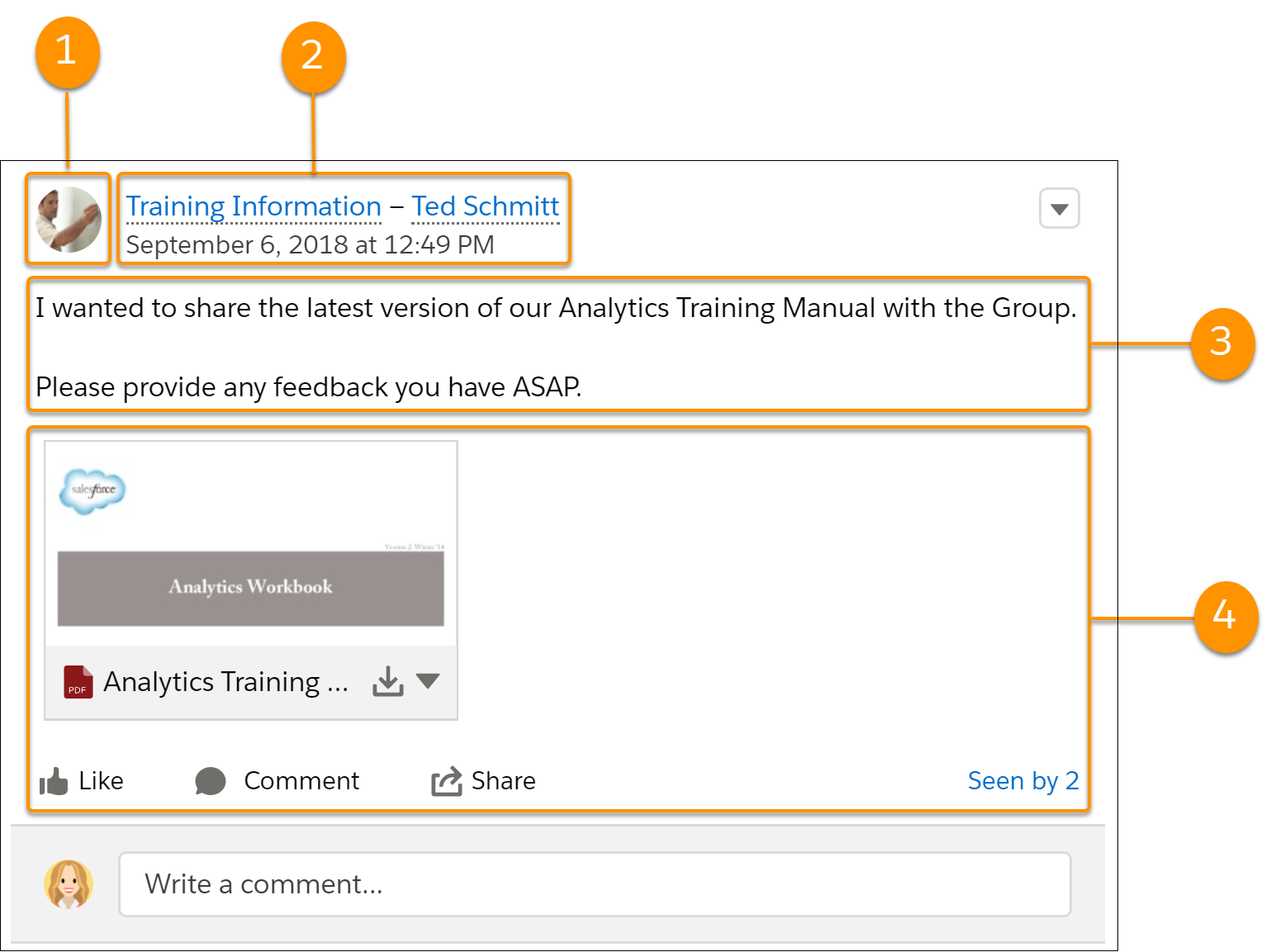
The feed item layout elements are:
-
Actor (
actorproperty of Feed Item response body)—A photo or icon of the creator of the feed item. -
Header (
headerproperty of Feed Item response body)—Context for the feed item. The same feed item can have a different header depending on who posted it and where it was posted. In this example, Ted posted the feed item to a group.Timestamp (
relativeCreatedDateproperty of Feed Item response body)—The date and time when the feed item was posted. If the feed item is less than two days old, the date and time are formatted as a relative, localized string, such as “17m ago”. Otherwise, the date and time are formatted as an absolute, localized string. -
Body (
bodyproperty of Feed Item response body)—All feed items have a body. The body can benull, which is the case when the user doesn’t provide text for the feed item. Because the body can benull, you can’t use it as the default case for rendering text. Instead, use thetextproperty of the feed item’s header, which always contains a value. -
Auxiliary Body (
capabilitiesproperty of Feed Item response body)—The visualization of the capabilities of a feed item. See Capabilities.
How the Salesforce UI Displays Bundles
Bundled posts contain feed-tracked changes and are in record feeds only.
Note
A client can use the capabilities property to determine what it can do with a feed element and how to render the feed element. This section uses bundles as an example of how to render a feed element, but these properties are available for every feed element.
To give customers a clean, organized feed, feed-tracked change feed items can be aggregated into a bundle. To see individual feed items, click the bundle.
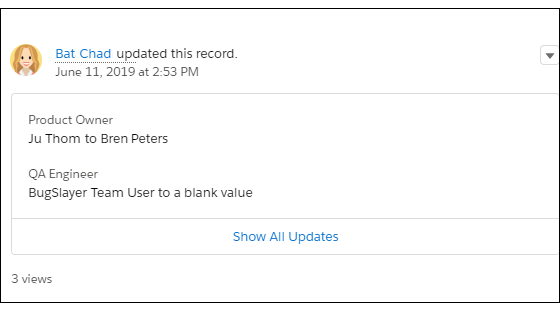
A bundle is a generic feed element with a bundle capability. Bundle layout elements include:
- Header (
headerproperty of the Generic Feed Element response body)—For feed-tracked change bundles, this text is “{userName} updated this record.” - Timestamp (
relativeCreatedDateproperty of the Generic Feed Element response body)—The date and time when the feed-tracked changes were made. If the changes are less than two days old, the date and time are formatted as a relative, localized string, such as “17m ago”. Otherwise, the date and time are formatted as an absolute, localized string. - Auxiliary Body (
capabilities.bundle.changesproperty of the Generic Feed Element response body)—The bundle displays thefieldNameand theoldValueandnewValueproperties for the first two feed-tracked changes in the bundle. If there are more than two feed-tracked changes, the bundle displays a “Show All Updates” link.
Feed Element Visibility
The feed elements a user sees depend on how the administrator has configured feed tracking, sharing rules, and field-level security. For example, if a user doesn’t have access to a record, they don’t see updates for that record. If a user can see the parent of the feed element, the user can see the feed element. Typically, a user sees feed updates for:
- Feed elements that @mention the user (if the user can access the feed element’s parent)
- Feed elements that @mention groups the user is a member of
- Record field changes on records whose parent is a record the user can see, including User, Group, and File records
- Feed elements posted to the user
- Feed elements posted to groups that the user owns or is a member of
- Feed elements for standard and custom records, for example, tasks, events, leads, accounts, files
Feed Types
There are many types of feeds. Each feed type defines a collection of feed elements.
The collection of feed elements can change between releases.
Important
The feed types are exposed in these resources.
1/chatter/feeds/{feedType}
2/chatter/feeds/{feedType}/{subjectId}
3/connect/communities/{communityId}/chatter/feeds/{feedType}
For example, the resources for a company, topics, and home feed are:
1/chatter/feeds/company
2/chatter/feeds/topics/{subjectId}
3/connect/communities/{communityId}/chatter/feeds/home
Here are the feed types and their descriptions.
Bookmarks—Contains all feed items saved as bookmarks by the context user.Company—Contains all feed items except feed items of typeTrackedChange. To see the feed item, the user must have sharing access to its parent.DirectMessageModeration—Contains all direct messages that are flagged for moderation. The Direct Message Moderation feed is available only to users with Moderate Experiences Chatter Messages permissions.DirectMessages—Contains all feed items of the context user’s direct messages.Draft—Contains all the feed items that the context user drafted.Favorites—Contains favorites saved by the context user. Favorites are feed searches, list views, and topics.Files—Contains all feed items that contain files posted by people or groups that the context user follows.Filter—Contains the news feed filtered to contain feed items whose parent is a specified object type.Groups—Contains all feed items from all groups the context user either owns or is a member of.Home—Contains all feed items associated with any managed topic in an Experience Cloud site.Isolated—Contains all the feed items and comments that are isolated.Landing—Contains all feed items that best drive user engagement when the feed is requested. Allows clients to avoid an empty feed when there aren’t many personalized feed items.Moderation—Contains all feed items that are flagged for moderation, except direct messages. The moderation feed is available only to users with Moderate Experiences Feeds permissions.Mute—Contains all feed items that the context user muted.News—Contains all updates for people the context user follows, groups the user is a member of, and files and records the user is following. Contains all updates for records whose parent is the context user.PendingReview—Contains all feed items and comments that are pending review.People—Contains all feed items posted by all people the context user follows.Record—Contains all feed items whose parent is a specified record, which could be a group, user, object, file, or any other standard or custom object. When the record is a group, the feed also contains feed items that mention the group. When the record is a user, the feed contains only feed items on that user. You can get another user’s record feed.Streams—Contains all feed items for any combination of up to 25 feed-enabled entities that the context user subscribes to in a stream. Examples of feed-enabled entities include people, groups, and records,To—Contains all feed items with mentions of the context user. Contains feed items the context user commented on and feed items created by the context user that are commented on.Topics—Contains all feed items that include the specified topic.UserProfile—Contains feed items created when a user changes records that can be tracked in a feed. Contains feed items whose parent is the user and feed items that @mention the user. This feed is different than the news feed, which returns more feed items, including group updates. You can get another user’s user profile feed.
Post a Feed Item Using
The /chatter/feed-elements resource is the simplest, most efficient way to post feed items because it doesn’t require you to pass a feed type. Feed items are the only feed element type you can post.
Tip
Use this resource to post feed items:
1POST /chatter/feed-elementsWhen you post a feed item, you create a child of a standard or custom object. Specify the parent object in the subjectId request parameter or in the subjectId property of the Feed Item Input request body.
The parent property of the posted feed item contains information about the parent object.
Post to your user profile
This example uses request parameters to post a text post to the context user’s user profile:
1POST /chatter/feed-elements?feedElementType=FeedItem&subjectId=me&text=TestThe subjectId, specifies the alias me. You can also specify the user ID of the context user.
The parent property of the newly posted feed item contains the User Summary response body of the context user.
Post to another user
This example uses a request body to post to another user. The subjectId property specifies that user’s ID.
1POST /chatter/feed-elements
2
3{
4   "feedElementType":"FeedItem",
5   "subjectId":"005RR000000DmOg",
6   "body" : {
7      "messageSegments" : [
8      {
9         "type" : "Text",
10         "text" : "When should we meet for release planning?"
11      }
12      ]
13   }
14}
The parent property of the newly posted feed item contains the User Summary response body of the target user.
Post to a group
This example uses a request body to post to a group. The subjectId property specifies the group ID.
1POST /chatter/feed-elements
2
3{
4   "feedElementType":"FeedItem",
5   "subjectId":"0F9RR0000004CPw",
6   "body" : {
7      "messageSegments" : [
8      {
9         "type" : "Text",
10         "text" : "When should we meet for release planning?"
11      }
12      ]
13   }
14}
The parent property of the newly posted feed item contains the Group response body of the specified group.
Post to a record (such as a file or an account)
This example uses a request body to mention a user on a record feed. The subjectId property specifies the record ID.
1POST /chatter/feed-elements
2
3{
4   "feedElementType" : "FeedItem",
5   "subjectId" : "001RR000002G4Y0",
6   "body" : {
7      "messageSegments" : [
8      {
9         "type" : "Mention",
10         "id" : "005RR000000DmOg"
11      },
12      {
13         "type" : "Text",
14         "text" : " Have you checked on this account recently?"
15      }
16      ]
17   }
18}
The parent property of the new feed item depends on the record type specified. If the record type is File, the parent is the File Summary response body. If the record type is Group, the parent is a Group response body. If the record type is User, the parent is a User Summary response body. For all other record types, the parent is a Record Summary response body.
Get Feed Elements from a Feed
To return a feed that includes feed elements, use these resources. Feed element types include feed item, bundle, and recommendation.
Tip
Getting feed elements from a feed is similar, but not identical, for each feed type.
To get the feed elements from the feed types in this table, don’t specify a subject ID. Replace the feedType to specify different feeds.
| Feed Type | Resource |
|---|---|
| Company, Direct Messages, Draft, Landing, Pending Review | /chatter/feeds/{feedType}/feed-elements
|
| Direct Message Moderation, Home, Moderation | /connect/communities/{communityId}/chatter/feeds/{feedType}/feed-elements
|
To get the feed elements from all other feed types, specify a subject ID. Replace the feedType to specify a different feed. For most of the feed types in this table, the subjectId must be the ID of the context user or the alias me. For the record feed, the subjectId is a record ID. For the streams feed, the subjectId is a stream ID. For the topics feed, the subjectId is a topic ID. For the user profile feed, the subjectId is a user ID or the alias me.
For the record feed, the recordId can be a record of any type that supports feeds, including group. The feed on the group page in the Salesforce UI is a record feed.
Tip
| Feed Type | Resource |
|---|---|
| Bookmarks, Files, Groups, Mute, News, People, Record, Streams, To, Topics, User Profile | /chatter/feeds/{feedType}/{subjectId}/feed-elements
|
To get the feed elements from the favorites and filter feeds, specify a favoriteId or a keyPrefix. The keyPrefix indicates the object type and is the first three characters of the object ID. For these feeds, the subjectId must be the ID of the context user or the alias me.
| Feed Type | Resource |
|---|---|
| Favorites | /chatter/feeds/favorites/{subjectId}/{favoriteId}/feed-elements |
| Filter | /chatter/feeds/filter/{subjectId}/{keyPrefix}/feed-elements |
- Example: Get Feed Elements Updated Since Last Request
This example gets the feed elements updated since the last request.
See Also
 j
j