


Service Cloud Voice Implementation Guide
 j
jNewer Version Available
Upload or Update Transcripts with Connect REST API
These Connect API resources provide programmatic access to voice transcripts (also called “conversation entries”) so that customers can build custom solutions with voice transcripts.
- /connect/conversations/upload (GET)
- Get the status of conversation uploads.
- /connect/conversations/upload (POST)
- Upload bulk conversations.
- /connect/conversation/conversationIdentifier/entries (GET)
- Get conversation entries.
- /connect/conversation/conversationIdentifier/entries (PATCH)
- Update conversation entries.
Usage Example
This example describes how to perform bulk upload of transcripts to a voice call after the conversation.
- Retrieve the VoiceCall ID for a conversation.
In order to perform the subsequent steps, you must get the VoiceCall record ID.
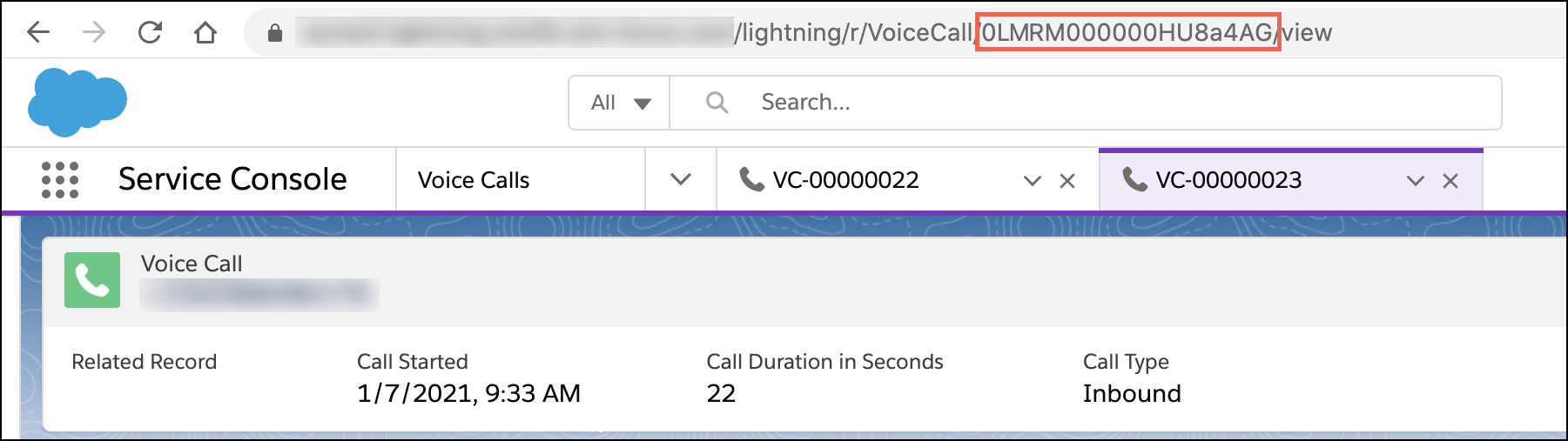
- Using the VoiceCall ID, retrieve the Conversation record and the ConversationParticipant
records.
Using SOQL, you can query for the Conversation ID. For example:
With the Conversation ID, you can query for additional fields on the Conversation record. For example:
You can also get information about the ConversationParticipant records. For example:
Values returned from this SOQL call are used in the subsequent upload API POST payload. Specifically:
- AppType in the SOQL call is used for the “appType” value in the payload.
- ParticipantRole is used for the “role” value.
- ParticipantKey is used for the “subject” value.
- Call the bulk upload API using the desired payload.
Make a POST call to the Connect REST API for uploading conversation data. For example:
Use a payload that contains the desired conversation participant info, along with the conversation entries. For example:
Use the following guidance when filling out this payload:
- Within each part of the payload, the first object must contain the conversation details (”conversation”). The next set of objects contains the conversation participants (”conversationParticipant”). The last set of objects contains the conversation entries (”conversationEntry”).
- The platformKey value is the developer name of the contact center. From Setup, select . Use the value for the Internal Name field.
- The channelType value is the Service Channel Name. From Setup, select . Select the relevant service channel. For Service Cloud Voice, this value is “phone”.
- The clientSentTimestamp must be between startTimestamp and endTimestamp.
- contextParamMap is optional and can be used to add contextual information.
- appType, role, and subject come from the ConversationParticipant SOQL call described in the previous step.
You get the following response when the call is successful.
- Check the status of the upload.
To check the status, perform a GET request to the same resource using the upload IDs.
If the upload was successful, you see this type of response.
If the upload failed, you see this type of response.
You can get the new conversation entries using an HTTP GET to /connect/conversation/conversationIdentifier/entries.