


Service Cloud Voice Implementation Guide
 j
jNewer Version Available
Keep the InvokeTelephonyIntegrationApiFunction Lambda Function Warm
When a Lambda function hasn’t been invoked after a period of
time, the AWS framework unloads the function from memory. The next time the function is
invoked, it is “cold” and takes longer to load into memory. This delay can cause a
timeout in the contact flow. These instructions describe how to keep your Lambda
function “warm” using a Lambda function trigger.
-
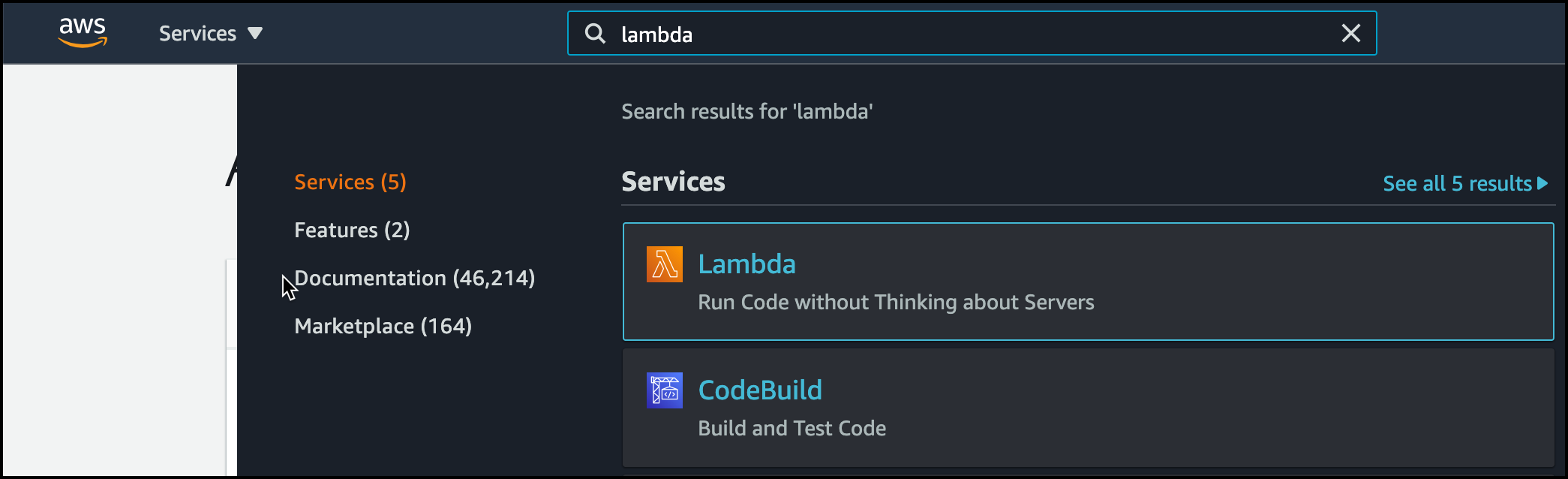
In Amazon Connect, search for the Lambda function page.
-
From the AWS Lambda function page, select the
InvokeTelephonyIntegrationApiFunction Lambda function.

- Copy the name of the function to your clipboard so that you can create a unique name for your rule later.
-
From the function overview page, select the
Configuration tab (1). Click the
Triggers subtab in the sidebar (2). To create a
trigger, click the Add trigger button (3).

-
From the Trigger configuration page, search for the EventBridge trigger and
select it.

-
Set up your trigger so that it runs every five minutes using the following
values.
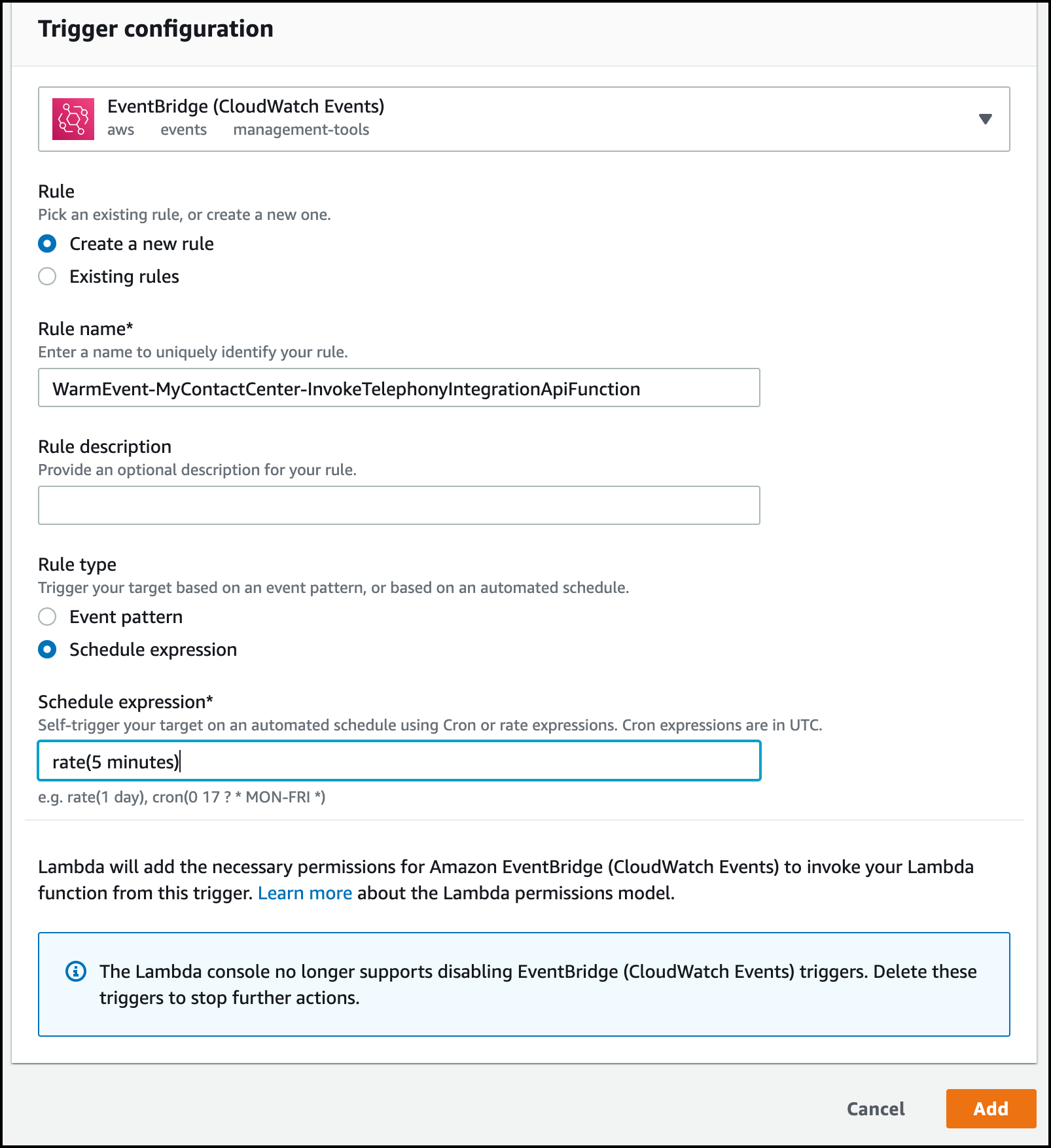
- For the Rule, select Create a new rule.
- For the Rule name, specify something globally unique. We suggest the prefix “WarmEvent-” plus the unique name of your InvokeTelephonyIntegrationApiFunction Lambda function that you previously copied to the clipboard.
- For the Rule type, specify Schedule expression.
- For the schedule expression, specify rate(5 minutes). This expression ensures that the Lambda is called every five minutes.
- To add this new trigger, click the Add button.
The InvokeTelephonyIntegrationApiFunction Lambda function automatically detects
when it’s being executed by a scheduled event trigger and only performs enough
processing to stay warm.