


Scoping Rules Developer Guide
 j
jNewer Version Available
Scoping Rules
| Available in: Lightning Experience in Performance and Unlimited Editions |
For information on enabling the scoping rules, visit the Scoping Rules group in the Trailblazer Community. You can also provide feedback and suggestions for scoping rules in this group.
When Do I Use Scoping Rules?
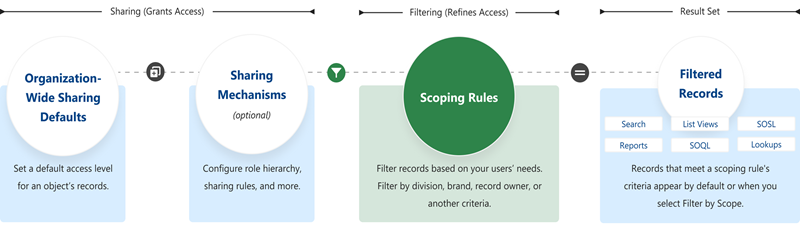
Use scoping rules when you want to let users control the record set that they see. A scoping rule doesn’t restrict users’ access to other records that they sometimes need. Instead, scoping rules let your users focus on one set of records, then change their focus or search to find a record that’s not in the scoped record set when they need to.
For example, you have users who support multiple agencies in your org. Each user is assigned to a specific agency. You can set up scoping rules so that they filter the records that your users see in search results, list views, and reports. Users don’t have to spend time looking for the correct records, but they still have access to the other agencies’ records if they need them.
Or you have teams of advisors and their support staff spread over multiple offices. Clients can interact with multiple advisors, too, depending on their needs. To support this workflow, you could create scoping rules to allow the support staff to focus on clients of a single advisor, a team of advisors, or an entire office.
You can also use scoping rules with Flow Builder to set scope according to a choice your user makes. For example, you have users who work on account records that belong to different divisions in your organization. You want to scope the account records that users see by division, giving your users an easy way to switch between different divisions’ record sets. You can set up a flow that your users access using the Lightning Utility Bar to set the scope of records that the user sees in list views, reports, and other features.
How Do Scoping Rules Affect User Access?
Scoping rules are flexible. You can enable and disable them on a query-by-query basis. Plus, they don’t restrict the access that your users have to records. Your users can still open and report on all the records that they can access according to your org’s sharing settings.
Where Are Scoping Rules Applied?
This table shows how scoping rules work with other Salesforce features.
| Feature | Description |
|---|---|
| List Views | Applied in Lightning Experience if Filter by scope is selected |
| Lookups | Applied in Lightning Experience |
| Reports | Applied in Lightning Experience if Filter by scope is selected |
| Search | Applied in Lightning Experience |
| SOQL | Applied, unless a scope other than scopingrule is specified |
| SOSL | Applied, except for "USING ListView=" clause, which applies the scoping rule to the list view’s first 2000 records |
How Do I Configure Scoping Rules?
After creating rules, you can use a change set or unlocked package to move scoping rules from one org to another.