Service Cloud Voice for Partner Telephony Developer Guide
 j
jNewer Version Available
Use the Demo Connector
The demo connector is a sample application for partner telephony systems that integrate
with Service Cloud Voice. It demonstrates an optimal Voice implementation based on a group of
telephony API mocks. It also includes a voice call simulation tool that you can use to test call
actions such as making and answering calls and using phone controls.
Start the demo-scv-connector
The demo-scv-connector is provided as part of the Demo
Connector in GitHub.
- Clone the git repo, and install the NPM
dependencies.
- Add a private key generated from Generate a Self-Signed Certificate with OpenSSL.
- Launch the tool.
By default, the web server runs in SSL on port 8080. The adapterUrl in your contact center points to this web server (for example, https://www.myTelephonyDemo.com:8080).
The previous command also starts the SCV REST APIs connector on default port 3030. It’s used for creating voice calls, transcription, and recording.
You can run them on separate terminals using the
following commands.
Verify That the Connector is Loaded
Test that the connector is working.
- The demo-scv-connector app uses a self-signed
certificate, so you must get your web browser to accept a self-signed certificate.
- Open the demo-scv-connector app URL (for example, https://serverURL:8080/remote.html) in a separate tab.
- Click through any warnings for untrusted certificates.
- Log in to Salesforce as one of the users that were added to the contact center.
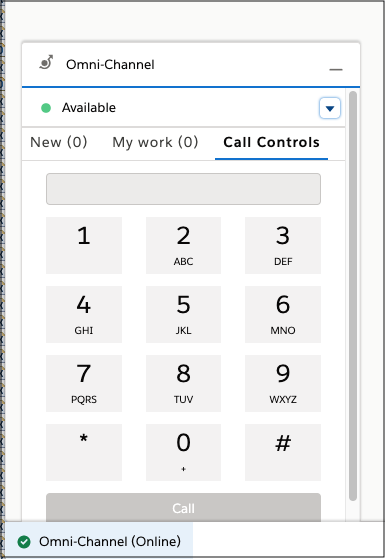
- Log in to the Omni-Channel utility and change the agent status to Available.
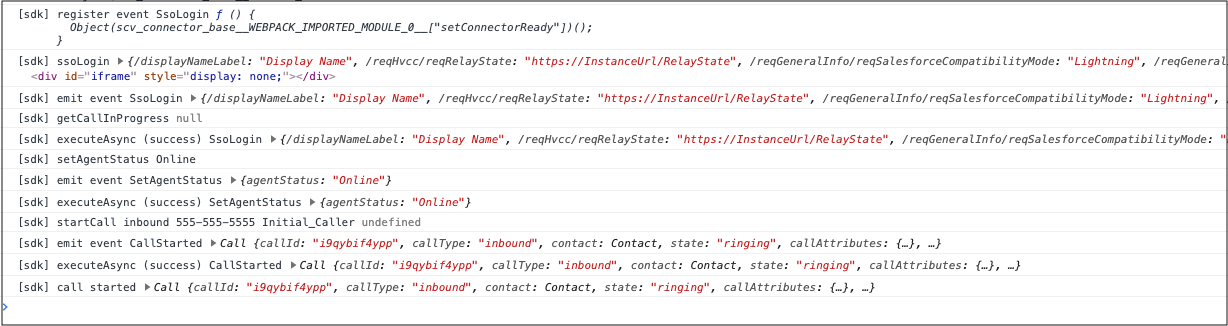
 Open the Browser Debugger and make sure that you see messages from the
connector. The messages start with [sdk] or [connector].
Open the Browser Debugger and make sure that you see messages from the
connector. The messages start with [sdk] or [connector].