


ISVforce Guide
 j
jNewer Version Available
Trialforce
A Trialforce setup has several parts: the Trialforce management org, Trialforce source
orgs, and Trialforce templates. Before you set up Trialforce, learn how these parts work together
to deliver a trial of your AppExchange solution.
- Trialforce Management Organization (TMO)
- The TMO is the starting point for setting up Trialforce, and it’s the central location for
managing Trialforce after setup. To request a TMO, log a support case in the Salesforce Partner Community. For product, specify Partner Programs &
Benefits. For topic, specify ISV Technology Request. You
can perform two tasks in the TMO.
- Create Trialforce source orgs.
- Define templates for custom branding.
- Trialforce Source Organization (TSO)
- You use the TSO to create a template for the trial orgs received by your customers. You
create the TSO from your TMO. You can perform these tasks in a TSO.
- Install your offering, along with any sample data.
- Configure the TSO to be exactly as you want your customers to experience it.
- Specify branding by selecting from the templates that you created in the TMO.
- Create a Trialforce template, which becomes the basis for all trial orgs.
- Trialforce Template
- The template is a snapshot or exact copy of your TSO at a specific time. You create it from a TSO after you install your offering and make configuration changes. You specify a Trialforce template when you generate a trial org using the SignupRequest API and when you create a demo org from the Environment Hub. The template defines the trial org that’s provisioned each time that a customer signs up for a trial of your offering.
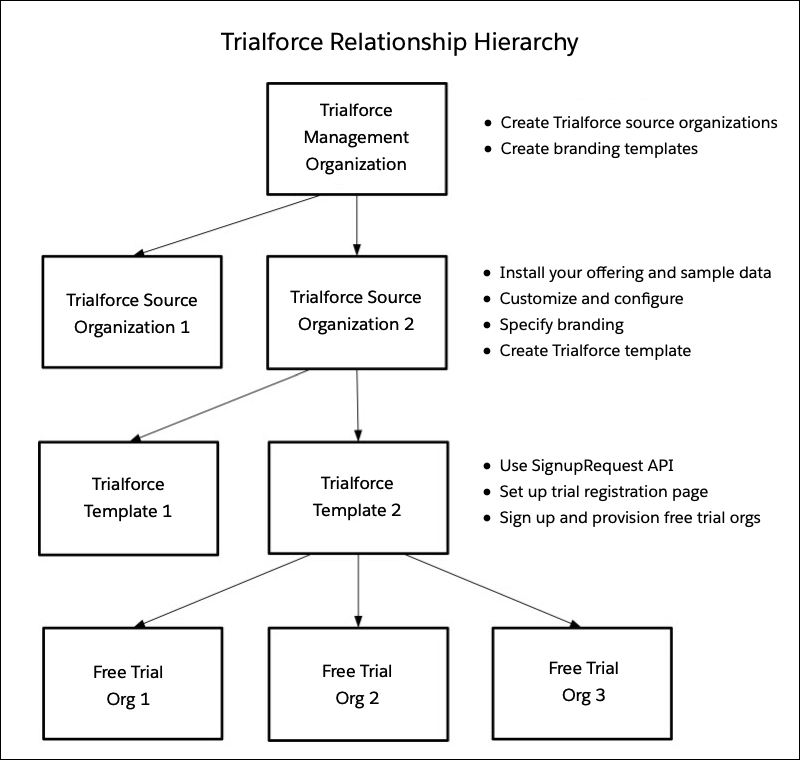
The TMO, TSOs, and Trialforce templates have a hierarchical relationship.
- You can create multiple TSOs from a TMO. For example, to offer trials for two different apps, you generate two TSOs from the same TMO, one for each app. You can use the TMO as a central hub to manage the trials for all the Lightning Platform apps or components that your company produces.
- You can create multiple Trialforce templates from the same TSO. For example, you release a new version of your component after you start using Trialforce. You can install the updated version into the previous TSO and generate a new Trialforce template from it. To request a trial for the new version, use the SignupRequest API with the new Trialforce template ID. All trial orgs created using the new template ID have the new version of the package.
We recommend that you have one unique TMO for your company, one TSO for each offering, and one Trialforce template for each version or edition of your offering. Splitting up the configuration process across these levels makes it easier to maintain and update your trials. Each time you change something, such as the version, its branding, or a configuration detail of the trial org, you must change only one level in the hierarchy. Minimizing the configuration steps makes it easier to concurrently manage trials for multiple offerings, versions, and editions.
After you configure a TMO, TSO, and Trialforce template, choose how to provide trials to
prospective customers.
- Use AppExchange—Customers begin a trial of your offering directly from an AppExchange listing. This approach is the quickest, easiest way to make a trial available because it requires only a few steps to configure.
- Use the API—You provision a trial of your offering programmatically using the SignupRequest API. This approach is ideal if you want full control of the sign-up process because it allows for advanced customization.