Service Cloud Voice Implementation Guide
 j
jNewer Version Available
Enable Voicemail Support
| Ease of Implementation | Medium |
| Estimated Time to Implement | 30 minutes |
This configuration applies to the Service Cloud Voice with Partner Telephony from Amazon Connect telephony setup.
This feature is available in the Spring '23 and later releases.
- If the contact center was created using a new Amazon Connect instance, you must upgrade to contact center version 11.0 or later to get the latest Lambda functions.
- If the contact center was created using an existing Amazon Connect instance, you must configure Kinesis as the event source to work with the Lambda functions in the ServiceCloudVoiceLambdas serverless app.
- Add and configure the VoiceMailAudioProcessingFunction Lambda function. This step only applies if the contact center was created using an existing Amazon Connect instance.
- Enable Amazon EventBridge.
- Configure an EventBridge Rule for the VoiceMailTranscribeFunction Lambda function.
- Configure an EventBridge Rule for the VoiceMailPackagingFunction Lambda function.
- Bind the voicemail subflow to the inbound flow in Amazon Connect.
This example applies to both contact centers created using a new or existing Amazon Connect instance.
See Lambda Functions for more information about the VoiceMailAudioProcessingFunction, VoiceMailTranscriberFunction, and VoiceMailPackagingFunction Lambda functions.
To access Amazon Web Services documentation, go to https://docs.aws.amazon.com.
Prerequisites
- Verify that you have AWS root user or AWS administrator credentials.
- Deploy the ServiceCloudVoiceLambdas.
- If the contact center was originally created using a new Amazon Connect instance, upgrade the contact center to version 11.0 or later.
- Note the name of the S3 bucket you’ll use to store the voicemail recordings and transcription files. The S3 object name is in the format <contactcentername-salesforceuniquerandomID>.
Step 1: Add and Configure the VoiceMailAudioProcessingFunction Lambda Function.
Perform this step if the contact center was created using an existing Amazon Connect instance. Skip this step if the contact center was created using a new Amazon Connect instance.
- From the AWS Management Console, go to the AWS Lambda service and select Functions.
- In the Function name list, click VoiceMailAudioProcessingFunction.
- Click +Add trigger.
- In the Trigger configuration section, select Kinesis from the dropdown menu.
- Set the Batch size to 10.
- Set the Starting position to Trim Horizon.

- Click Add.
- Click the Configuration tab, select Environment variables, and then click Edit.
- Find the s3_recordings_bucket key and replace the testVoiceMailBucket value with the name of the contact center S3 bucket that
will store the voicemail recordings and transcriptions. For example,
contactcenter-123456789123. You can select an S3 bucket that you already use for Service
Cloud Voice.

- Click Save.
Step 2: Enable Amazon EventBridge
- From the AWS Management Console, open the Amazon S3 console at https://console.aws.amazon.com/s3/.
- In the Buckets list, click the name of the S3 bucket that will store the voicemail recordings and transcriptions. You can select an S3 bucket that’s already used for Service Cloud Voice purposes.
- Click the Properties tab.
- In the Amazon EventBridge section, click Edit.
- In the Edit Amazon EventBridge screen, under Send notifications to Amazon
EventBridge for all events in this bucket, select the
On option.

- Click Save changes.
Step 3: Configure an Amazon EventBridge Rule for VoiceMailTranscribeFunction
- From the AWS Management Console, go to Amazon EventBridge > Rules.
- Click Create rule.
- In the Define rule detail screen, give the rule a name and optional description. Leave
the other default settings.

- Click Next.
- In the Build event pattern screen, scroll down to the Event pattern section and click Custom patterns (JSON editor).
- Copy the following JSON sample event and paste it into the Event pattern text box,
replacing the name of the bucket with your contact center’s S3 object name:
1{
2  "detail-type": ["Object Created"],
3  "source": ["aws.s3"],
4  "detail": {
5    "bucket": {
6      "name": ["contactcenter-123456789123"] // replace with contact center S3 bucket name
7    },
8    "object": {
9      "key": [{
10        "prefix": "voicemail_recordings/"
11      }]
12    }
13  }
14}
- Click Next.
- In the Select target(s) screen, set the Select a target dropdown to Lambda function,
and set the Function to the VoiceMailTranscribeFunction function.

- Click Next twice.
- In the Review and create screen, review the settings for your new EventBridge rule and click Create rule.
Step 4: Configure an Amazon EventBridge Rule for VoiceMailPackagingFunction
- From the AWS Management Console, go to Amazon EventBridge > Rules.
- Click Create rule.
- In the Define rule detail screen, give the rule a name and optional description. Leave
the other default settings.

- Click Next.
- In the Build event pattern screen, scroll down to the Event pattern section and click Custom patterns (JSON editor).
- Copy the following JSON sample event and paste it into the Event pattern text box,
replacing the name of the bucket with your contact center’s S3 object name:
1{
2  "detail-type": ["Object Created"],
3  "source": ["aws.s3"],
4  "detail": {
5    "bucket": {
6      "name": ["contactcenter-123456789123"] // replace with contact center S3 bucket name
7    },
8    "object": {
9      "key": [{
10        "prefix": "voicemail_transcripts/"
11      }]
12    }
13  }
14}
- Click Next.
- In the Select target(s) screen, click the Select a target dropdown and select Lambda function. Click the Function dropdown and select VoiceMailPackagingFunction.
- Click Next twice.
- In the Review and create screen, review the settings for your new EventBridge rule and
click Create rule.

Step 5: Add the Voicemail Subflow in Amazon Connect
- From the Amazon Connect console, select Routing > Contact Flow.
- Make a copy of the Sample SCV Voicemail Subflow. Click the Sample SCV Voicemail Subflow, click the dropdown arrow next to the Save button, select Save As, enter a name for the voicemail subflow, and click Save.
- Click the inbound flow where you’ll add the voicemail subflow.
- Add a Transfer to flow flow block and configure it to Set manually: <Name of the voicemail subflow>.
- Add a Get customer input flow block and configure prompts to give the caller the option to either proceed with the voice call or leave a voicemail message.
- Insert the Get customer input flow block into the inbound flow so the voice call option transfers to the Transfer to flow: Omni-Channel flow block and the voicemail option transfers to the Transfer to flow: Voicemail flow block.
- Click Save.

Voicemail Process
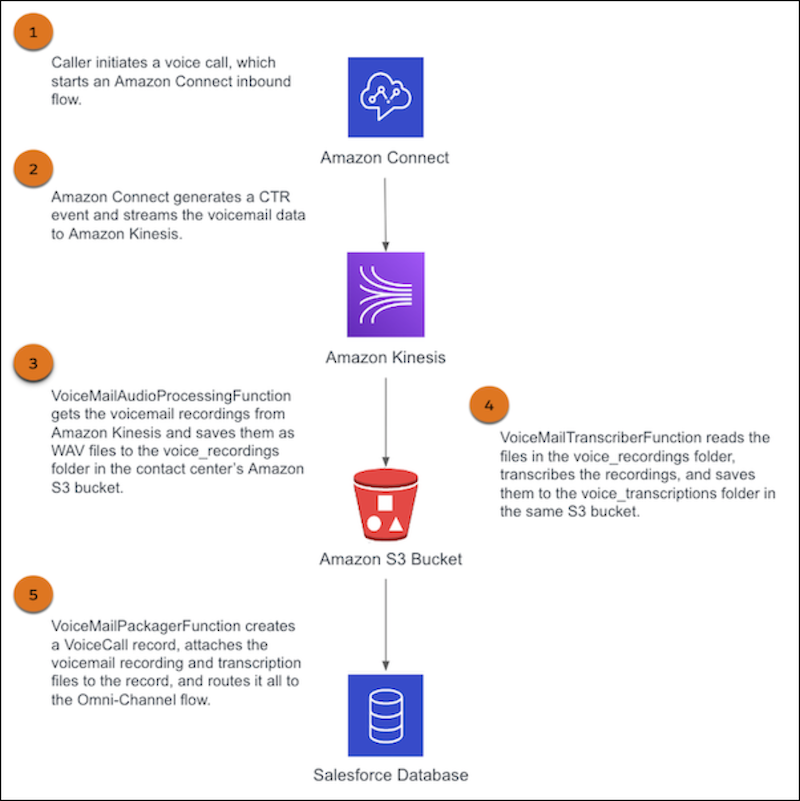
The diagram illustrates the voicemail process that happens when a caller initiates a voice call with the contact center.
(1) A caller initiates a voice call with the contact center, which triggers an Amazon Connect inbound flow to begin. When the flow reaches the Get customer input prompt flow block, the caller chooses to leave a voicemail message.
(2) After the caller leaves the voicemail message and hangs up, Amazon Connect generates a Contact Trace Record (CTR) event and streams the voicemail data to Amazon Kinesis.
(3) The CTR event triggers the VoiceMailAudioProcessingFunction Lambda function to get the voicemail recordings from Amazon Kinesis and saves them as WAV files to the voicemail_recordings folder in the contact center’s Amazon S3 bucket.
(4) Every time a voicemail recording file is added to the voicemail_recordings folder, an EventBridge rule triggers the VoiceMailTranscriberFunction Lambda function to read the files in the S3 bucket, transcribe the recordings, and save the files into the voicemail_transcriptions folder in the contact center’s Amazon S3 bucket.
(5) Every time a voicemail recording file is added to the voicemail_transcriptions folder, an EventBridge rule triggers the VoiceMailPackagingFunction Lambda function to create a VoiceCall record, attach the voicemail recording and transcription files to the record, and route it all to the Omni-Channel flow that was configured in the contact center.
The agent who receives the voice call can play back the voicemail recording and read the transcription at any time.