


ISVforce Guide
 j
jNewer Version Available
Connect a Stripe Account to Your AppExchange Listing
To use Checkout with your AppExchange listings, connect your Stripe account to a listing
in the Salesforce Partner Console.
| User Permissions Needed | |
|---|---|
| To manage AppExchange listings: | Manage Listings |
If you don’t have a Stripe account, first create one using the instructions in Create a Stripe Account for AppExchange Checkout.
- Log in to the Salesforce Partner Community.
- Click Publishing to go to the Salesforce Partner Console.
- Click Listings.
- Create a listing or edit an existing one.
- Click .
- For pricing model, select Paid.
- For payment method, select AppExchange Checkout.
- Select when to collect payment details from the customer, before or after they install your solution.
-
Click Connect to Stripe. If you don’t see this option, it’s likely
that your Stripe account is already connected, and you can skip to the last step.
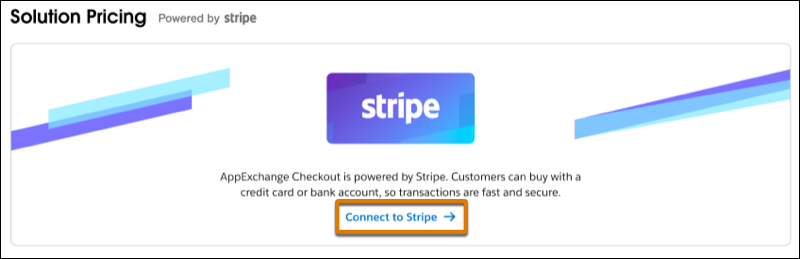 The Stripe website opens in a new browser tab.
 -
To connect your Stripe account, follow the prompts on the Stripe website to log in to your
account. If you don’t have a Stripe account, follow the prompts to create one.
When you complete this step, the Stripe tab closes and you’re returned to the Partner Console.
-
Verify that your listing is connected to Stripe. If you see “Connected to Stripe as” in the
Solution Pricing section, you’re all set.
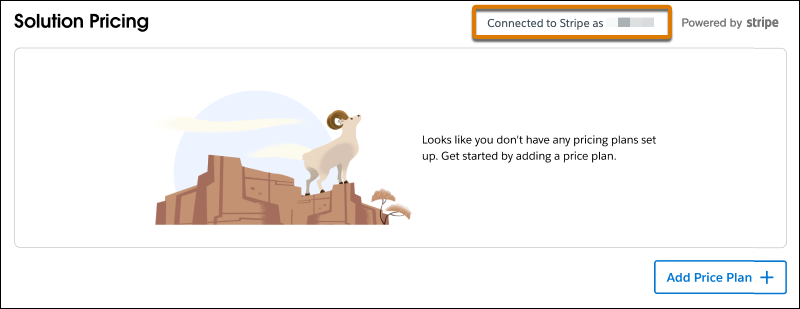
After you connect your Stripe account, you can add pricing plans to your
listing.