


ISVforce Guide
 j
jNewer Version Available
Register Your Managed Package and Choose License Settings
If you set up the License Management App (LMA) and register your managed package, you
receive a license record each time a customer installs your AppExchange Solution. You can use
licenses to track who is using your solution and for how long.
Before you register a package version, make sure that:
- Your solution is in a managed package.
- You’ve installed the LMA. In most cases, the LMA is installed in your partner business org.
- Log in to the Salesforce Partner Community.
- Click .
- Click a solution name to show the related versions.
- Locate the package version that you want to register.
-
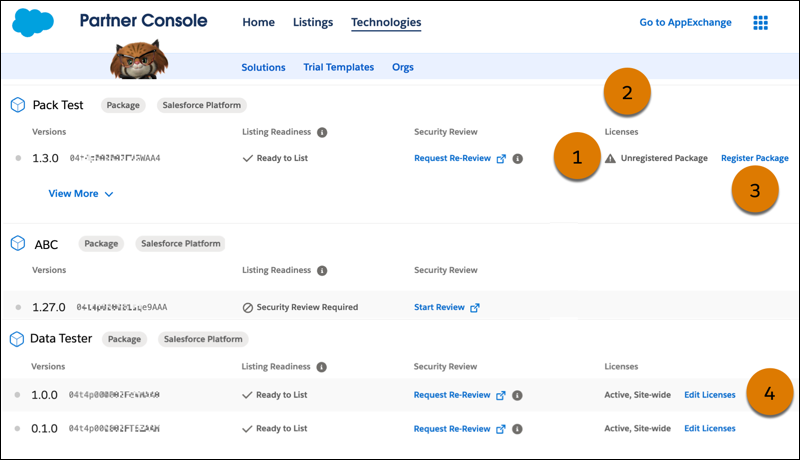
Confirm you see Unregistered Package (1) in the Licenses column (2).
-
Click Register Package (3).
If the Register Package link is missing and you instead see Edit Licenses (4), the package is already registered and you’re done.
- Follow the prompts to log in to the org where the LMA is installed. Provide a username and a password with a security token appended. For example, if the password is ABC and the token is 123, enter ABC123. Don’t remember your token? Reset your security token.
-
Edit the default license settings.
- Select whether your default license is Free Trial or Active. For a Free Trial, enter a number up to 90 for the number of trial days.
- Select whether your license is applied Per seat or Site-wide. For per seat, enter the number of seats to assign to the license.
- Save your changes.