Displaying Field Values with Visualforce
Visualforce pages use the same expression language as formulas—that is, anything inside {! } is evaluated as an expression that can access values from records that are currently in context. For example, you can display the current user’s first name by adding the {!$User.FirstName} expression to a page:
1<apex:page>
2    Hello {!$User.FirstName}!
3</apex:page>
$User is a global variable that always represents the current user record. All global variables are referenced with a $ symbol. For a list of global variables that you can use in Visualforce, see Global Variables.
To access fields from a record that is not globally available, like a specific account, contact, or custom object record, you need to associate your page with a controller. Controllers provide pages with the data and business logic that make your application run, including the logic that specifies how to access a particular object’s records. While you can define a custom controller for any page with Apex, Salesforce includes standard controllers for every standard and custom object.
For example, to use the standard controller for accounts, add the standardController attribute to the <apex:page> tag, and assign it the name of the account object:
1<apex:page standardController="Account">
2    Hello {!$User.FirstName}!
3</apex:page>
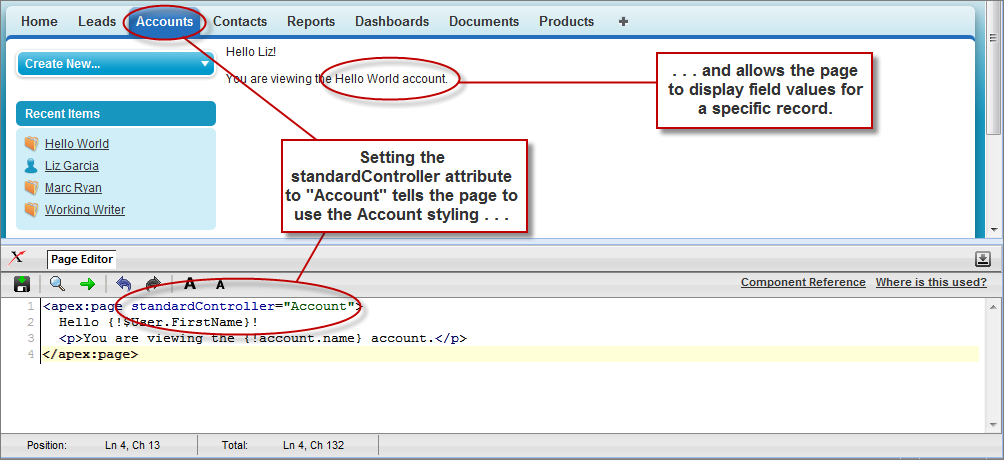
After you save your page, the Accounts tab is highlighted for the page, and the look-and-feel for the components on the page match the Accounts tab. Additionally, you can now access fields on the account record currently in context by using {!account.<fieldName>} expression syntax.
For example, to display an account’s name on a page, use {!account.name} in the page markup:
1<apex:page standardController="Account">
2    Hello {!$User.FirstName}!
3    <p>You are viewing the {!account.name} account.</p>
4</apex:page>
The {!account.name} expression makes a call to the getAccount() method in the standard Account controller to return the record ID of the account currently in context. It then uses dot notation to access the name field for that record.
When you save a page, the value attribute of all input components—<apex:inputField>, <apex:inputText>, and so on—is validated to ensure it’s a single expression, with no literal text or white space, and is a valid reference to a single controller method or object property. An error will prevent saving the page.
To bring an account record into the current context, you must add a query parameter to the page URL that specifies the ID of the record. To do this:
-
Find the ID of an account by any means you wish. One easy way is to view the detail page of an account record and copy the character code at the end of the URL. For example, if you navigate to an account detail page with the following URL:
1https://MyDomain_login_URL/001D000000IRt53
Then 001D000000IRt53 is the ID for the account.
-
Back on your page, add the account ID as a query string parameter to the URL in your browser’s address bar. For example, if your page is located at:
1https://MyDomain_login_URL/apex/HelloWorld2
Add ?id=001D000000IRt53 to the end of the URL:
1https://MyDomain_login_URL/apex/HelloWorld2?id=001D000000IRt53
If you use the id parameter in a URL, it must refer to the same entity referred to in the standard controller.
Once an account ID is specified in the URL, the page displays the appropriate account name, as shown in the following figure.
Field-level help for Visualforce pages is only available in Salesforce Classic with the page’s showHeader attribute set to true. Otherwise, the help text doesn’t render when the user hovers over the help icon. See Field-Level Help in Salesforce Help.


 j
j