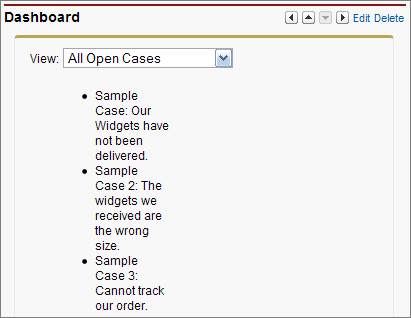
Create Visualforce Dashboard Components
Use Visualforce pages as dashboard components. A dashboard shows data from source reports as visual components, such as charts, gauges, tables, metrics, or Visualforce pages. The components provide a snapshot of key metrics and performance indicators. Each dashboard can have up to 20 components.
| Required Editions |
|---|
| Available in: Salesforce Classic (not available in all orgs) |
| Available in: all editions |
Visualforce pages as dashboard components are only available in Salesforce Classic. In Lightning Experience, you can create a custom tab and use that as a dashboard for your custom lightning components.
To be included in a dashboard, a Visualforce page must use a custom controller, use a standard or custom list controller, or not have a controller. You can’t add a Visualforce page with a standard controller to a dashboard. Only Visualforce pages that meet these requirements appear as options in the Data Sources tab.
Visualforce dashboard components aren’t supported when third-party cookies are disabled. See Visualforce Limitations in Salesforce Classic When Third-Party Cookies are Blocked.
-
Create a Visualforce page called
VFDashboard.The Visualforce page uses a standard list controller, so you can add it to a dashboard. It displays a list of the cases associated with your org.
-
Add the Visualforce page to a dashboard.
-
Click the Dashboards tab.
-
On the dashboard where you want to add the Visualforce page component, click Edit.
-
From the Components tab, drag Visualforce Page onto your dashboard.
-
From the Data Sources tab, click the Visualforce Pages dropdown, and drag
VFDashboardonto the component that you just added to the dashboard. -
Optionally, enter a header or footer to display on the Visualforce dashboard component.
-
Save your changes.

For a more complex example that uses a custom list controller, see Create Advanced Visualforce Dashboard Components.
-
See Also