Mobile and Offline Developer Guide
 j
jNewer Version Available
Mobile Development Preview Environments
Administrators
Salesforce Administrators work with stakeholders to define requirements and to customize their org, using the full variety of tools available in Salesforce. When customizing pages, administrators should validate their changes for both desktop and mobile.
App Builder Mobile Previews
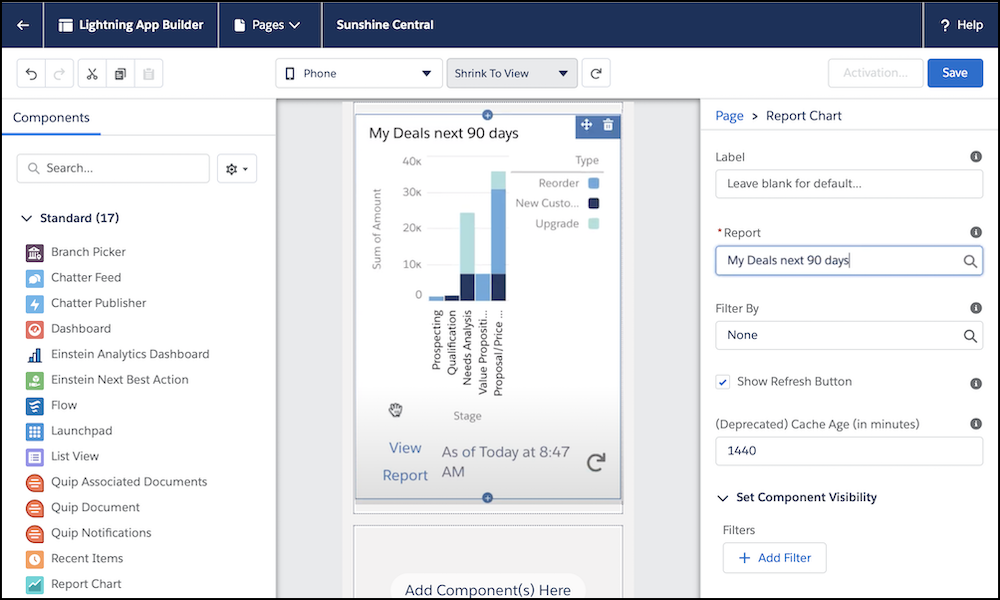
Admins can use Lightning App Builder to build apps and pages to customize Lightning Experience on mobile. App Builder provides previews for both desktop and mobile. Admins can specify certain components as mobile- or desktop-only. See Visibility Rules on Lightning Pages for available filtering options.
For more information about building and previewing pages in App Builder, see Build a Mobile App Page and Get Ready for Lightning — 5 step-by-step videos.
If admins need more than a preview, they can run Lightning applications and components in the Salesforce mobile app on their devices. Testing in the mobile app helps validate that users have the best experience on mobile.
Developers
Salesforce developers building Lightning web components have many options available to validate their components for mobile.
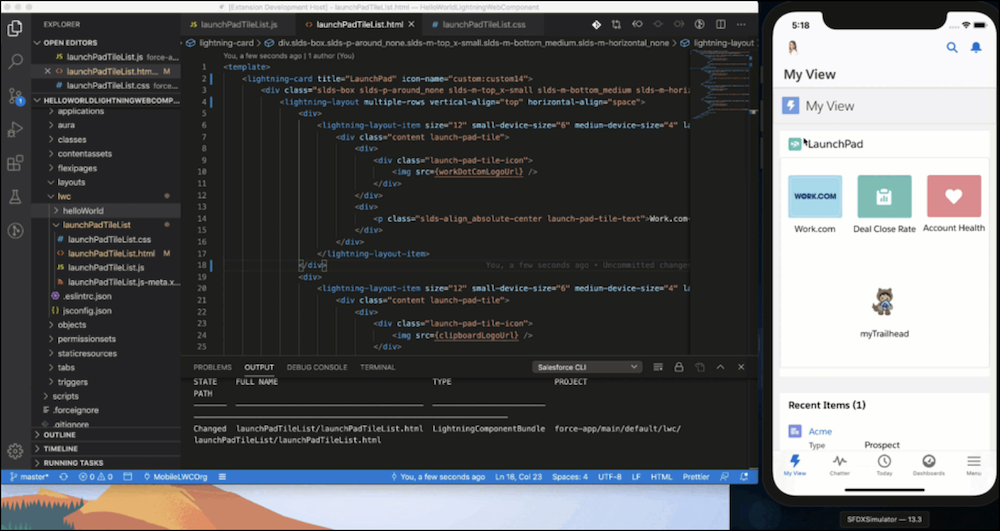
Preview Components Using Local DevWith Local Dev, you can preview your Lightning web components in isolation or within a Lightning app or Experience Cloud Lightning Web Runtime site. When you save changes to your source code on your local machine, Local Dev automatically updates your browser preview. This lets you iterate quickly on your components without deploying code or manually refreshing the preview in your browser.
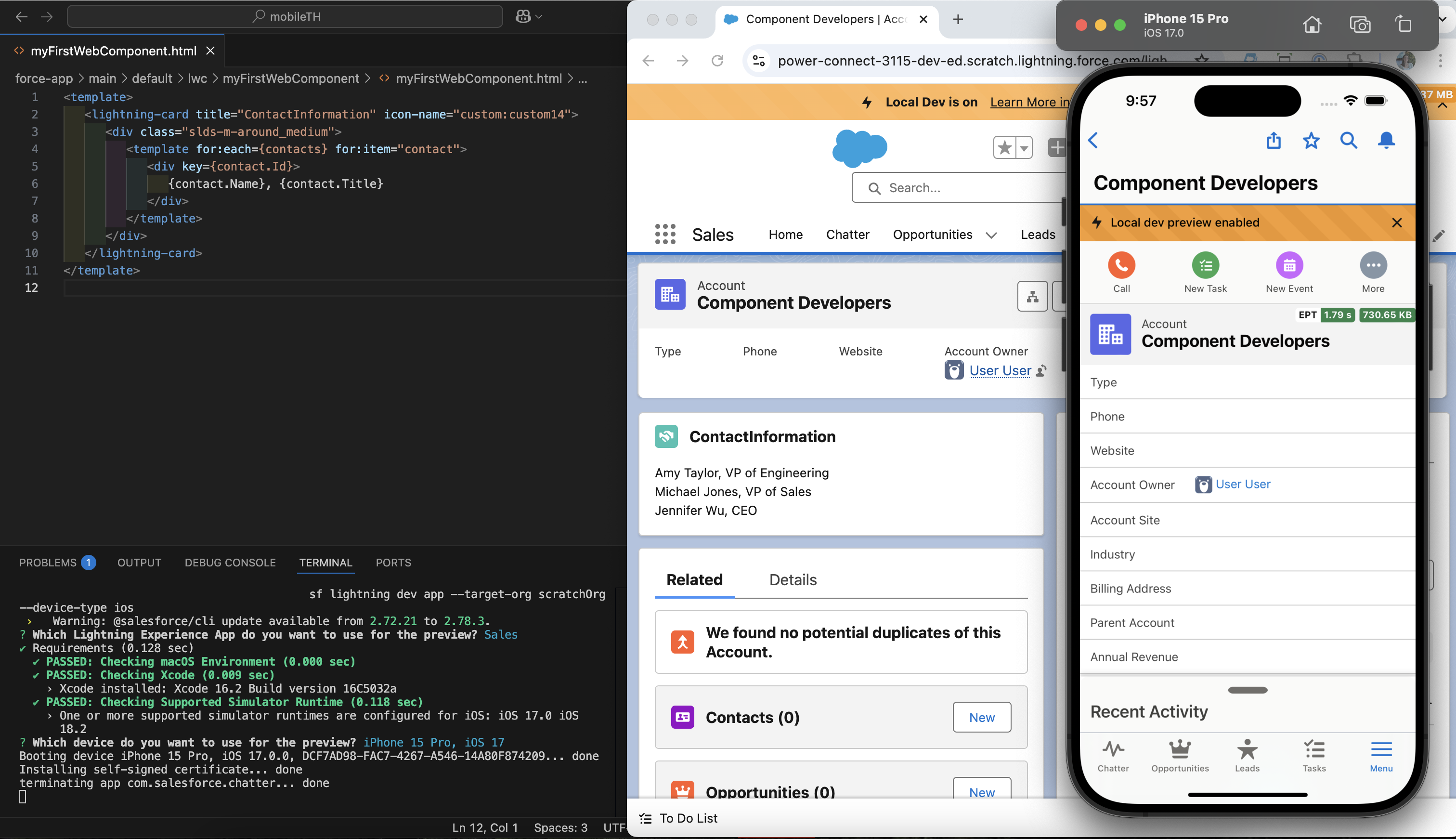
You can use Local Dev to test a Lightning app in different mobile environments. This requires some setup of mobile development tools, like Xcode and Android Studio. For a hands-on walkthrough of this setup, complete the Trailhead project Set Up Your Salesforce Mobile Developer Tools for Lightning Web Components.
To learn more about Local Dev, check out Lightning Web Components Developer Guide: Preview Components with Local Dev.
Preview in the Salesforce Mobile App
Previews using Local Dev are great for seeing your changes in real-time. After your component is validated locally, publish it to a Salesforce development org and validate it on pages with other components in the Salesforce mobile app. You can run the Salesforce mobile app on physical devices and on virtual devices.
-
Physical Devices
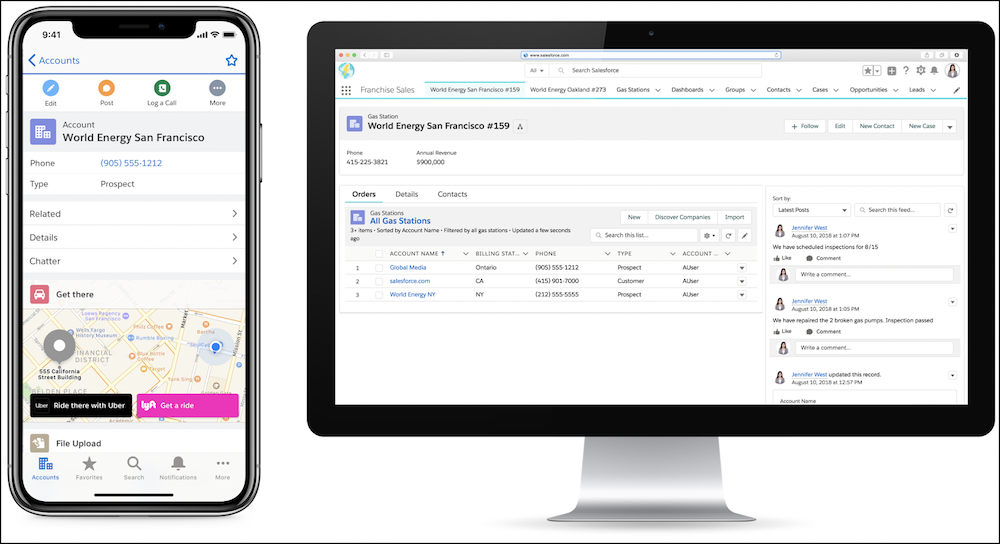
You can run your Lightning applications and components using the Salesforce mobile app on your device. Use the mobile app to review issues your applications and components encounter on mobile. The Salesforce mobile app is available for download from the App Store and Google Play.
-
Virtual Device Builds
You can run your Lightning applications and components using virtual device builds of the Salesforce mobile app. These builds make it possible to run Salesforce on iOS simulators and Android emulators so you can validate and debug your components on many devices. To learn how to download virtual device builds, see Preview Components in the Salesforce Mobile App.