


LWR Sites for Experience Cloud
 j
jNewer Version Available
Add Custom Fonts
Upload Fonts as a Static Resource
To upload your custom font as a static resource and reference it within the head markup:
- In Setup, in the Quick Find box, enter Static Resources, and then select Static Resources.
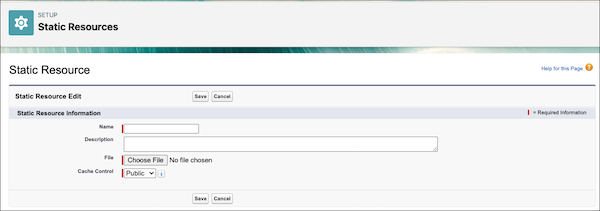
- Click New, upload the file, and give the static resource a name.
Keep a note of the resource name. If your site has public pages, select
Public in the Cache Control setting. If you don’t make the font
resource publicly available, the page uses the browser’s default font instead.
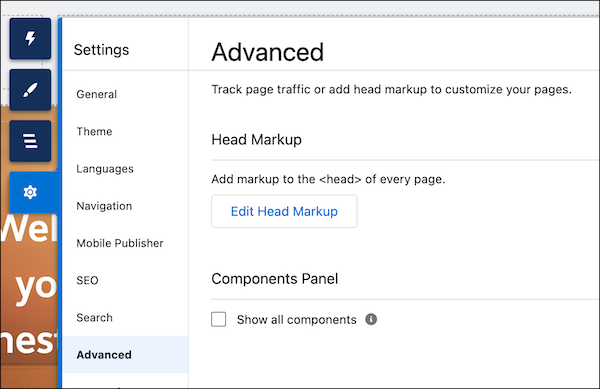
- To add a reference to the font in your site’s head markup, return to Experience Builder,
and click .
- Insert the @font-face declaration. For
example:Salesforce automatically replaces the `{ basePath }` variable is with your site's base URL path at run time. For example:
1<link rel="stylesheet" href="{ basePath }/assets/styles/dxp-styling-hooks.min.css?{ versionKey}" /> 2<link rel="stylesheet" href="{ basePath }/assets/styles/dxp-slds-extensions.min.css?{ versionKey}" /> 3 4<style> 5 @font-face { 6 font-family: 'myFirstFont'; 7 /* Replace myFonts with your resource name */ 8 src: url('{ basePath }/sfsites/c/resource/myFonts') format('woff'); 9 } 10</style>If your site URL is `https://mycompany.force.com/customerportal`, then `{ basePath }` resolves to `/customerportal`.
The full font URL becomes: `https://mycompany.force.com/customerportal/sfsites/c/resource/MyFonts`.
Always use `{ basePath }` (with the curly braces and spaces) exactly as shown in the examples. Don't replace it with your site path.
- To reference a single font file, use the syntax {
basePath
}/sfsites/c/resource/static_resource_name.
For example, if you upload a font file called myFirstFont.woff and name the resource MyFonts, the URL is { basePath }/sfsites/c/resource/MyFonts.
- To reference a font file within a .zip file, include the folder structure, but omit
the .zip file name. Use the syntax { basePath
}/sfsites/c/resource/static_resource_name/font_folder/font_file.
For example, if you upload a file called fonts.zip, which contains bold/myFirstFont.woff, and you name the resource MyFonts, the URL is { basePath }/sfsites/c/resource/MyFonts/bold/myFirstFont.woff.
- To reference a single font file, use the syntax {
basePath
}/sfsites/c/resource/static_resource_name.
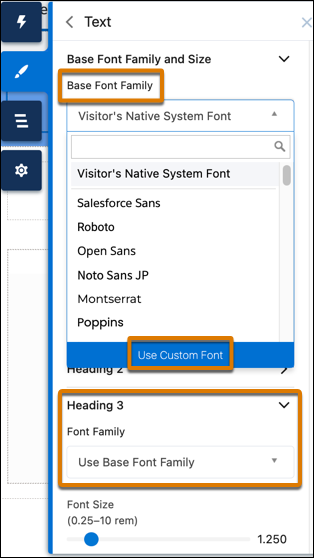
- In the Text section of the Theme panel, click the Base Font Family dropdown list or the
Font Family dropdown list for a specific text property, and select Use Custom
Font.
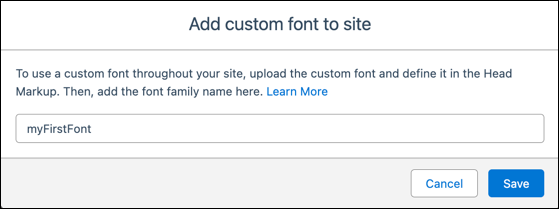
- Add the font family name that you entered in the Head Markup editor—for example,
myFirstFont—and save your changes.
Example
When you upload a font as a Static Resource, declare it in Head Markup, and apply it in the Theme panel, use the following pattern:
<style> @font-face { font-family: 'YourFontName'; src: url('{ basePath }/sfsites/c/resource/YourStaticResourceName') format('woff2'); font-weight: 400; }</style>
If you have multiple font weights from a zip file, use the following pattern:
<style> @font-face { font-family: 'BrandFont'; src: url('{ basePath }/sfsites/c/resource/CustomFonts/Regular.woff2') format('woff2'); font-weight: 400; } @font-face { font-family: 'BrandFont'; src: url('{ basePath }/sfsites/c/resource/CustomFonts/Bold.woff2') format('woff2'); font-weight: 700; }</style>Then enter: BrandFont, Arial, sans-serif. Don't forget to set Cache Control to Public for unauthenticated guest user access and always include fallback fonts.
Use Externally Hosted Fonts
You can use fonts hosted outside Salesforce, such as Google Fonts. To access externally hosted files, update the Content Security Policy (CSP) for your org by adding the hosts to your list of trusted URLs. Otherwise, an error appears indicating that you don't have access to the resource.
For example, for Google Fonts, add:
- https://fonts.googleapis.com to access the Google Fonts style sheet
- https://fonts.gstatic.com to access fonts from Google Font
For details on how to add a Trusted URL with the required CSP directives, see Manage Trusted URLs.