


Salesforce Voice with Telephony Providers Implementation Guide
 j
jNewer Version Available
Upload or Update Transcripts with Connect REST API
These Connect API resources provide programmatic access to voice transcripts (also called “conversation entries”) so that customers can build custom solutions with voice transcripts.
- /connect/conversations/upload (GET)
- Get the status of conversation uploads.
- /connect/conversations/upload (POST)
- Upload bulk conversations.
- /connect/conversation/conversationIdentifier/entries (GET)
- Get conversation entries.
- /connect/conversation/conversationIdentifier/entries (PATCH)
- Update conversation entries.
Usage Example
This example describes how to perform bulk upload of transcripts to a voice call after the conversation. The bulk upload API call preserves the order of transcripts (conversation entries) as they appear in the uploaded payload file, but it doesn’t sort or reorder entries based on timestamps.
- Retrieve the VoiceCall ID for a conversation.
In order to perform the subsequent steps, you must get the VoiceCall record ID.
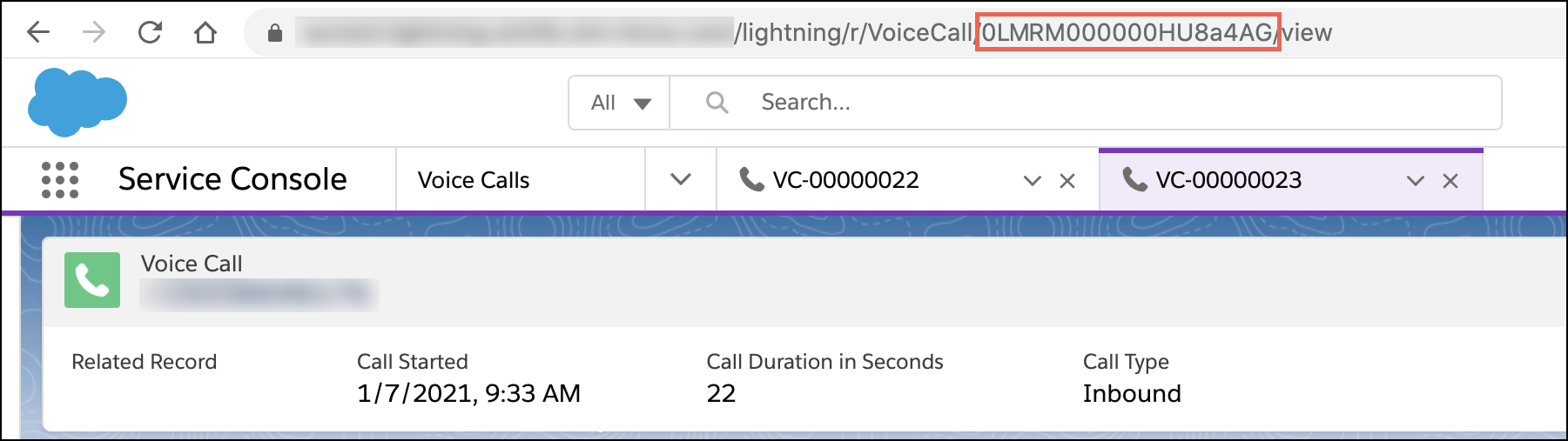
- Using the VoiceCall ID, retrieve the Conversation record and the ConversationParticipant
records.
Using SOQL, you can query for the Conversation ID. For example:
1SELECT ConversationId FROM VoiceCall WHERE Id = '0LMRM000000HU8a4AG'With the Conversation ID, you can query for additional fields on the Conversation record. For example:
1SELECT ConversationChannelId,ConversationIdentifier,CreatedById,CreatedDate,EndTime,Id,IsDeleted,LastModifiedById,LastModifiedDate,Name,StartTime
2       FROM Conversation WHERE Id = '0dwRMR000003M5pYAE'
You can also get information about the ConversationParticipant records. For example:
1SELECT AppType,ConversationId,CreatedById,CreatedDate,Id,IsDeleted,JoinedTime,LastActiveTime,LastModifiedById,LastModifiedDate,LeftTime,Name,ParticipantContext,ParticipantDisplayName,ParticipantEntityId,ParticipantKey,ParticipantRole
2       FROM ConversationParticipant WHERE ConversationId = '0dwRMR000003M5pYAE'
Values returned from this SOQL call are used in the subsequent upload API POST payload. Specifically:
- AppType in the SOQL call is used for the “appType” value in the payload. For API version 52.0 and later, refer to the AppType to appType Mapping table.
- ParticipantRole is used for the “role” value. For API version 52.0 and later, refer to the ParticipantRole to role Mapping table.
- ParticipantKey is used for the “subject” value.
Table 1. AppType to appType Mapping AppType Value in SOQL appType Value in Payload bmapi BMAPI live_message LIVE_MESSAGE chatbot CHATBOT messaging MESSAGING perftool PERFTOOL agent AGENT telephony_integration TELEPHONY_INTEGRATION translation TRANSLATION iamessage IAMESSAGE conversation CONVERSATION Table 2. ParticipantRole to role Mapping ParticipantRole Value in SOQL role Value in Payload System SYSTEM Agent AGENT Chatbot CHATBOT EndUser END_USER Supervisor SUPERVISOR Router ROUTER - Call the bulk upload API using the desired payload.
Make a multi-part POST call to the Connect REST API for uploading conversation data. For example:
1POST https://MY_ORG_DOMAIN/services/data/v52.0/connect/conversations/uploadTo prepare the request, save the payload to a binary file. Use a payload that contains the desired conversation participant info, along with the conversation entries. For example, the following payload sample applies to API version 52.0 and later.
1{"type": "conversation", "payload": {"conversationId": "ab123456-76d6-4d60-a53d-fb69d800b10c"}}
2{"type": "conversationEntry", "payload": {"conversationId": "ab123456-76d6-4d60-a53d-fb69d800b10c", "id": "1", "clientSentTimestamp": 1610580214000, "clientDuration": 123432, "messageText":"Hello, how can I help you?","sender": {"appType": "AGENT", "subject": "005RM00000225FB","role": "AGENT"},"relatedRecords": ["0LQXXXXXXXXXXXX"] }}
3{"type": "conversationEntry", "payload": {"conversationId": "ab123456-76d6-4d60-a53d-fb69d800b10c", "id": "2", "clientSentTimestamp": 1610580214001, "clientDuration": 123432, "messageText":"I want to return this merchandise. Can you please help?","sender": {"appType": "TELEPHONY_INTEGRATION", "subject": "END_USER","role": "END_USER"},"relatedRecords": ["0LQXXXXXXXXXXXX"]}}
Use the following guidance when filling out this payload:
- Within each part of the payload, the first object contains the
conversation details (1). The latter set of objects contains the
conversation entry details (2).

- The clientSentTimestamp must be between startTimestamp and endTimestamp. Timestamps are specified using the UNIX Epoch time.
- contextParamMap is used to add contextual information. This parameter is optional.
- appType, role, and subject come from the ConversationParticipant SOQL call described in the previous step.
- relatedRecords is the list of object records that are associated with the conversation entry. Valid values for voiceCallIds in the relatedRecords list are 15 characters long.
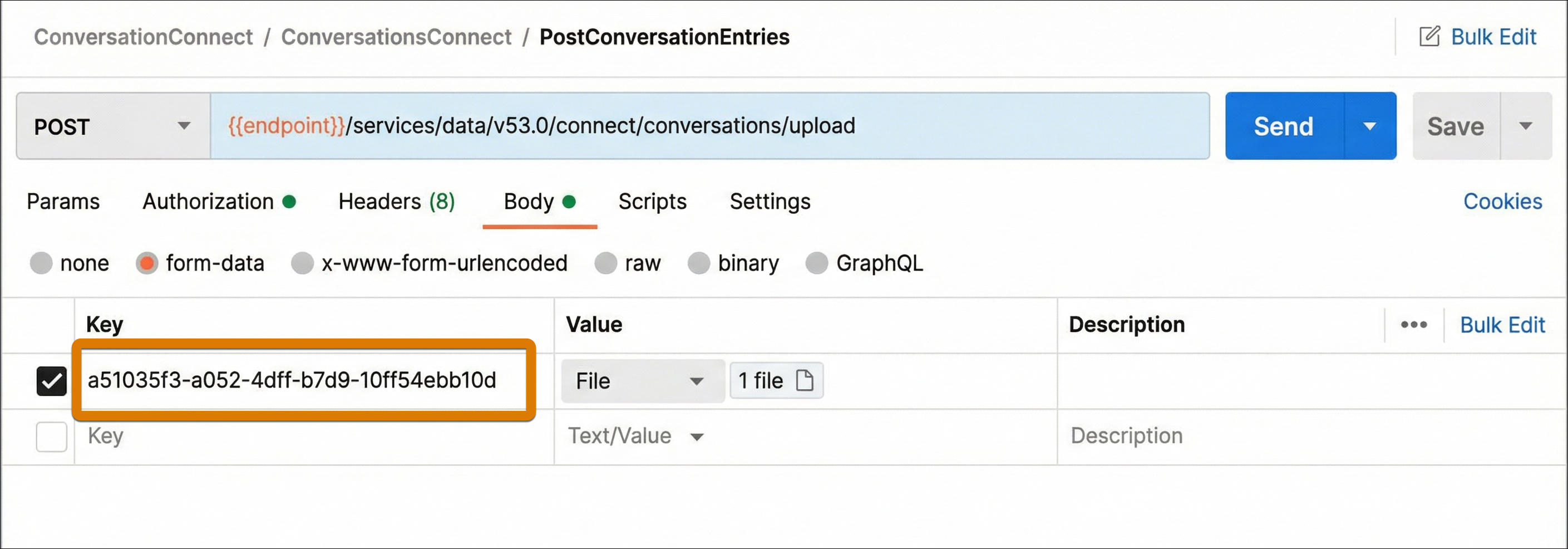
- In the multi-part POST request, the key name (that is, the binary file) must be the conversationId. For details, see Uploading Binary Files in the Connect REST API Developer Guide.
To test this operation, save the payload (request body) in a file named transcript.json. Use a tool like Postman to execute the request. In the multi-part POST request, make sure the name of the part containing the binary file is the conversationId. For Value, select File and upload the JSON file with your sample payload.
You get the following response when the call is successful.
1{ 2 "conversationBulkUploadsResults": [ 3 { 4 "conversationIdentifier": "fc803778-76d6-4d60-a53d-fb69d800b10c", 5 "errorDetail": null, 6 "status": "SUCCESS", 7 "uploadId": "333e7382-ef11-3396-b7c2-156fb6b5f7ad" 8 } 9 ] 10} - Within each part of the payload, the first object contains the
conversation details (1). The latter set of objects contains the
conversation entry details (2).
- Check the status of the upload.
To check the status, perform a GET request to the same resource using the upload IDs.
1GET https://MY_ORG_DOMAIN/services/data/v51.0/connect/conversations/upload?uploadIds=uploadId1,uploadId2,uploadId3If the upload was successful, you see this type of response.
1{
2    "conversationBulkUploadsResults": [
3        {
4            "conversationIdentifier": "fc803778-76d6-4d60-a53d-fb69d800b10c",
5            "errorDetail": null,
6            "status": "SUCCESS",
7            "uploadId": "333e7382-ef11-3396-b7c2-156fb6b5f7ad"
8        }
9    ]
10}
If the upload failed, you see this type of response.
1{
2    "conversationBulkUploadStatuses": [
3        {
4            "conversationId": "fc803778-76d6-4d60-a53d-fb69d800b10c",
5            "errorDetail": "Failed to process any conversation entries.",
6            "failedEntryCount": 2,
7            "failedEntryIds": [
8                "1",
9                "2"
10            ],
11            "lastUpdatedTimestamp": 1611621077219,
12            "status": "FAILED",
13            "successEntryCount": 0,
14            "uploadId": "333e7382-ef11-3396-b7c2-156fb6b5f7ad"
15        }
16    ]
17}
You can get the new conversation entries using an HTTP GET to /connect/conversation/conversationIdentifier/entries.