Salesforce Mobile Notifications Implementation Guide
 j
jNote: This release is in preview. Features described here don’t become generally available until the latest general availability date that Salesforce announces for this release. Before then, and where features are noted as beta, pilot, or developer preview, we can’t guarantee general availability within any particular time frame or at all. Make your purchase decisions only on the basis of generally available products and features.
Create an External Client App for Apple iOS
To create a connected app, log in to your Salesforce Developer Edition org and perform these steps.
- From Setup, in the Quick Find box, enter External Client, and then select External Client Apps Manager.
- Either click Edit Settings in the action menu for an existing external client app, or click New External Client App to create a new one.
-
If you’re creating a new external client app:
- Enter a unique name for your connected app. The API name field is auto-filled.
- Optionally, fill in other fields, such as a description for your connected app.
- Enter a contact email address.
- In the OAuth Settings section, select Enable OAuth Settings.
- Enter a callback URL.
- Select OAuth scopes. At a minimum, select Access and manage your data (api) and Perform requests on your behalf at any time (refresh_token).
- Under Push Notification Settings, select Enable Push.
-
For Mobile
Platform, select
iOS.
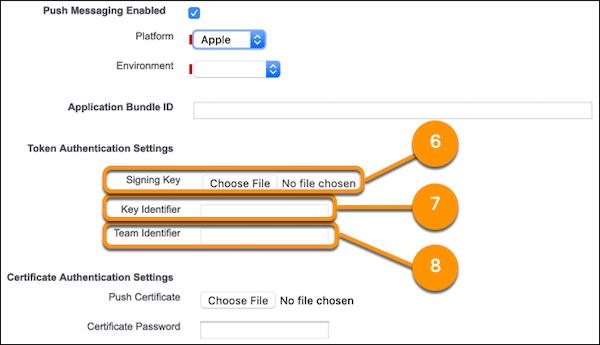
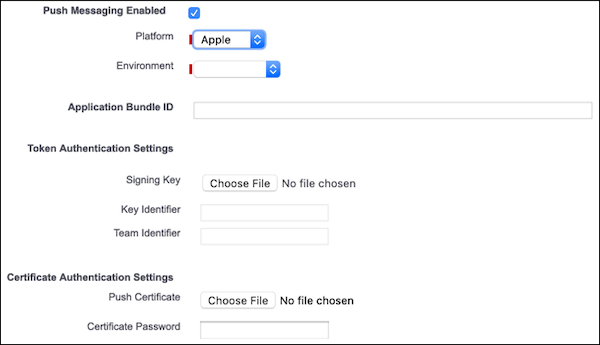
When you select the iOS option, the dialog expands to show more settings.
- Upload the Signing Key from your Apple developer account.
- Enter the Key Identifier from your Apple developer account.
-
Enter the Team
ID
from your Apple developer account.