Identity Implementation Guide
 j
jEnable the App Launcher with a Permission Set in Salesforce Classic
Create a permission set and assign it to users so that they can access the App
Launcher.
| Available in: Salesforce Classic (not available in all orgs) |
| Available in: Enterprise, Performance, Unlimited, and Developer Editions |
 ) on the left side
of the navigation bar at the top of your screen, you're in Lightning Experience. If not,
you're in Salesforce Classic.
) on the left side
of the navigation bar at the top of your screen, you're in Lightning Experience. If not,
you're in Salesforce Classic. - From Setup, enter Permission Sets in the Quick Find box, then select Permission Sets.
- Click New.
-
Enter a label for the new permission set.
For example, Identity Features.
- Optionally, restrict the use of the permission set to a specific user license.
- Click Save.
- Click System Permissions.
- Click Edit, and select Use Identity Features.
- Click Save.
- From Setup, enter Users in the Quick Find box, then select Users.
- Click the name of the user to whom you want to give access to the App Launcher.
- In the Permission Set Assignments related list, click Edit Assignments.
- Add the permission set that you created to Enabled Permission Sets.
-
Click Save.
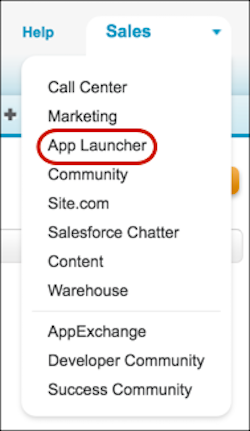
When you log in as the selected user, the App Launcher appears in the dropdown menu.