Identity Implementation Guide
 j
jEnable the App Launcher with a Profile in Salesforce Classic
Create a profile and assign it to users, so they can access the App Launcher.
| Available in: Salesforce Classic (not available in all orgs) |
| Available in: Enterprise, Performance, Unlimited, and Developer Editions |
 ) on the left side
of the navigation bar at the top of your screen, you're in Lightning Experience. If not,
you're in Salesforce Classic.
) on the left side
of the navigation bar at the top of your screen, you're in Lightning Experience. If not,
you're in Salesforce Classic. In Salesforce Classic, Salesforce admins using the System Administrator profile have access to the App Launcher. Admins using profiles cloned from the System Administrator profile don’t.
- From Setup, enter Profiles in the Quick Find box, then select Profiles.
- Click New Profile.
-
Select an Existing Profile as a basis for the new profile.
For example, select Standard User.
-
Enter the name of the new profile.For example, Standard User Identity.
- Click Save.
- In the detail page for the new profile, click Edit.
-
In Custom App Settings, set the App Launcher to Visible, if it isn’t already.Under Tab Settings, verify that the App Launcher tab is set to Default On.
- Under Administrative Permissions, select Use Identity Features.
- Click Save.
- From Setup, enter Users in the Quick Find box, then select Users.
- Click Edit next to each user you want to access the App Launcher.
-
In the user’s Profile field, select the new profile
that has “Use Identity Features” enabled.For example, you might use the Standard User Identity profile.
-
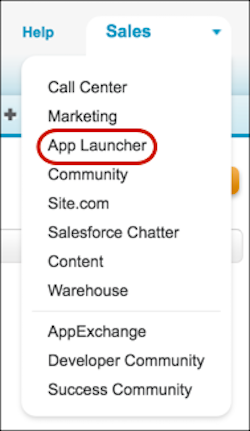
Click Save.When you log in as the selected user, the App Launcher appears in the drop-down app menu.