Mobile SDK Development Guide
 j
jAbout Login and Passcodes
To access Salesforce objects from a Mobile SDK app, the customer logs in to a Salesforce org. When the login flow begins, Mobile SDK sends the app’s connected app configuration to Salesforce. Salesforce responds by posting a login screen to the mobile device.
Optionally, a Salesforce administrator can set the connected app to require a passcode after login. This setting, for example, requires a backgrounded app to prompt for a passcode when it returns to the foreground. When the connected app requires a mobile app passcode, Mobile SDK 9.2 and later use the device system passcode.
To verify a required passcode, Mobile SDK presents a lock screen that uses the customer’s configured verification mode—for example, touch ID, face ID, or direct passcode entry. If no device passcode has been set, Mobile SDK prompts the customer to visit the iOS Settings interface and create one. If the connected app doesn’t require a mobile passcode, Mobile SDK skips the passcode verification step. Mobile SDK handles all login and passcode lock screens and the authentication handshake.
Mobile Passcode Policies
If a customer uses the app to log into a different org, Mobile SDK can’t retrieve the designated connected app settings. Therefore, that customer never encounters the passcode prompt.
Multi-User Behavior of the Lock Screen
- When resuming an app that requires passcode, the customer is first prompted by a lock screen to authenticate through the mobile operating system.
- If the customer cancels authentication, Logout and Retry Unlock buttons appear on the lock screen.
- The Logout button works only for customers that require the lock screen.
- If the last user that requires the lock screen logs out, Mobile SDK no longer shows the lock screen.
Using Biometric Identification
By default, Mobile SDK supports the use of Touch ID and Face ID for passcode verification. Customers can set their preference for biometric or any other iOS input mode in Settings.
- App Configuration
-
- Open your app’s information property list (plist) file.
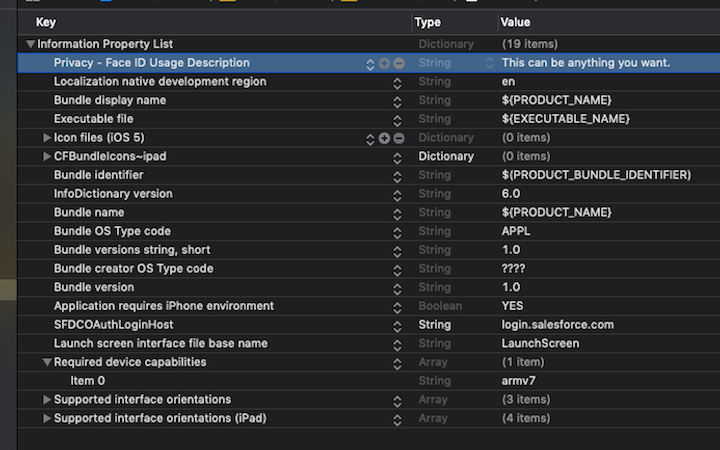
- Add the following top-level property:
- Key: NSFaceIDUsageDescription (labeled “Privacy - Face ID Usage Description”)
- Value: <Enter any string> (for example, “Use Face ID to avoid retyping your PIN”)