


Mobile SDK Development Guide
 j
jOption 1: Import Mobile SDK Template Files
In this option, you replace files from the Xcode Swift template with files from the
Mobile SDK native Swift template—work that otherwise would be done by forceios. A few
drags and drops, and the app is ready to connect to Salesforce and display org data.
Prerequisites
Add Mobile SDK Code Assets
- In Xcode, open the MyMobileSDKApp/MyMobileSDKApp project folder.
- Select all files except the Assets.xcassets and Preview Content folders.
- Control-Click and select Delete.
- Select Move to Trash.
- In Finder, navigate to your SalesforceMobileSDK-Templates clone and expand its /iOSNativeSwiftTemplate/iOSNativeSwiftTemplate/ subfolder.
- Drag the following Swift template files into Xcode’s Project Navigator. Drop them in
your project’s MyMobileSDKApp/MyMobileSDKApp/ folder.
- AccountsListModel.swift
- AccountsListView.swift
- AppDelegate.swift
- bootconfig.plist
- Bridging-Header.h
- ContactDetailModel.swift
- ContactDetailsView.swift
- ContactsForAccountListView.swift
- ContactsForAccountModel.swift
- Info.plist
- InitialViewController.swift
- main.swift
- iOSNativeSwiftTemplate.entitlements
- SceneDelegate.swift
- userstore.json
- usersyncs.json
- Select the following:
Option Value Destination: Copy items if needed Added folders: Create folder references Add to targets: MyMobileSDKApp - If Xcode asks for permission to create an Objective-C bridging header, click Don’t Create.
- In your Project settings, select Build Phases.
- Under Copy Bundle Resources, select Info.plist if it’s present and click Remove Items (-).
-
Xcode 13 only:
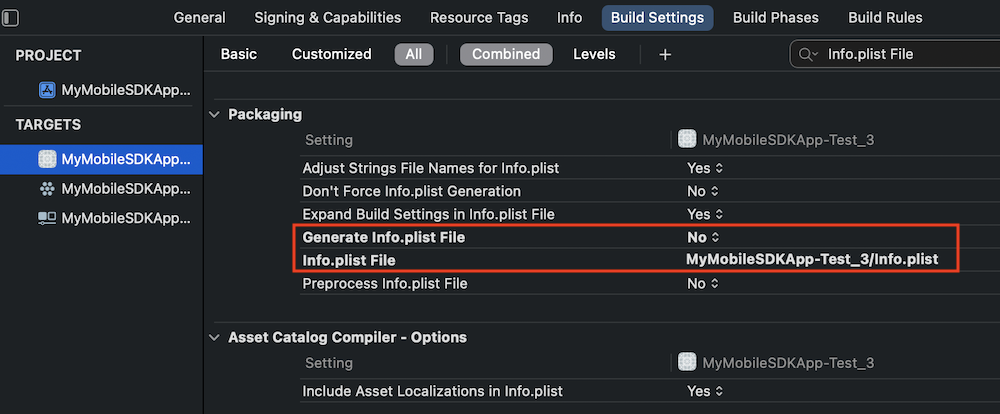
- In Build Settings, search for “Info.plist File”.
- Set Generate Info.plist File to No.
- Set Info.plist File to “MyMobileSDKApp/Info.plist”.
For more information on the template files, see Overview of Application Flow.
Build Your New Mobile SDK App
- Select your top-level project.
- Your project is ready to build. Select .
- If the Salesforce login screen appears, you’re done!
Your new project is ready for customization. You can now add your own assets, customize the
AppDelegate.swift and SceneDelegate.swift
classes, and do as you like with the Accounts and Contacts functionality.