Embedded Service Chat SDK for iOS Developer Guide
 j
jGet Started with Chat
Before doing this tutorial, be sure that you’ve set up Service Cloud for Chat. See Org Setup for Chat in Lightning Experience with a Guided Flow for more information.
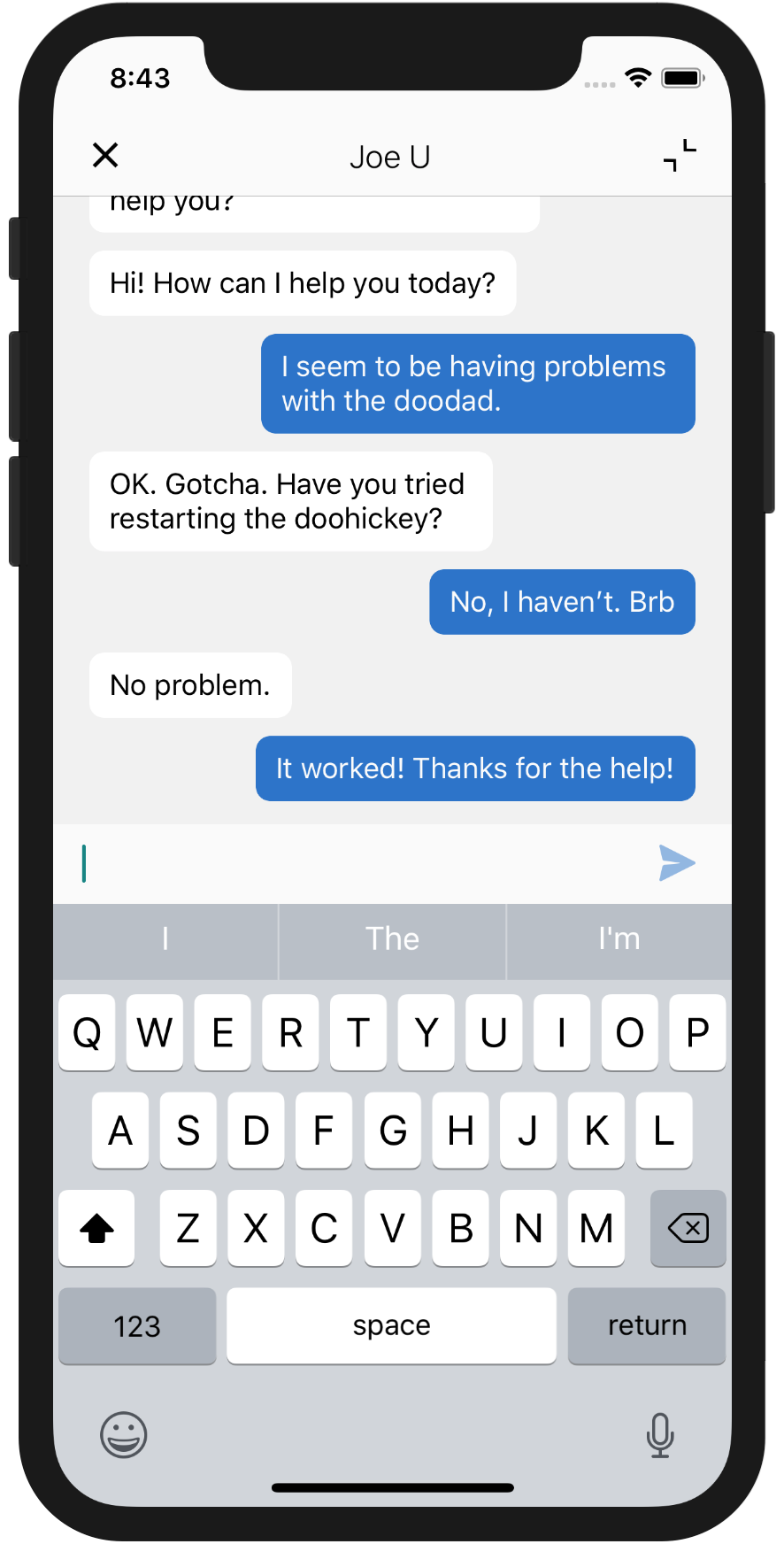
This tutorial shows you how to get Chat into your iOS app.
-
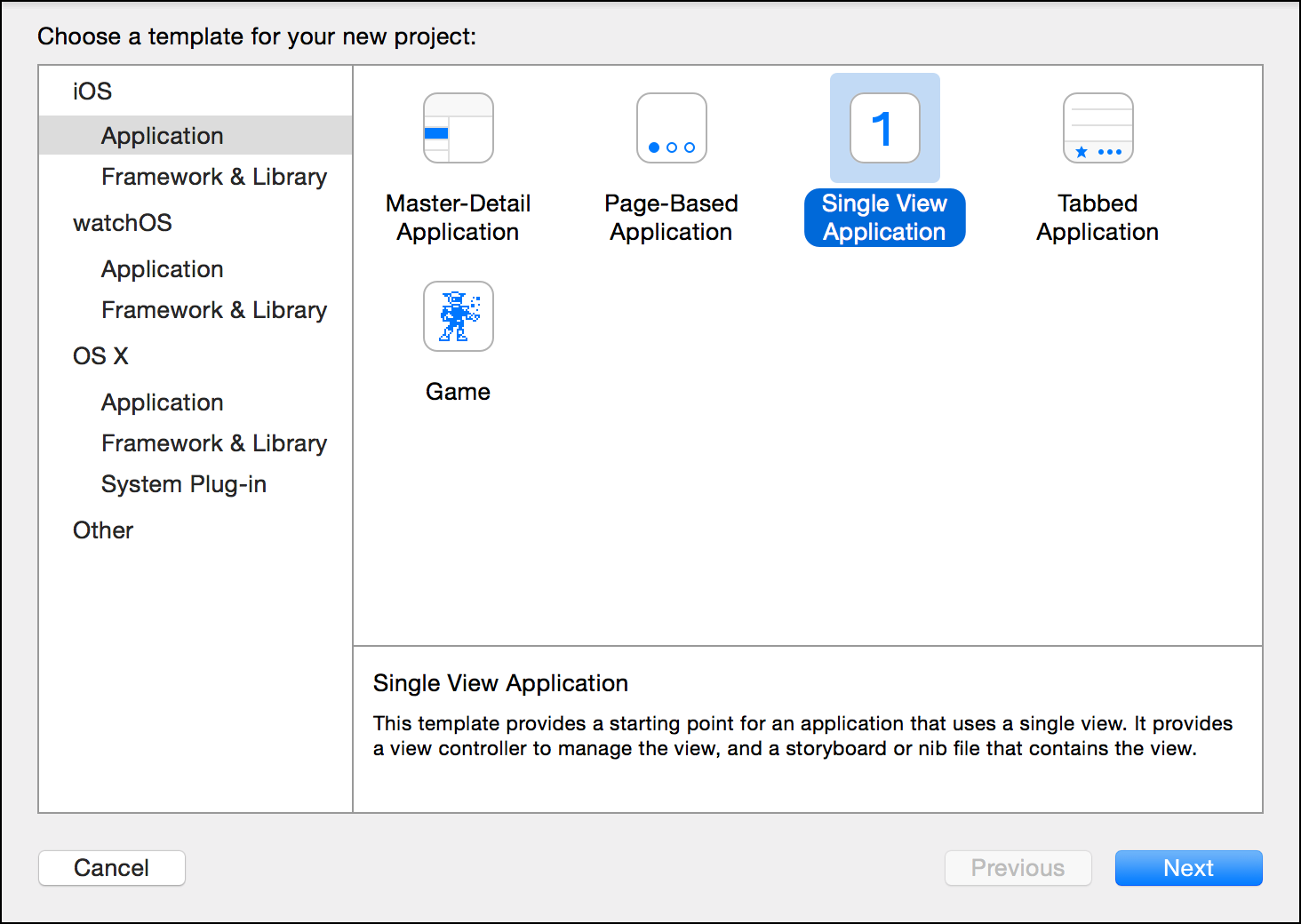
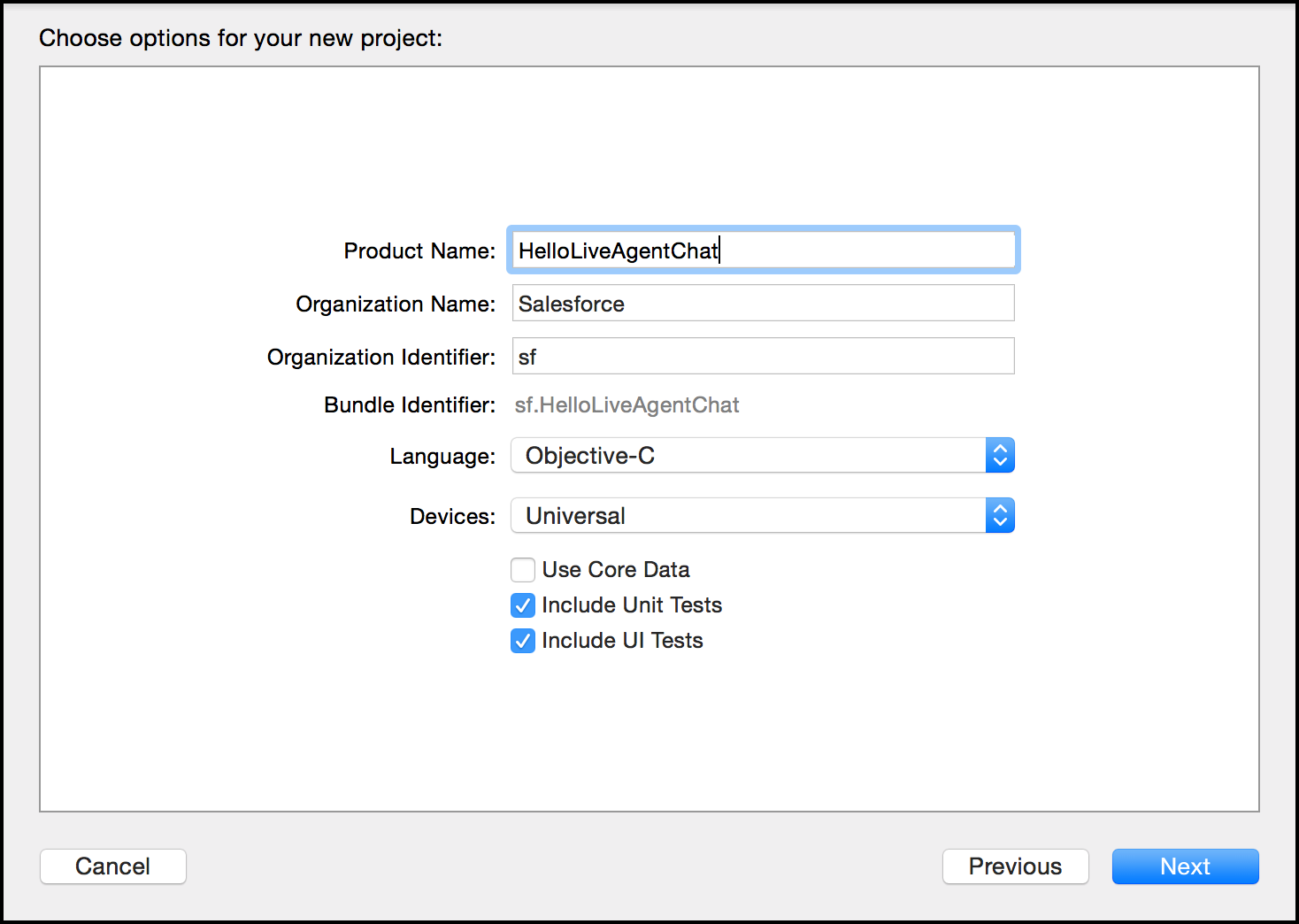
Create an Xcode project. For this example, let’s make a Single View
Application. Name it HelloChat.
- Install the SDK as described in Install the Service Chat SDK for iOS.
-
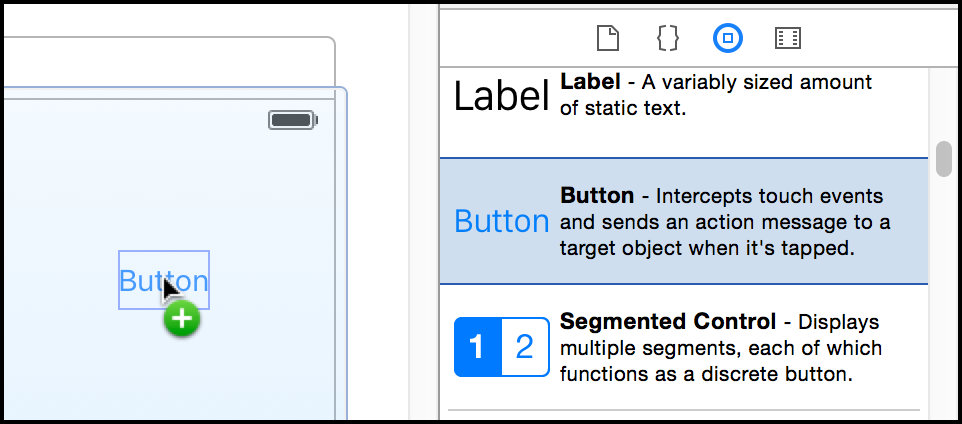
Go to your storyboard and place a button somewhere on the view. Name it Chat.
-
Add a Touch Up Inside action to your UIViewController implementation. Name it launchChat.
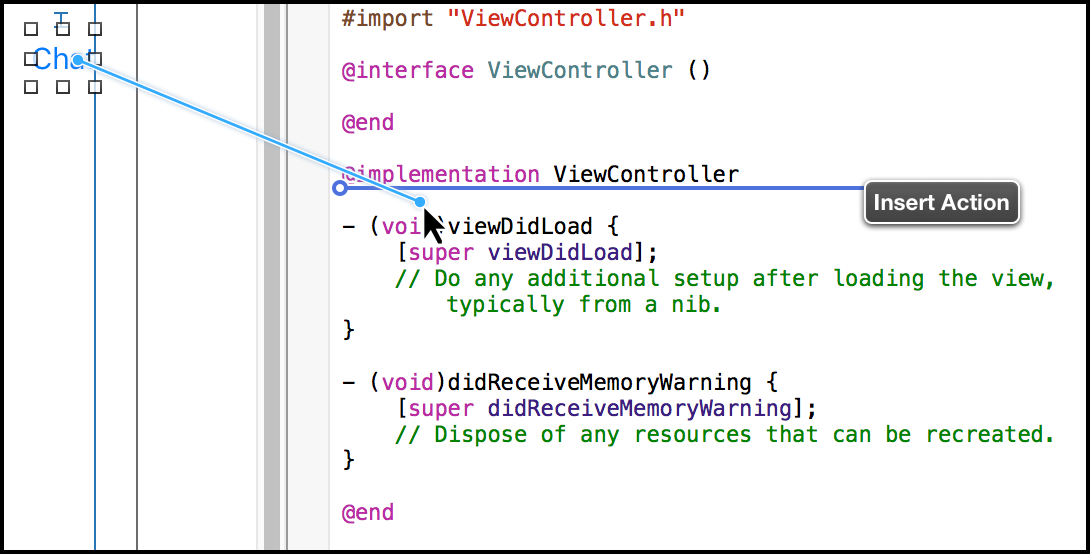
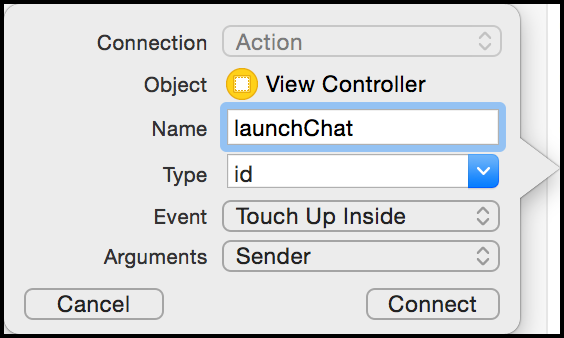
- Import the SDK. Wherever you intend to use the Chat SDK, be sure to import the ServiceCore framework and the ServiceChat framework.
-
Launch a chat session from within the launchChat method.
From the button action implementation, launch chat using the showChat(with:showPrechat:) method on SCSChatInterface.
In Swift:
1@IBAction func launchChat(sender: AnyObject) {
2
3  // Create configuration object
4  if let config = SCSChatConfiguration(liveAgentPod: "YOUR_POD_NAME",
5                                       orgId: "YOUR_ORG_ID",
6                                       deploymentId: "YOUR_DEPLOYMENT_ID",
7                                       buttonId: "YOUR_BUTTON_ID") {
8
9    // Start the session
10    ServiceCloud.shared().chatUI.showChat(with: config)
11  }
12}
In Objective-C:
1- (IBAction)launchChat:(id)sender {
2
3  SCSChatConfiguration *config =
4    [[SCSChatConfiguration alloc] initWithLiveAgentPod:@"YOUR_POD_NAME"
5                                                 orgId:@"YOUR_ORG_ID"
6                                          deploymentId:@"YOUR_DEPLOYMENT_ID"
7                                              buttonId:@"YOUR_BUTTON_ID"];
8
9  // Start the session
10  [[SCServiceCloud sharedInstance].chatUI showChatWithConfiguration:config];
11}
Fill in the placeholder text for the Chat API endpoint, the org ID, the deployment ID, and the button ID.
- Deployment ID
- The unique ID of your Chat deployment. To get this value, from
Setup, select . The script at the bottom of the page contains a
call to the liveagent.init
function with the pod, the
deploymentId, and
orgId as arguments. Copy the
deploymentId value.

For instance, if the deployment code contains the following information:
1<script type='text/javascript' 2 src='https://d.gla3.gus.salesforce.com/content/g/js/44.0/deployment.js'></script> 3<script type='text/javascript'> 4liveagent.init('https://d.gla5.gus.salesforce.com/chat', '573B00000005KXz', '00DB00000003Rxz'); 5</script> -
The deployment ID value is:
1573B00000005KXzBe sure not to use the org ID value (which is also in this deployment code) for the deployment ID.
- Button ID
- The unique button ID for your chat configuration. To get this
value, from Setup, search for Chat
Buttons and select Chat Buttons &
Invitations. Copy the id for the button from the JavaScript
snippet.
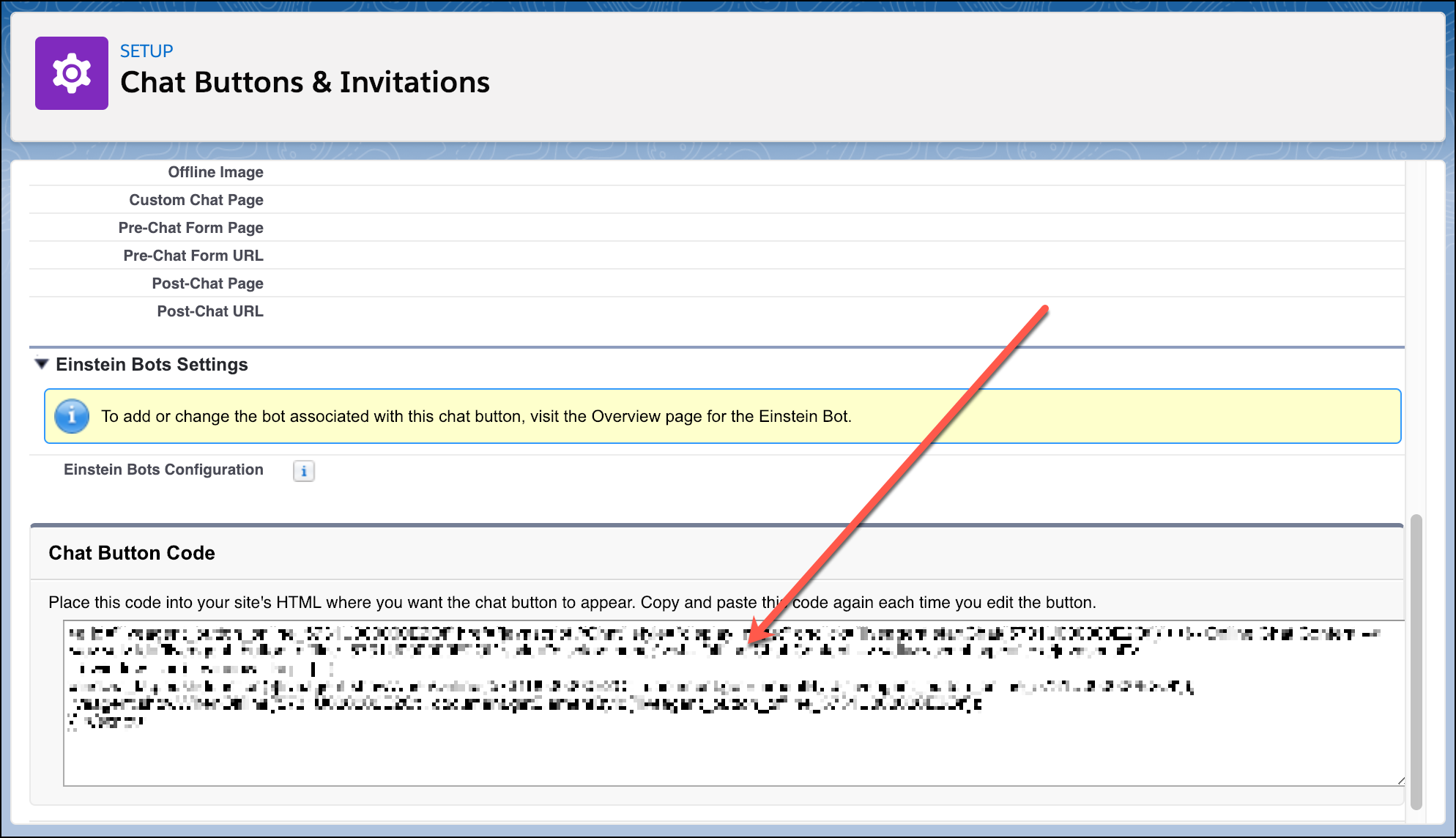
For instance, if your chat button code contains the following information:
1<a id="liveagent_button_online_575C00000004h3m" 2 href="javascript://Chat" 3 style="display: none;" 4 onclick="liveagent.startChat('575C00000004h3m')"> 5 <!-- Online Chat Content --> 6</a> 7<div id="liveagent_button_offline_575C00000004h3m" 8 style="display: none;"> 9 <!-- Offline Chat Content --> 10</div> 11<script type="text/javascript"> 12 if (!window._laq) { window._laq = []; } 13 window._laq.push(function() { liveagent.showWhenOnline('575C00000004h3m', 14 document.getElementById('liveagent_button_online_575C00000004h3m')); 15 liveagent.showWhenOffline('575C00000004h3m', 16 document.getElementById('liveagent_button_offline_575C00000004h3m')); 17 }); 18</script> -
The button ID value is:
1575C00000004h3mBe sure to omit the liveagent_button_online_ text from the ID when using it in the SDK.
-
Launch Service Cloud Console. From the
Omni-Channel widget, ensure that an agent is
online.
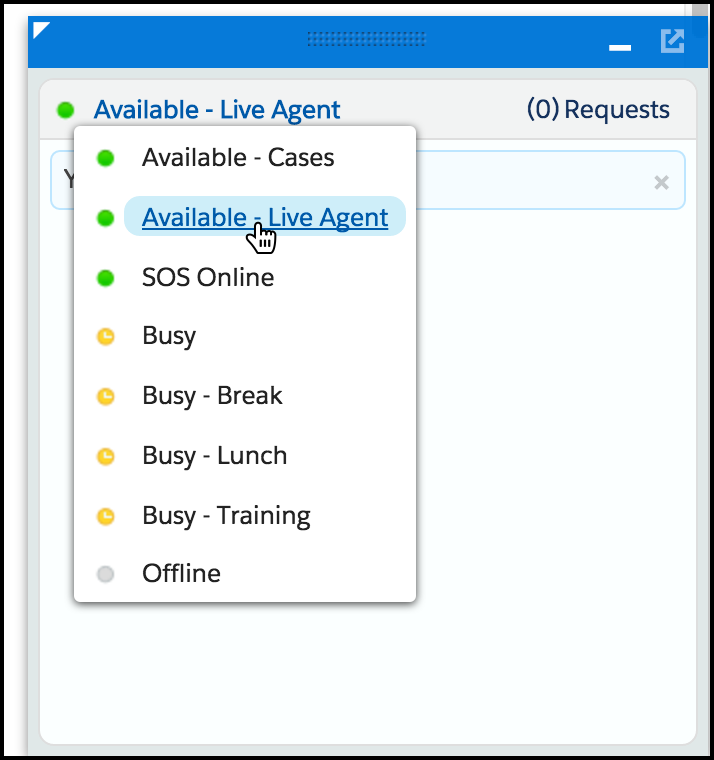
Now you can build and run the app. When you tap the Chat button, the app requests a chat session, which an agent can accept from the Service Cloud Console. From the console, an agent can real-time chat with a customer.