Visualforce Charting を使用した複雑なグラフの作成
Visualforce Charting を使用して、さまざまなグラフコンポーネントから、関連データの複数のセットを表す複雑なグラフを作成します。最終的に、非常に洗練された注目を集めるグラフを作成できます。
グラフコントローラ
このトピックの後半の例では、次のコントローラを使用します。このコントローラは、「単純なグラフ作成の例」のコントローラを少し拡張したものです。リモート JavaScript 呼び出しでコールできる、より多くのデータおよびメソッドが含まれます。
1public class ChartController {
2 // Return a list of data points for a chart
3 public List<Data> getData() {
4 return ChartController.getChartData();
5 }
6
7 // Make the chart data available via JavaScript remoting
8 @RemoteAction
9 public static List<Data> getRemoteData() {
10 return ChartController.getChartData();
11 }
12
13 // The actual chart data; needs to be static to be
14 // called by a @RemoteAction method
15 public static List<Data> getChartData() {
16 List<Data> data = new List<Data>();
17 data.add(new Data('Jan', 30, 90, 55));
18 data.add(new Data('Feb', 44, 15, 65));
19 data.add(new Data('Mar', 25, 32, 75));
20 data.add(new Data('Apr', 74, 28, 85));
21 data.add(new Data('May', 65, 51, 95));
22 data.add(new Data('Jun', 33, 45, 99));
23 data.add(new Data('Jul', 92, 82, 30));
24 data.add(new Data('Aug', 87, 73, 45));
25 data.add(new Data('Sep', 34, 65, 55));
26 data.add(new Data('Oct', 78, 66, 56));
27 data.add(new Data('Nov', 80, 67, 53));
28 data.add(new Data('Dec', 17, 70, 70));
29 return data;
30 }
31
32 // Wrapper class
33 public class Data {
34 public String name { get; set; }
35 public Integer data1 { get; set; }
36 public Integer data2 { get; set; }
37 public Integer data3 { get; set; }
38 public Data(String name, Integer data1, Integer data2, Integer data3) {
39 this.name = name;
40 this.data1 = data1;
41 this.data2 = data2;
42 this.data3 = data3;
43 }
44 }
45}単純な折れ線グラフの作成
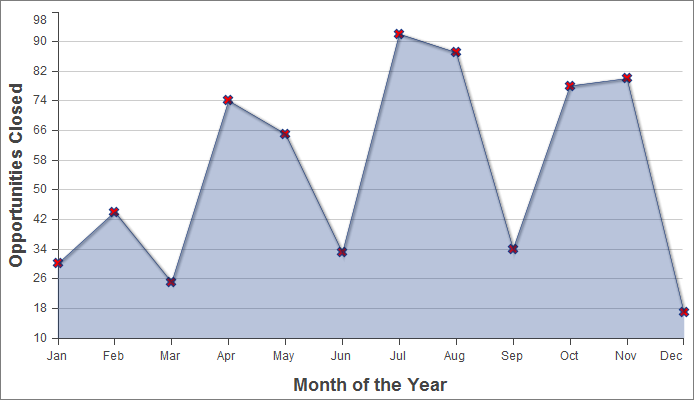
次は、1 暦年で「成立した商談」というデータセットの 3 つのデータ系列の 1 つをグラフ化した単純な折れ線グラフです。
1<apex:page controller="ChartController">
2 <apex:chart height="400" width="700" data="{!data}">
3 <apex:axis type="Numeric" position="left" fields="data1"
4 title="Opportunities Closed" grid="true"/>
5 <apex:axis type="Category" position="bottom" fields="name"
6 title="Month of the Year">
7 </apex:axis>
8 <apex:lineSeries axis="left" fill="true" xField="name" yField="data1"
9 markerType="cross" markerSize="4" markerFill="#FF0000"/>
10 </apex:chart>
11</apex:page>この例では、次の点を確認してください。
- 折れ線グラフおよび棒グラフでは、グラフの X 軸と Y 軸を定義する必要がある。
- 縦軸はグラフの左側に定義され、その月に成立した商談の金額を示す。
- 横軸はグラフの下部に定義され、暦年の月を表す。
- 実際の折れ線グラフ、<apex:lineSeries> コンポーネントは特定の軸にバインドされる。
- グラフの各線の差別化に使用できるいくつかのマーカー属性がある。
2 番目のデータ系列の追加
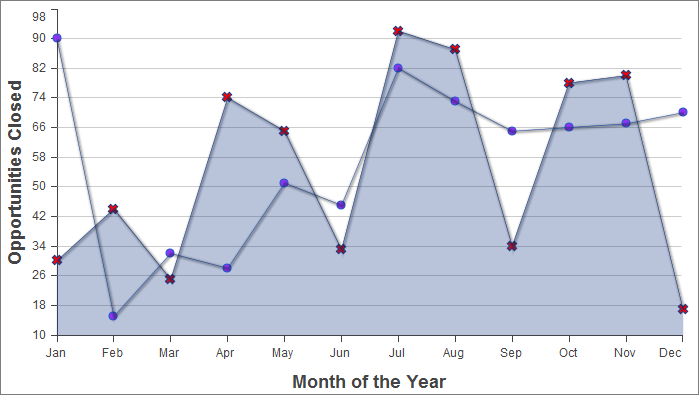
同じ測定単位を使用する 2 番目のデータ系列は簡単に追加できます。ここでは、「不成立の商談」データセットを 2 番目の折れ線系列として追加します。
1<apex:page controller="ChartController">
2 <apex:chart height="400" width="700" data="{!data}">
3 <apex:axis type="Numeric" position="left" fields="data1,data2"
4 title="Opportunities Closed" grid="true"/>
5 <apex:axis type="Category" position="bottom" fields="name"
6 title="Month of the Year">
7 </apex:axis>
8 <apex:lineSeries axis="left" fill="true" xField="name" yField="data1"
9 markerType="cross" markerSize="4" markerFill="#FF0000"/>
10 <apex:lineSeries axis="left" xField="name" yField="data2"
11 markerType="circle" markerSize="4" markerFill="#8E35EF"/>
12 </apex:chart>
13</apex:page>重要なのは、data1 項目および data2 項目の両方がそのコンポーネントの項目属性によって縦の <apex:axis> にバインドされている方法を確認することです。これにより、グラフ作成エンジンが軸の適切な目盛りと刻みのマークを特定できます。
2 番目の軸を使用した棒グラフの系列を追加
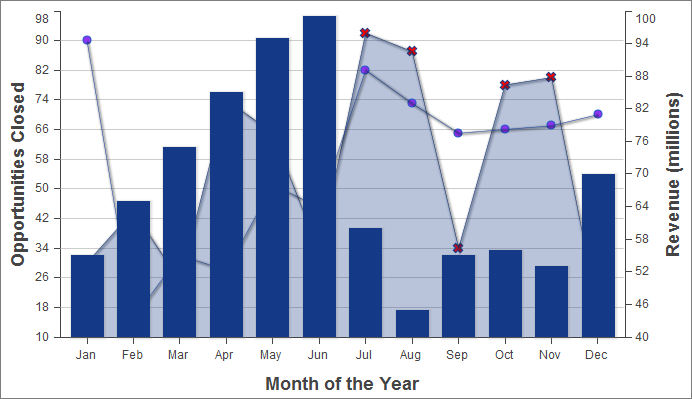
他の単位でグラフを作成するもう 1 つのデータ系列を追加するには、2 番目の縦軸を追加する必要があります。次に、データ系列「月別収益」が棒グラフとして追加された例を示します。
1<apex:page controller="ChartController">
2 <apex:chart height="400" width="700" data="{!data}">
3 <apex:axis type="Numeric" position="left" fields="data1,data2"
4 title="Opportunities Closed" grid="true"/>
5 <apex:axis type="Numeric" position="right" fields="data3"
6 title="Revenue (millions)"/>
7 <apex:axis type="Category" position="bottom" fields="name"
8 title="Month of the Year"/>
9 <apex:lineSeries axis="left" fill="true" xField="name" yField="data1"
10 markerType="cross" markerSize="4" markerFill="#FF0000"/>
11 <apex:lineSeries axis="left" xField="name" yField="data2"
12 markerType="circle" markerSize="4" markerFill="#8E35EF"/>
13 <apex:barSeries orientation="vertical" axis="right"
14 xField="name" yField="data3"/>
15 </apex:chart>
16</apex:page>次の点を確認してください。
- 新しい測定単位を使用するデータ系統を追加するには、グラフの右側に 2 番目の縦軸を追加する必要がある。
- グラフの各境界に 1 つ、最大 4 つの異なる軸を設定できる。
- 棒グラフは縦方向に設定され、右の軸にバインドされている。横棒グラフは上軸または下軸にバインドされている。
凡例、ラベル、およびグラフのヒントの追加
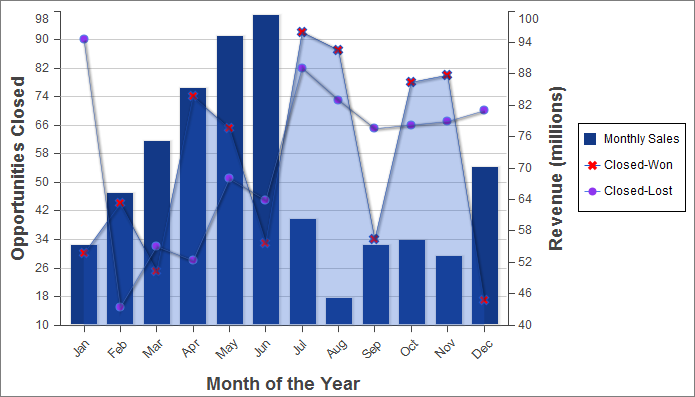
グラフの凡例、系列ラベルを追加したり、グラフのラベルを確実に読むことができるようにすることで、グラフを分かりやすくすることができます。
1<apex:page controller="ChartController">
2 <apex:chart height="400" width="700" data="{!data}">
3 <apex:legend position="right"/>
4 <apex:axis type="Numeric" position="left" fields="data1"
5 title="Opportunities Closed" grid="true"/>
6 <apex:axis type="Numeric" position="right" fields="data3"
7 title="Revenue (millions)"/>
8 <apex:axis type="Category" position="bottom" fields="name"
9 title="Month of the Year">
10 <apex:chartLabel rotate="315"/>
11 </apex:axis>
12 <apex:barSeries title="Monthly Sales" orientation="vertical" axis="right"
13 xField="name" yField="data3">
14 <apex:chartTips height="20" width="120"/>
15 </apex:barSeries>
16 <apex:lineSeries title="Closed-Won" axis="left" xField="name" yField="data1"
17 fill="true" markerType="cross" markerSize="4" markerFill="#FF0000"/>
18 <apex:lineSeries title="Closed-Lost" axis="left" xField="name" yField="data2"
19 markerType="circle" markerSize="4" markerFill="#8E35EF"/>
20 </apex:chart>
21</apex:page>これらの追加については、次の点を確認してください。
- データ系列コンポーネントの順序が、グラフを描画する際のグラフ要素のレイヤを決定する。前の例では、棒グラフは前面に配置されていました。この例では、2 つの <apex:lineSeries> コンポーネントの前に <apex:barSeries> コンポーネントがあるため、棒グラフが背面に配置されています。
- <apex:legend> コンポーネントは、左、右、上、または下の 4 つのどの位置にも配置できる。凡例はグラフの境界線内に配置されます。この例では、凡例によってグラフ自体の横幅が圧縮されています。
- データ系列のコンポーネント title 属性を使用して凡例タイトルを追加する。
- グラフの下軸のラベルを回転させるために、<apex:chartLabel> コンポーネントはこのコンポーネントが影響する <apex:axis> コンポーネントで囲まれている。
- <apex:chartTips> コンポーネントにより、このコンポーネントを囲む系列の各データポイントの詳細を示すロールオーバーツールのヒントを有効にできる。