


Appium Setup for POS UI Automation Testing
Set up Appium and automate an app on a physical iPad using its bundle ID.
Configuration & Setup
This section provides a comprehensive setup guide for configuring Appium to work with your iPad for POS UI automation testing. The setup process involves installing necessary tools, configuring Xcode, setting up WebDriverAgent, and configuring Appium Inspector. Follow each step carefully to make sure the setup is successful.
Install Required Tools
Before setting up Xcode and WebDriverAgent, install required command-line tools and dependencies. These tools provide the foundation for iOS automation testing and ensure compatibility between your development environment and iOS devices.
Install Homebrew
1/bin/bash -c "$(curl -fsSL https://raw.githubusercontent.com/Homebrew/install/HEAD/install.sh)"Install Node.js and npm
1brew install nodeInstall Appium
1npm install -g appiumInstall Appium Doctor
1npm install -g appium-doctorInstall Carthage
1brew install carthageInstall iOS Deploy
1brew install ios-deployVerify iOS Deploy Installation
1ios-deploy -cSetup Xcode
Xcode is essential for iOS development and automation. It provides the necessary tools, simulators, and device management capabilities required to work with iOS devices and WebDriverAgent.
Install Xcode
- Open the Mac App Store.
- Search for “Xcode” and install it if not already installed.
Verify Xcode Installation
- Open Xcode from the Applications folder.
- Go to Window > Devices and Simulators.
- Make sure your iPad appears under the Devices tab.
Enable Developer Mode on iPad
- On your iPad, go to Settings > Privacy & Security.
- Scroll down and select Developer Mode.
- Turn on Developer Mode and allow your iPad to restart.
Obtain iPad's UDID
- Open Xcode on your Mac.
- Go to Window > Devices and Simulators.
- Select your iPad from the list of connected devices.
- Copy the UDID displayed for your iPad.
WebDriverAgent
Clone the WebDriverAgent Repository
1git clone https://github.com/appium/WebDriverAgent.gitNavigate to WebDriverAgent Directory
1cd WebDriverAgentBootstrap Carthage
1carthage bootstrapOpen WebDriverAgent in Xcode
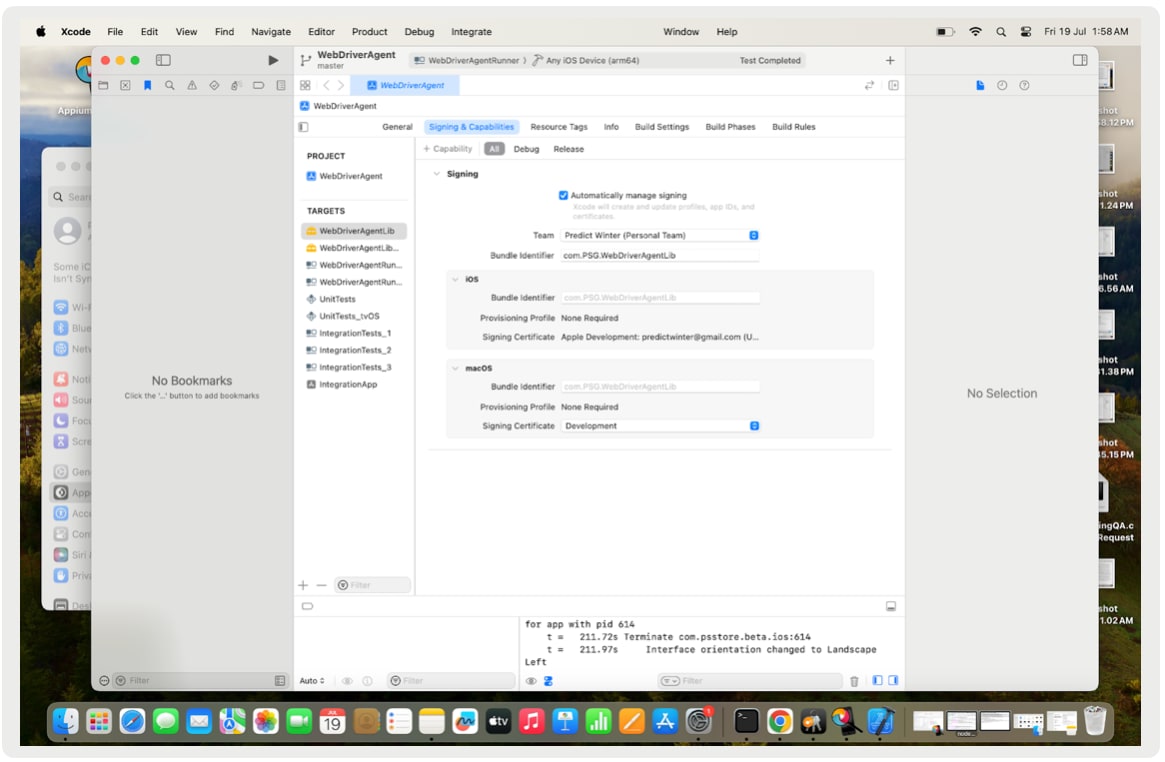
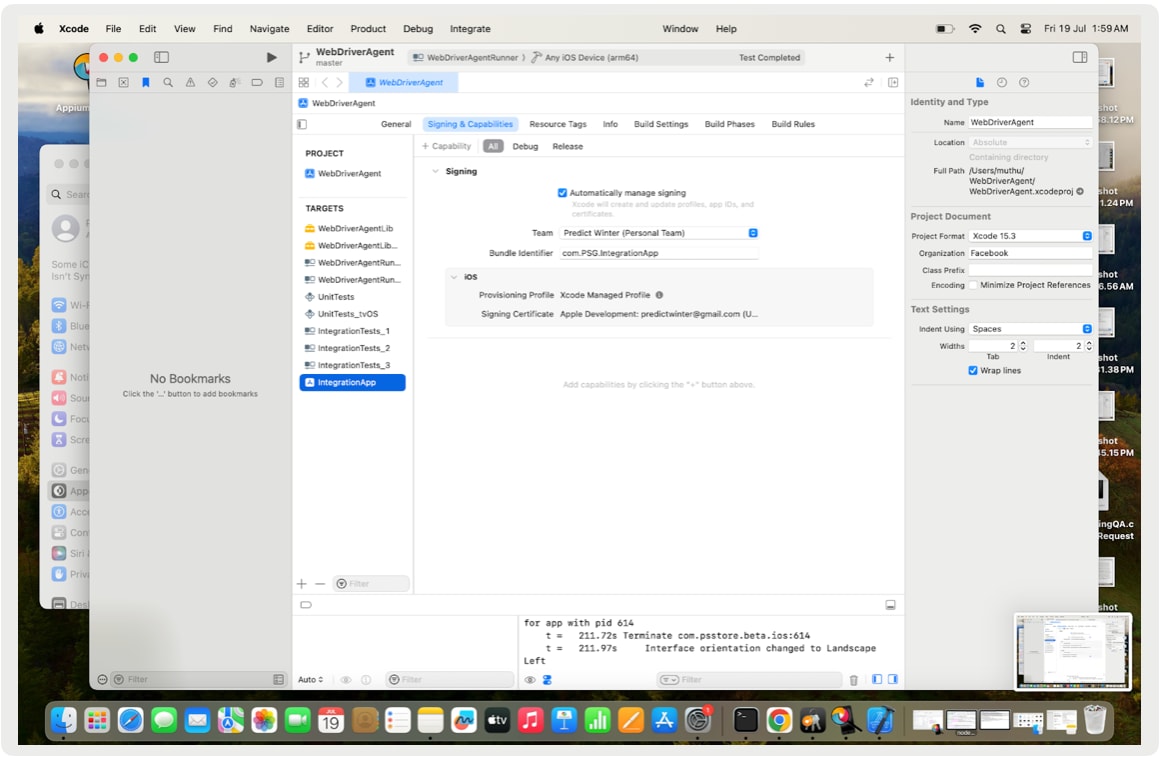
1open WebDriverAgent.xcodeprojConfigure Signing for Targets
- In Xcode, select the WebDriverAgentLib target.
- Go to Signing & Capabilities.
- Select your development team from the drop-down list.
- Repeat steps 1-3 for the WebDriverAgentRunner and IntegrationApp targets.
Build and Run WebDriverAgent on the iPad
- Select your connected iPad as the target device in Xcode.
- Choose the WebDriverAgentRunner scheme.
- Press
Cmd + Rto build and run WebDriverAgent on your iPad.
Troubleshooting
If the build-and-run process is not successful, try the following:
- Install the IntegrationApp by selecting it as the scheme and pressing
Cmd + R. - Execute a test of the WebDriverAgentRunner by selecting it as the scheme and pressing
Cmd + U.
Access WebDriverAgent
After the test is triggered, access the WebDriverAgent at the following URL:
1http://<your device IP>:8100/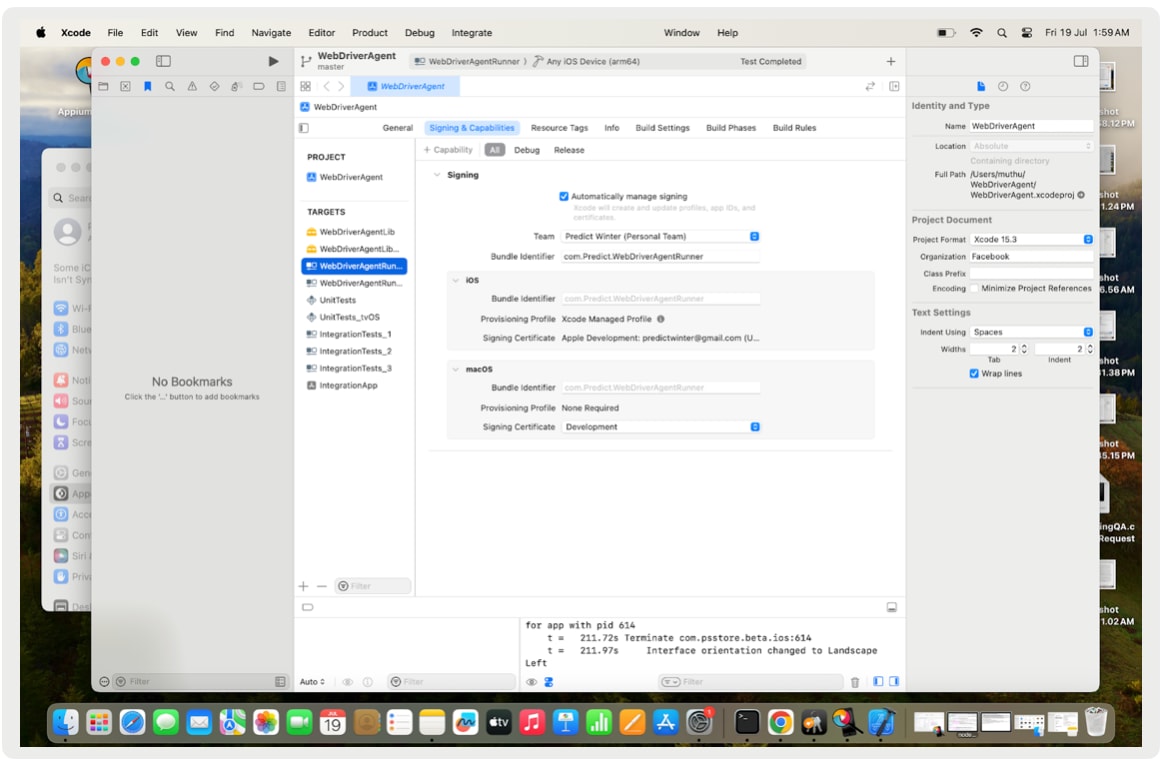
Start Appium Server
- Open a terminal window.
- Run the following command:
1appiumConfigure Appium Inspector
Download and Install Appium Inspector
- Go to the official Appium releases page.
- Download and install the latest version of Appium Inspector for your operating system.
Launch Appium Inspector and Configure Desired Capabilities
-
Open Appium Inspector.
-
Configure the following settings:
- Remote Host:
localhost(use your device IP if necessary) - Remote Port:
4723 - Remote Path:
/
- Remote Host:
-
Add the following desired capabilities:
- platformName:
iOS - platformVersion: (Your iPad’s iOS version, for example,
14.0) - deviceName: (Your iPad’s name, for example,
iPad) - automationName:
XCUITest - udid: (Your iPad’s UDID)
- app: (The bundle ID of the app you want to automate)
- platformName:
Verify Setup
Start a New Session in Appium Inspector
- Open Appium Inspector.
- Click on the Start Session button.
- The app specified by the
bundleIdshould launch on the iPad. - You should be able to inspect and interact with the app elements.
Example Configuration for Appium Inspector
Here is an example of how the desired capabilities configuration should look in Appium Inspector:
1{
2  "appium:deviceName": "PS API iPad",
3  "platformName": "iOS",
4  "appium:platformVersion": "17.5.1",
5  "appium:automationName": "XCUITest",
6  "appium:app": "com.psstore.beta.ios",
7  "appium:udid": "00008030-000A69C92EA3C02E",
8  "appium:xcodeSigningId": "iPhone Developer"
9}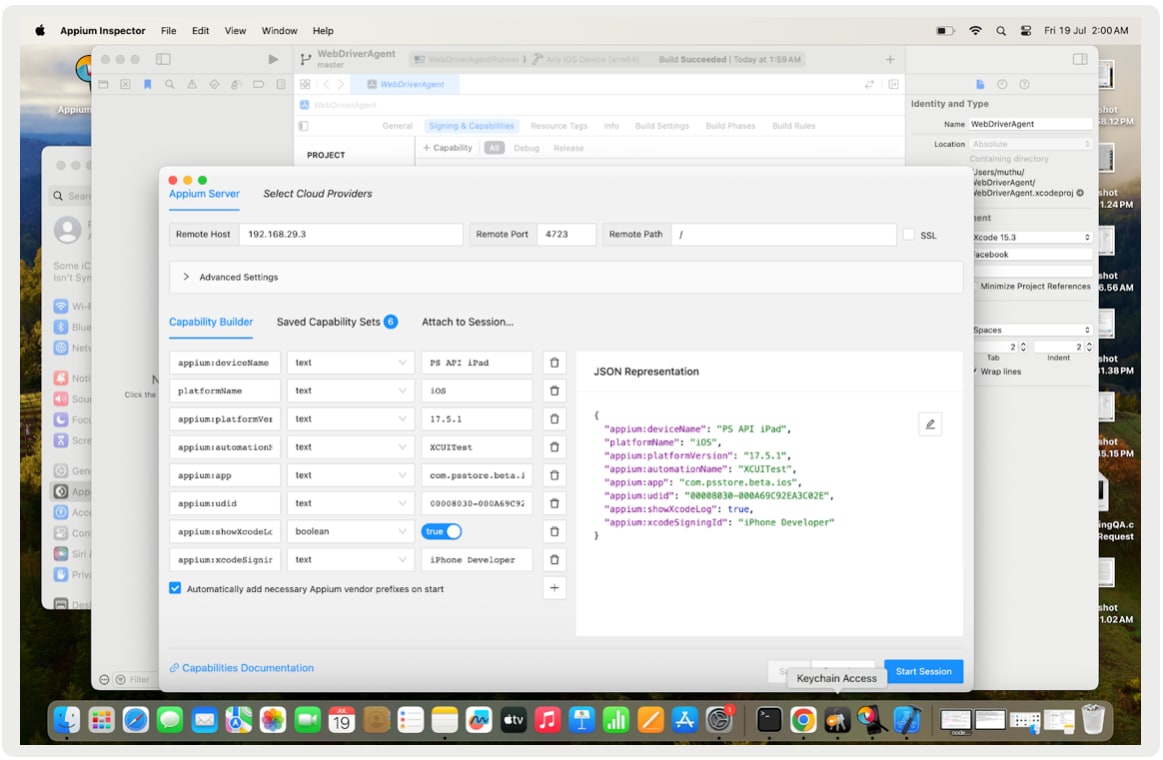
Replace the placeholders with the actual values specific to your setup.
Important
 j
j