


Use HXL Widgets as Agentforce Action Output
Present structured output from an Agentforce action as a Headless Experience Layer (HXL) widget in the conversation.
Agentforce actions can return structured output from Flow, Apex, a Prompt Template, or another supported action type. The action implementation can also call an API, retrieve information from Data Cloud, or run automation before returning structured output.
With HXL, you can present that output as an HXL widget rather than relying on the default output presentation. A custom Lightning type (CLT) represents the structured output and connects it to the HXL widget. The renderer associated with the CLT maps properties from the structured output to attributes accepted by the widget.
Let’s use the Apex-backed Get Hotel Info action to show how the same action output appears first in the default output presentation and then as the Hotel Card widget. The same process applies to other supported Agentforce actions that return structured output.
Compare LWC UI Overrides and HXL Widget Renderers
CLTs support Lightning Web Components (LWC) UI overrides to customize how output is displayed. With HXL widget support, a CLT can also use an HXL widget as its renderer. The following table shows the differences between these two configurations.
| Aspect | LWC UI Override | HXL Widget Renderer |
|---|---|---|
| Renderer target | The renderer.json file references an LWC that displays the output. | The renderer.json file references an HXL widget by using a value such as @widget/c/hotelCard. The widget is defined in a UiWidgetBundle. |
| File location | The renderer.json file is stored in a channel-specific folder, such as lightningDesktopGenAi. | The renderer.json file is stored at the root of the CLT folder, parallel to schema.json, and provides the renderer configuration for supported HXL channels. |
| Property mapping | The attributes object maps CLT properties to public properties exposed by the LWC. | The attributes object maps CLT properties to attributes defined in the widget’s schema.json. |
| UI configuration | An LWC-based CLT configuration can use editor.json for input UI and renderer.json for output UI. | Use renderer.json to configure output rendering for an HXL widget reference. |
| When to use | Use when you want to customize the UI for a specific supported Salesforce channel, such as Lightning Experience, mobile, Enhanced Web Chat, or Experience Builder. | Use when you want the same widget to render across supported HXL surfaces, including Agentforce and external MCP clients such as Slackbot, ChatGPT, and Claude. |
For the complete widget-reference workflow, including the CLT folder structure, widget reference, and attribute mapping, see Connect Your Widget to a Custom Lightning Type.
Before You Begin
Before you configure output rendering, complete the following prerequisites. The HXL widget and CLT must be available in the target org for HXL to render the action output.
-
Enable Agentforce and create an agent.
You need an Agentforce agent in which you can invoke the action and view its response. To enable Agentforce and create an Agentforce Employee Agent, see Get Started with Agentforce.
-
Create an Agentforce action that returns structured output.
The action must return the data that you want to display. Use the documentation for the Reference Action Type that corresponds to the underlying asset.
- For a Flow-backed action, see Extend Agents with Flow Actions.
- For an Apex-backed action, see Extend Agents with Apex Actions.
- For a Prompt Template-backed action, see Extend Agents with Prompt Template Actions.
-
Create a subagent and make the action available to it.
The subagent defines the job that it performs and contains the reasoning instructions that determine when Agentforce invokes the action.
- To create a subagent, see Create a Custom Subagent.
- To add the action to the subagent, see Add an Action to a Subagent from the Asset Library.
- To add a reusable subagent to the agent, see Add a Subagent to Your Agent from the Asset Library.
-
Create an HXL widget.
The widget defines how the structured output is presented. Its
UiWidgetBundlecontains the widget configuration, attribute schema, and visual composition. For widget concepts, metadata structure, file types, and authoring guidance, see Build Rich UI Experiences with HXL Widgets.Optionally, use Salesforce formulas in the widget composition to calculate values and apply conditional logic. For formula syntax and examples, see Use Salesforce Formulas in Widgets.
-
Create or reuse a CLT and connect it to the widget.
The CLT defines the schema for the structured action output. Its renderer references the HXL widget and maps action-output properties to attributes in the widget schema. For the configuration pattern, see Connect Your Widget to a CLT in Build Rich UI Experiences with HXL Widgets.
For more information about CLT and the
LightningTypeBundlemetadata type, see Core Concepts of CLTs.
Alternatively, you can use Agentforce Vibes to generate the CLT and HXL widget metadata. See Use Agentforce Vibes to Build HXL Widgets.
Note
-
Deploy the widget and CLT.
Both components must be available in the target org before you can select the CLT in Output Rendering. For deployment guidance, see the following in Build Rich UI Experiences with HXL Widgets. Both components must be available in the target org before you can select the CLT when you Configure Output Rendering. For deployment guidance, see the following:
Before you continue, confirm that:
- The action is added to the subagent.
- The subagent is added to the agent.
- The subagent’s description and reasoning instructions identify when to invoke the action.
- The action returns the structured output that you want to display.
- The CLT schema represents the action output.
Use an Agentforce Action
Select an Agentforce action that returns the structured data that you want to present in the widget. The action output provides the data that the CLT maps to the widget.
When you create an Agentforce action, select the Reference Action Type that corresponds to the underlying asset.
| Reference Action Type | Use When |
|---|---|
| Flow | The action is backed by an autolaunched flow. |
| Apex | The action is backed by an invocable Apex method. |
| Prompt Template | The action is backed by a prompt template. |
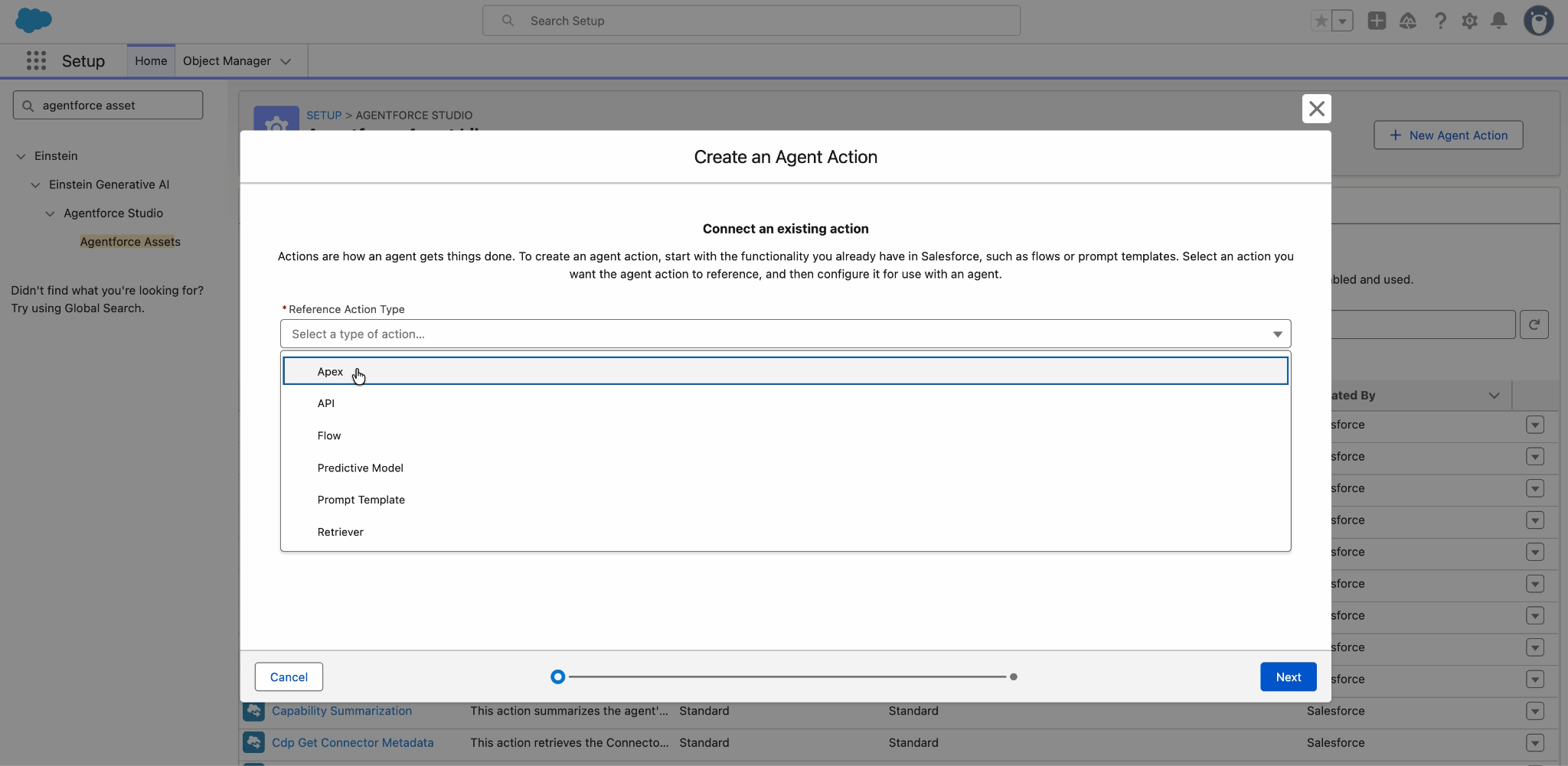
Depending on your org, additional Reference Action Type options can be available. These options can include API, Predictive Model, and Retriever. Select the type that corresponds to the asset used by your action.
The action implementation can also call an API, retrieve information from Data Cloud, run automation, or use another supported data source before returning structured output.
Here’s an image that shows the Reference Action Type options.
For the running example, this page uses an Apex-backed action named Get Hotel Info. The action returns structured hotel information, but the HXL output-rendering process isn’t specific to Apex or the Hotel Card example.
To create an Apex-backed action, see Create the Apex Action.
Use these values for the running scenario.
| Field | Value |
|---|---|
| Reference Action Type | Apex |
| Reference Action Category | Invocable Method |
| Reference Action | Get Hotel Info |
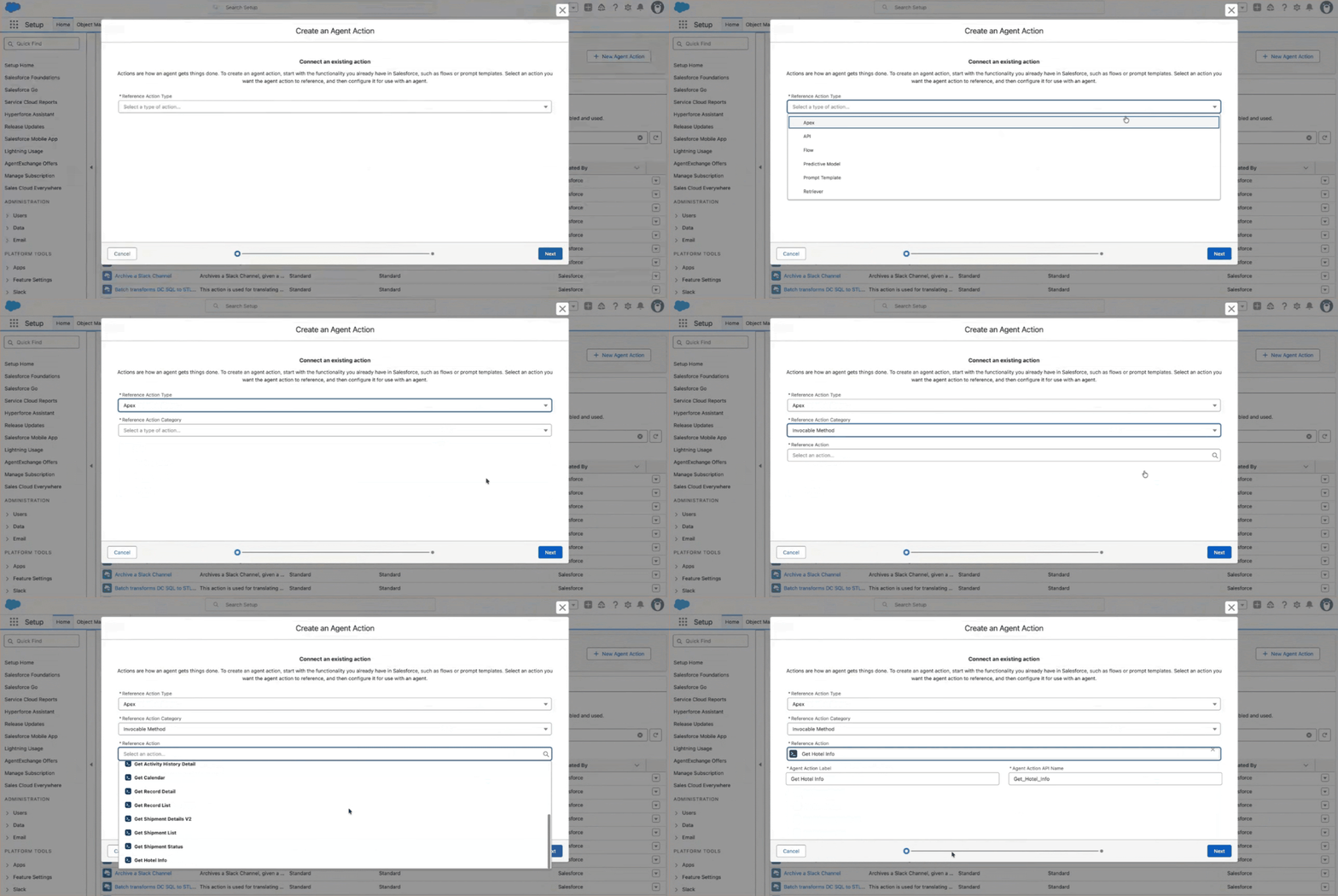
The action returns structured hotel information through an output named Hotel Info Response.
For the running example, HotelInfoResponse is the CLT used to present the action output through the Hotel Card widget.
Before you continue, confirm that the action:
- Is available to the agent.
- Can be invoked from the conversation preview.
- Returns the values that the widget displays.
- Returns an output structure represented by the deployed CLT.
Configure Output Rendering
Apply the deployed CLT to the action output. This association tells Agentforce to use the renderer associated with the CLT when it presents the structured output. The renderer maps properties from the action output to attributes accepted by the HXL widget.
- From Setup, in the Quick Find box, enter
Agentforce Assets, and then select Agentforce Assets. - Select the Actions tab.
- Open
Get Hotel Info. - Locate the output named Hotel Info Response.
- Edit the output.
- Select Show in conversation.
- In Output Rendering, select
HotelInfoResponse. - Save the action.
- Reload the agent page.
For the running scenario, the output configuration uses these values.
| Output setting | Value |
|---|---|
| Output label | Hotel Info Response |
| Output API name | hotelInfoResponse |
| Data Type | @apexClassType/c__GetHotelInfo$HotelInfoResponse |
| Show in conversation | Selected |
| Output Rendering | HotelInfoResponse |
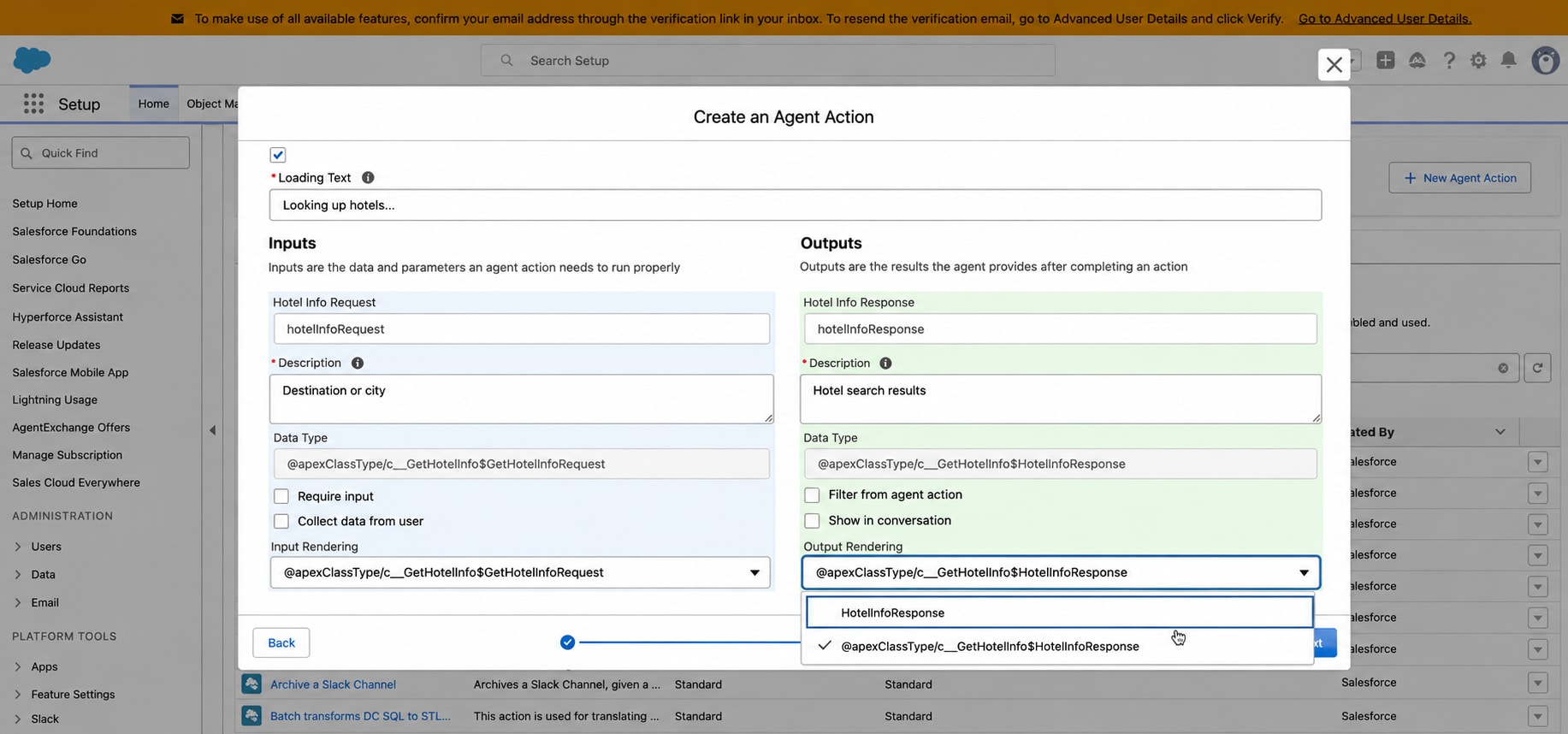
After you save the action, Agentforce uses the renderer associated with the HotelInfoResponse CLT to display the action’s structured output in the Hotel Card widget.
Use an Agentforce Subagent
Use the configured subagent to route a matching user request to Get Hotel Info.
The subagent’s description defines the job it handles. Its reasoning instructions tell Agentforce how and when to use the actions added to the subagent. This section assumes that the subagent was created, added to the agent, and associated with Get Hotel Info as described in Before You Begin.
For the running scenario, use this configuration.
| Setting | Value |
|---|---|
| Subagent | Hotel Search |
| Purpose | Handle hotel search requests |
| Action | Get Hotel Info |
Configure the subagent’s description and reasoning instructions so that hotel-related requests are routed to Hotel Search and the subagent can invoke Get Hotel Info.
When the request contains all the information required by the action, the reasoning instructions can direct the subagent to invoke the action. If the action requires more information, configure the instructions so that the subagent obtains the required input before invoking it.
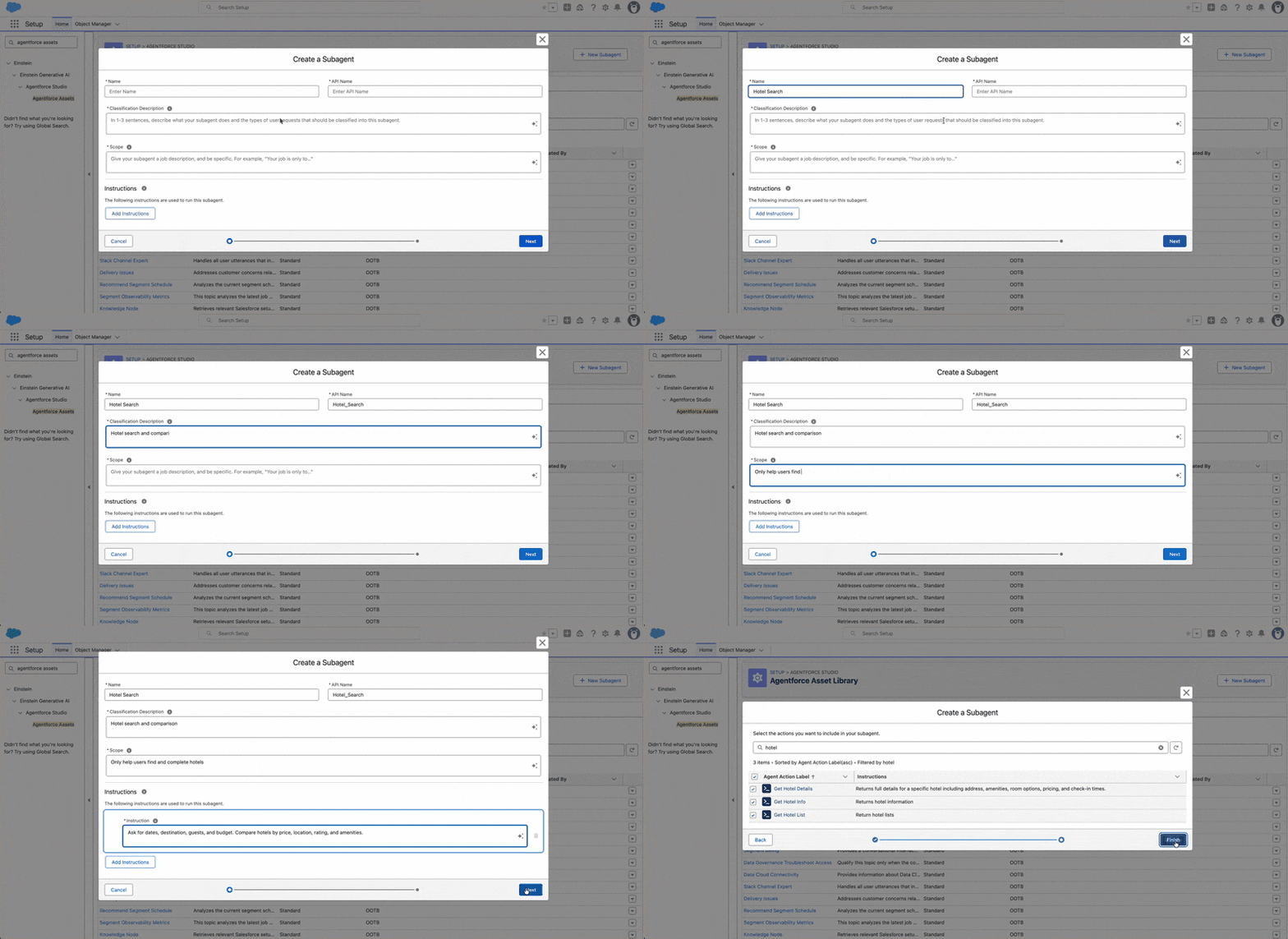
Before you continue, confirm that:
Hotel Searchis added to the agent.Get Hotel Infoappears in the subagent’s actions available for reasoning.- The subagent’s description distinguishes its job from the jobs of other subagents.
- The subagent’s reasoning instructions identify when to invoke
Get Hotel Info. - A hotel-related request is routed to
Hotel Search.
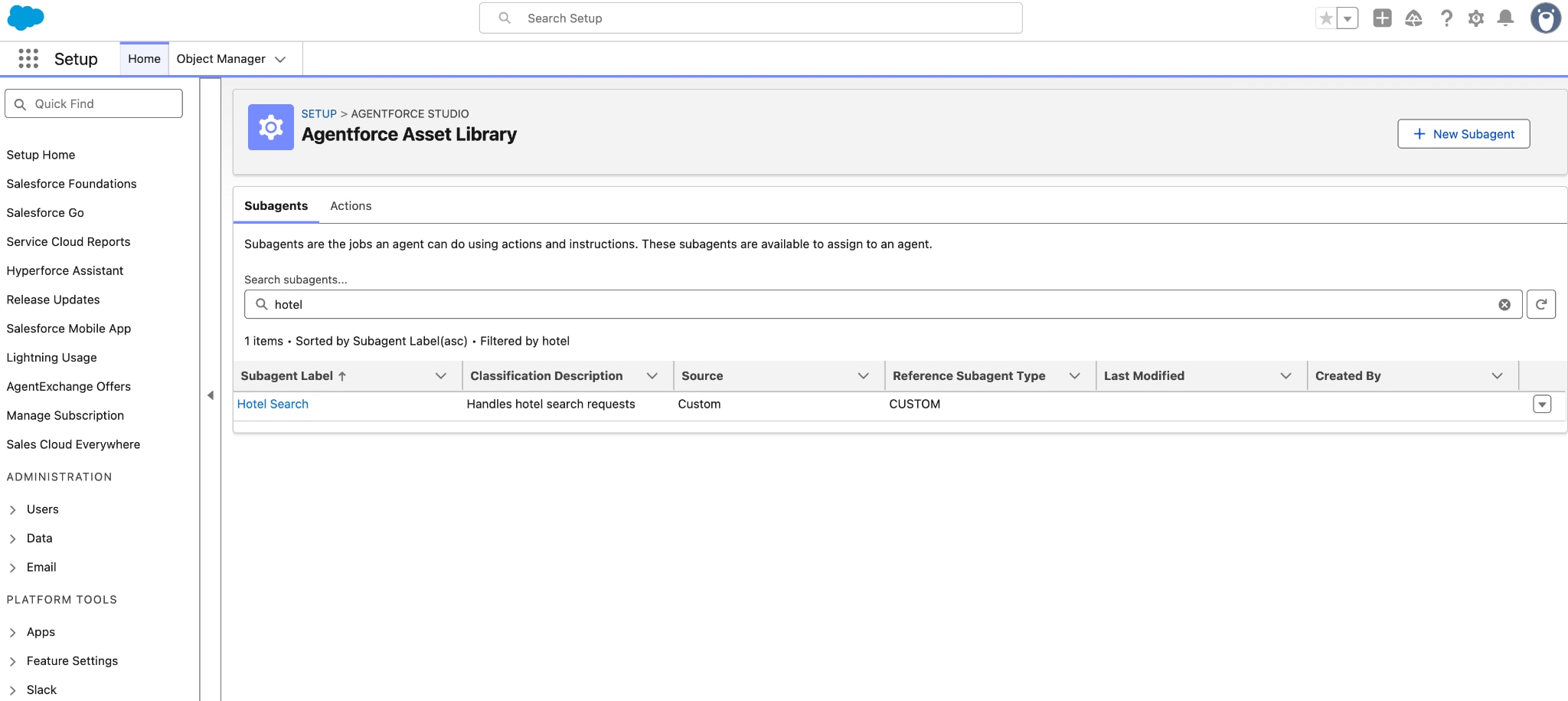
Here’s an image that shows Hotel Search added to the agent.
View the Default Action Output
Run the action before you apply custom output rendering. This verifies that Agentforce routes the request to the expected subagent, the subagent invokes the action, and the action returns the expected response.
-
Open the agent in Agentforce Builder.
-
Open the conversation preview.
-
Enter a request that invokes the action.
For the running example:
Get me details of {hotel name} in San Francisco.Replace
{hotel name}with a hotel name supported by the target org. -
Confirm that Agentforce selects
Hotel Search. -
Confirm that the subagent invokes
Get Hotel Info. -
Review the response in the conversation.
Before you apply the CLT, Agentforce presents the action result by using its default output presentation.
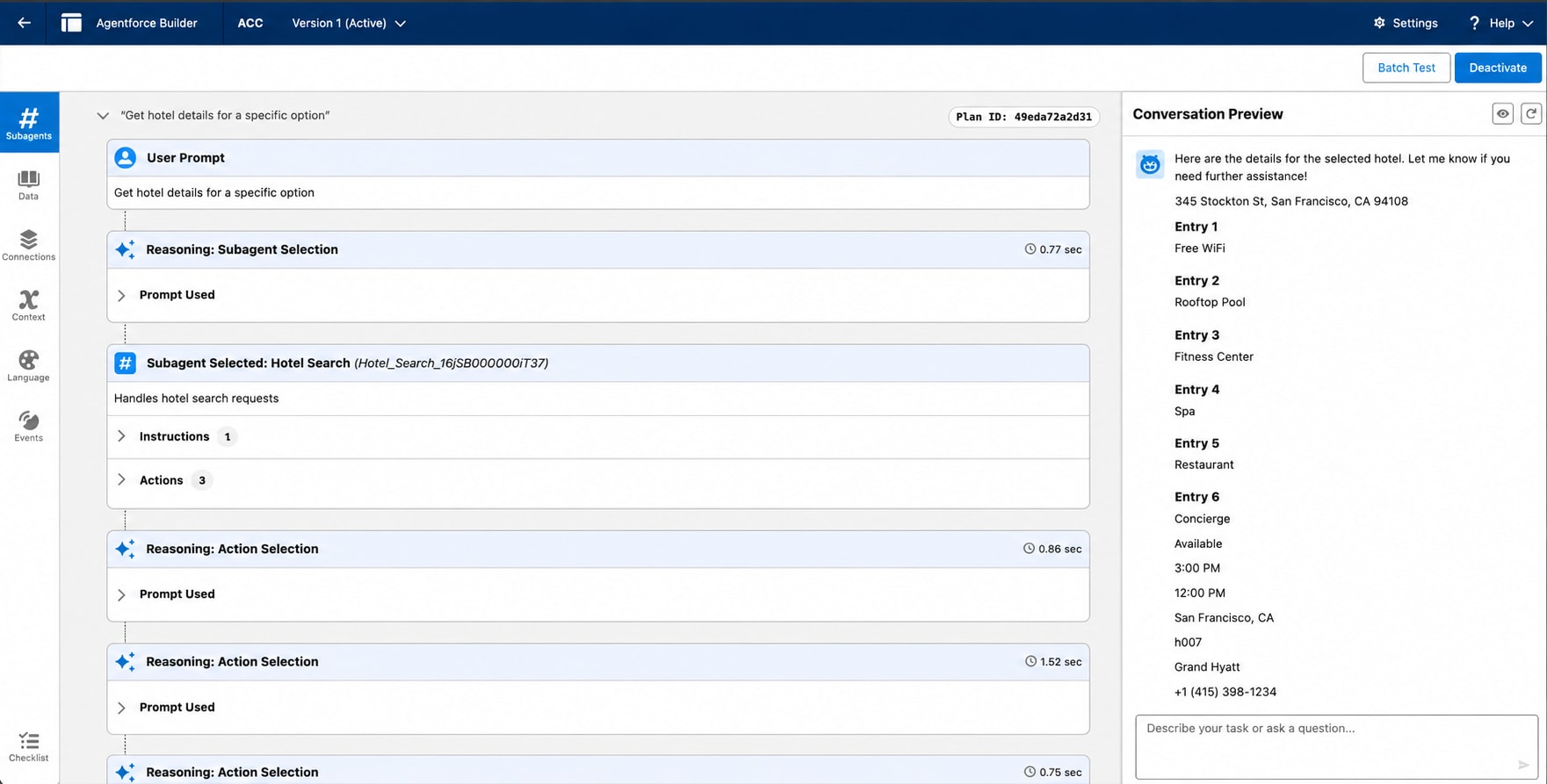
The structured output contains hotel information such as:
1Hotel Name
2Hotel Image
3Nightly rate
4Summary
Use the same request and action response when you verify the rendered widget.
View the Rendered Widget
Run the same request again to verify the configuration.
- Open the agent in Agentforce Builder.
- Open the conversation preview.
- Enter the same request that you used to view the default output:
Get me details of {hotel name} in San Francisco. - Confirm that Agentforce selects
Hotel Search. - Confirm that the subagent invokes
Get Hotel Info. - Confirm that the action returns the expected structured hotel output.
- Confirm that Agentforce presents the action output as the Hotel Card widget.
- Verify that the hotel information displayed by the widget corresponds to the action output.
The action continues to return the same structured output. The CLT and its renderer determine how that output is mapped to the widget and presented in the conversation.
In the running example, the Hotel Card widget displays the hotel name, hotel image, nightly rate, and summary.
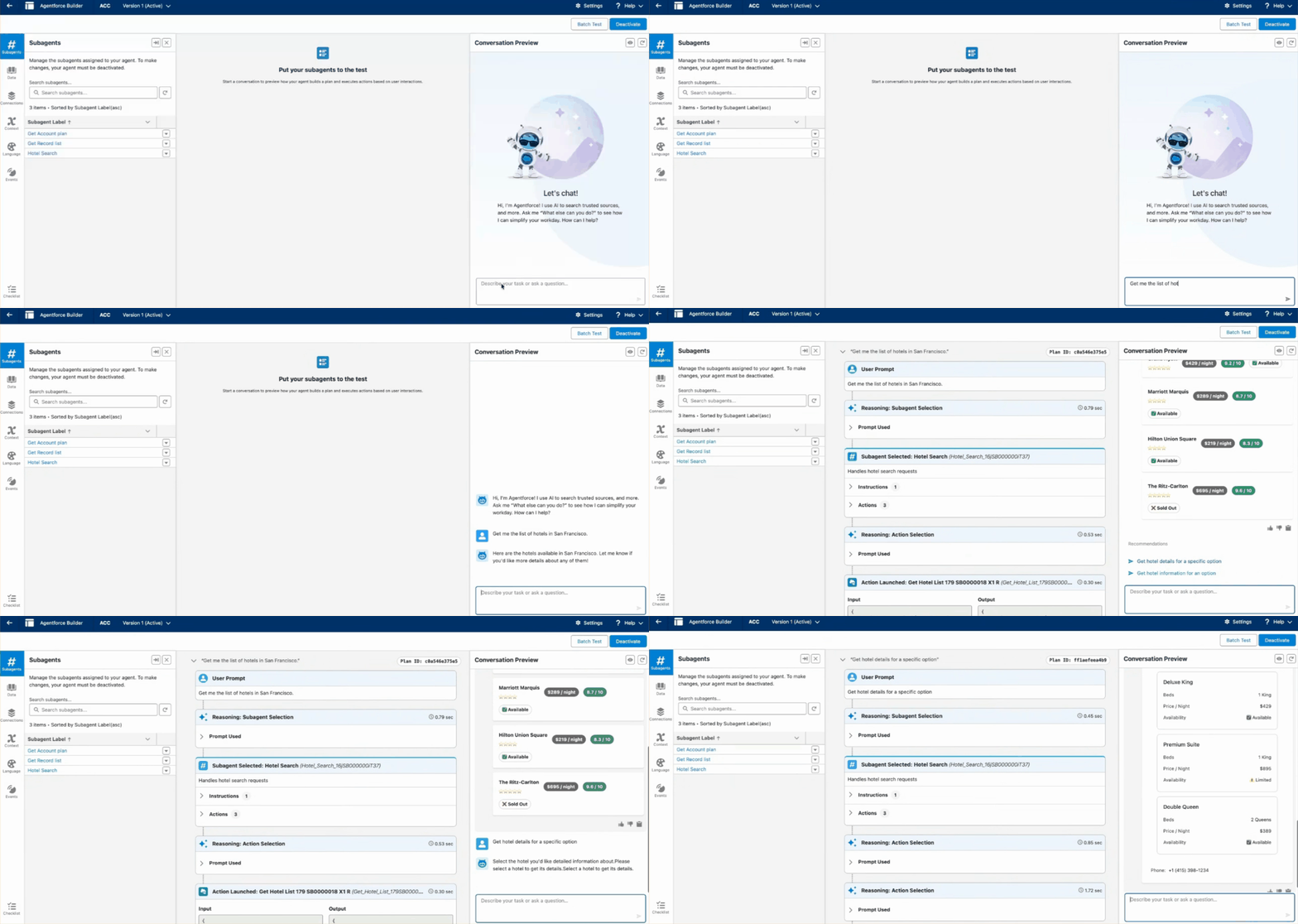
The Get Hotel Info action output is now presented through the configured HXL widget.
Add Button Actions to the Hotel Card
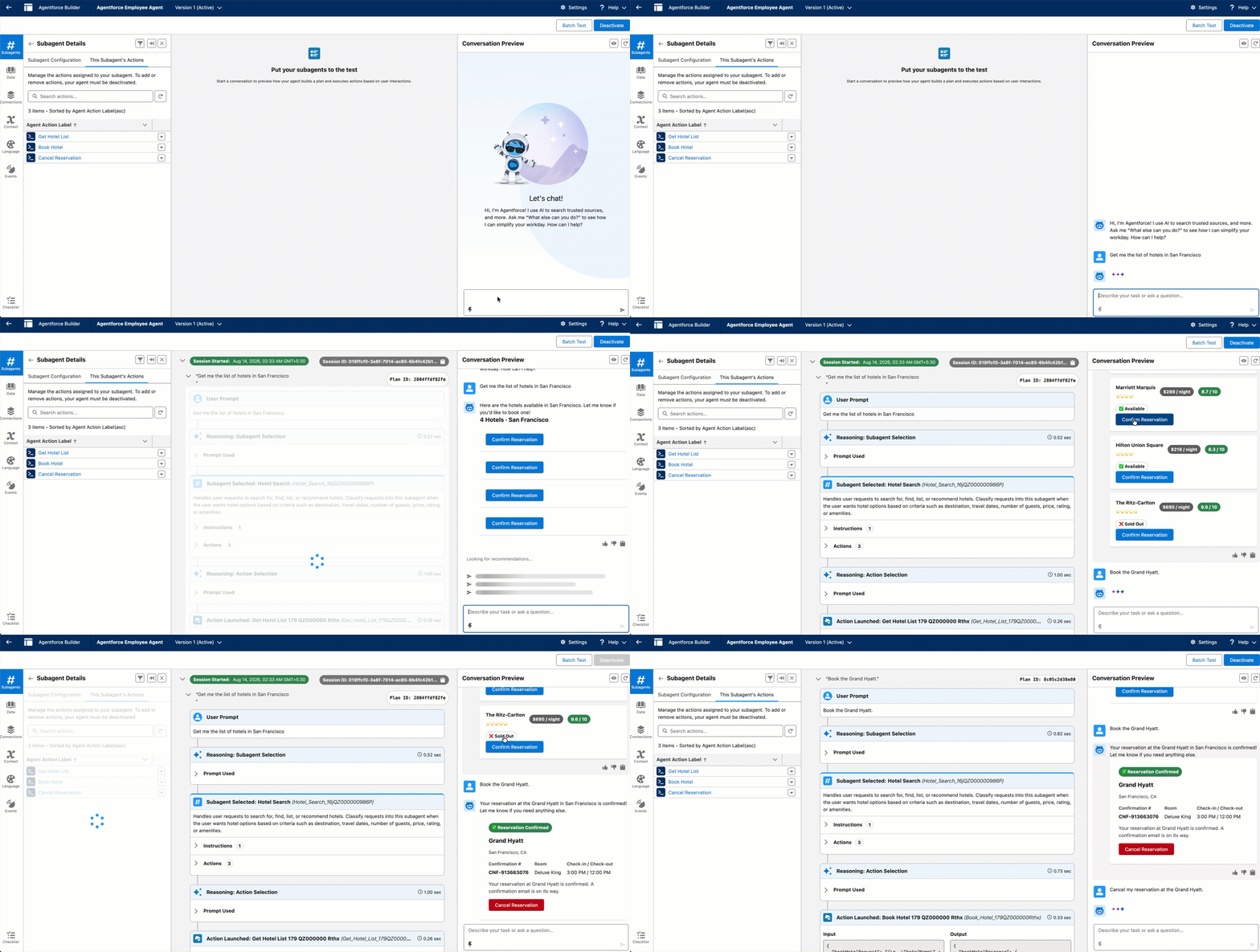
HXL widgets support button actions that send follow-up requests to the agent. In the running example, the Hotel Card includes Confirm Reservation and Cancel Reservation buttons. Each button uses action/sendMessage to send a follow-up request to the agent.
Before you test the buttons, make Book Hotel and Cancel Reservation available to the Hotel Search subagent. Configure the subagent’s reasoning instructions to handle booking and cancellation requests.
This example configures the Confirm Reservation button.
1{
2  "definition": "tile/button",
3  "attributes": {
4    "label": "Confirm Reservation",
5    "variant": "primary",
6    "actions": {
7      "click": [
8        {
9          "definition": "action/sendMessage",
10          "attributes": {
11            "content": "Confirm this reservation."
12          }
13        }
14      ]
15    }
16  }
17}
The Cancel Reservation button uses the same actions.click pattern with a cancellation request as its message content. When a user selects either button, action/sendMessage sends the configured message to the agent. The Hotel Search subagent’s reasoning instructions determine whether Agentforce invokes Book Hotel or Cancel Reservation.
The animation shows the reservation buttons sending follow-up requests in Conversation Preview.
For complete button properties, variants, examples, and surface support, see Button. For predefined action definitions and their attributes, see lightning__actionType.
Beta Feature
 j
j