


Create Widgets in HXL Playground
The Widgets page is where you compose components into a complete, reusable UI. Build your widgets in the playground, then copy and paste the JSON in your widget bundle’s .json composition file.
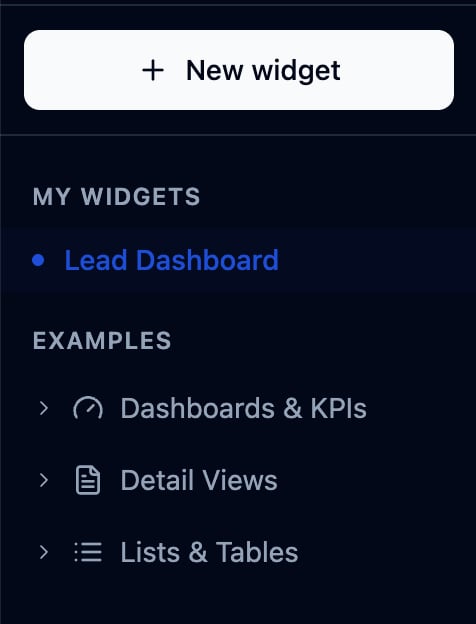
The left sidebar organizes your work.
- Click New widget to create a widget.
- Review the widgets you created under the My Widgets section. They’re saved locally in your browser, so they persist between visits on the same device.
- Explore widget examples under Examples to see dashboards, tables, and other composition patterns.
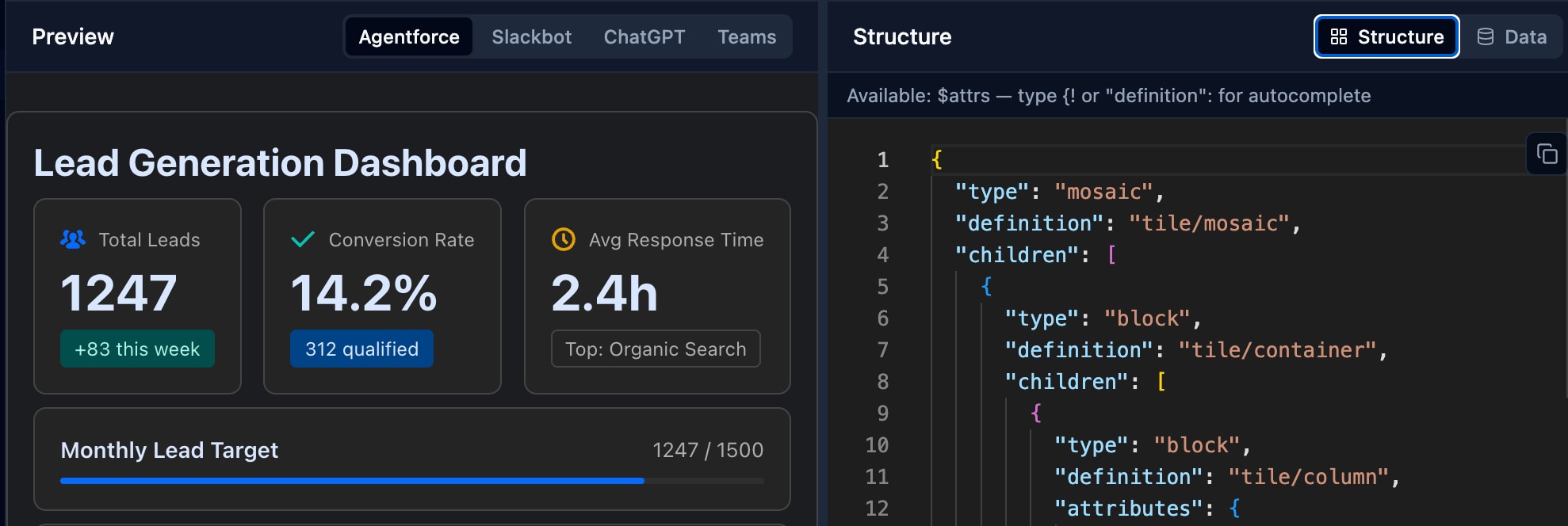
When you open or create a widget, the main area shows a live preview of the widget’s JSON configuration next to the editor. Use the toggle above the editor to render the widget on surfaces such as Agentforce, Slackbot, and ChatGPT.
Create a New Widget
- On the Widgets page, click New widget at the top of the sidebar. Alternatively, on an empty canvas, click Create your first widget.
- Choose how to start:
- From a template: Pick a ready-made widget from the template library to use as your starting point.
- From scratch: Start with a blank widget and build it up.
- The new widget opens in the editor under My Widgets, with a live preview next to it.
- Edit the widget’s structure and data in the editor. Use the preview toggle to preview the widget on each surface.
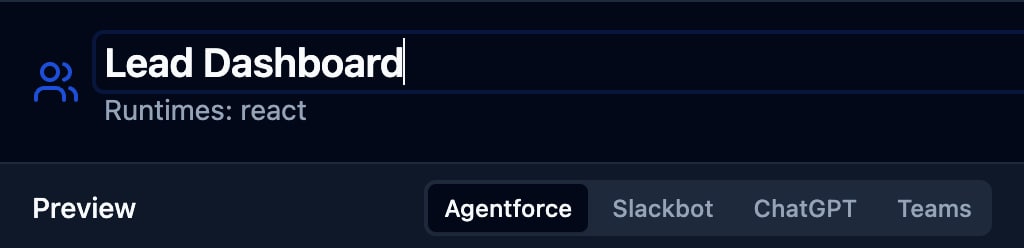
To rename a widget, edit its title at the top of the editor. The API name updates automatically.
Save a Widget
Your widgets appear under My Widgets. These widgets save automatically to your browser’s local storage as you edit them.
Example and pre-built widgets are read-only. To keep your changes to an example or pre-built widget:
- Open the example widget you want to modify.
- Make your edits in the editor by modifying the JSON configuration of the widget.
- Click Save. The playground saves a copy under My Widgets, and switches the editor to that copy.
The Save button appears only for example and pre-built widgets. Widgets under My Widgets save automatically.
Note
Your widgets persist across browser restarts and reboots. The browser evicts the widget under storage pressure. The browser’s local storage is temporary. Browsers can clear local storage for sites that haven’t been visited in a long time, or when disk quota is low. The widgets are removed if one of these conditions occurs.
- You clear browsing data such as cookies and cached site data for the site.
- You delete the widget in the playground by clicking the Delete button.
- You use a different browser, device, profile, or an incognito session.
Storage is scoped per origin and per browser profile. Your widgets aren’t available on another machine, another browser, or an incognito window, which discards the window’s storage when closed. To make a widget available on another machine or browser, use the Share button to copy a shareable link.
Note
Clone a Widget
Cloning creates an independent copy under My Widgets, leaving the original untouched. Cloning works for any widget, including your own widgets and examples.
- Open the widget you want to copy.
- Click Clone.
- A duplicate named “<widget> (copy)” is created under My Widgets, and the editor switches to it. Edit the clone freely without affecting the original.
Share a Widget
Share a widget as a self-contained link. The link encodes the widget’s definition, so the recipient doesn’t need access to your browser storage.
- Open the widget you want to share.
- Click Share to copy a shareable link to your clipboard.
- Send the link to anyone. When they open it, the widget loads directly into the playground.
Import a Widget
To import a widget, open a share link that someone sent you. The playground decodes the link and adds the widget to My Widgets automatically.
If a widget with the same name already exists in My Widgets, the playground asks how to handle the conflict.
- Update existing replaces the saved version with the one from the link.
- Import as copy keeps both by saving the incoming widget as a new copy.
- Open existing ignores the link and opens the version you already have.
Choose Cancel to dismiss the prompt without importing.
Delete a Widget
Delete only widgets that you created under My Widgets. Example and pre-built widgets can’t be deleted.
- Open the widget you want to remove.
- Click Delete.
- The playground removes the widget from My Widgets and from your browser’s local storage. The editor switches to another saved widget, or to the empty canvas if none remain.
Deletion is permanent. To back up the widget before deleting it, use Share to copy the widget’s link, or copy its JSON from the editor.
Note
Beta Feature
 j
j