Platform Event Processing at Scale with Parallel Subscriptions for Apex Triggers
To speed up platform event processing in an Apex trigger, use parallel subscriptions to process events simultaneously instead of in a single stream. With parallel subscriptions, you can scale your Apex platform event triggers to handle high volumes of events. Parallel subscriptions are available for custom high-volume platform events but not for standard events or change events.
How Parallel Subscriptions Work
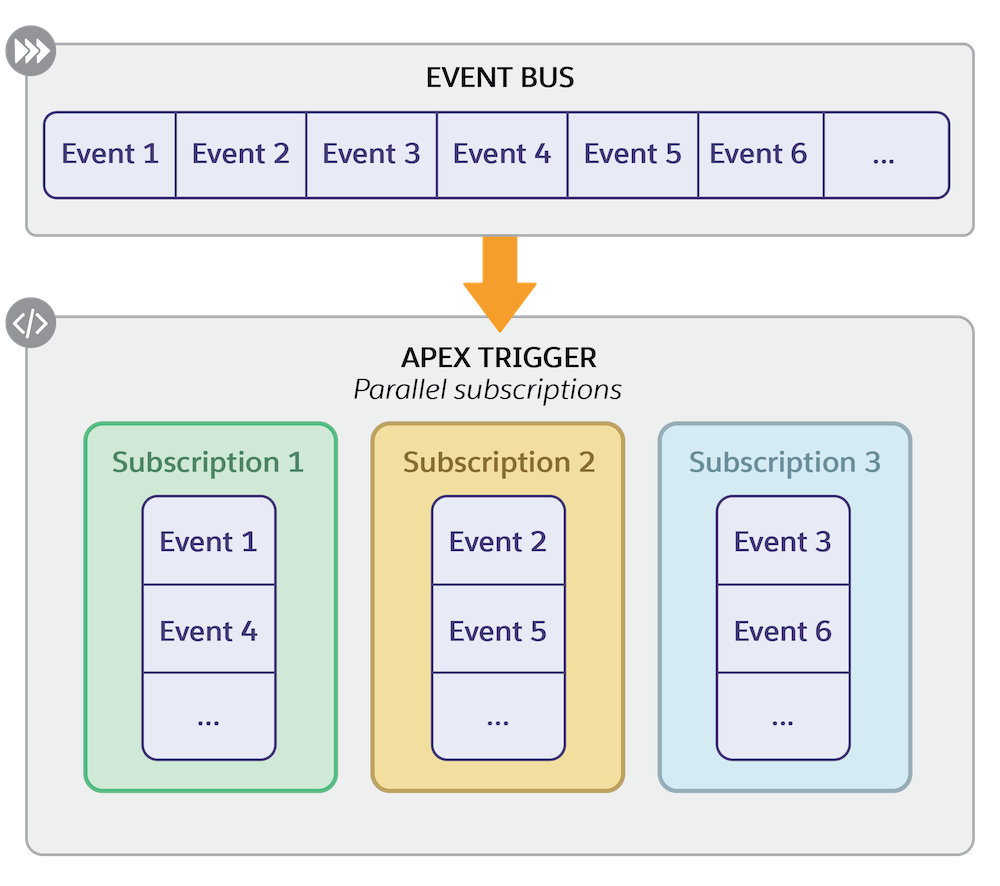
When you configure parallel subscriptions for a platform event Apex trigger, multiple subscriptions are created internally for the trigger. When events are received from the event bus that correspond to the platform event that the trigger is subscribed to, the events are distributed across the internal subscriptions. Referred to as partitions, the internal subscriptions run and process events simultaneously. You can specify up to 10 partitions for a trigger.
Each internal subscription processes unique events. Which events each subscription processes depends on the partition key that you specify—a platform-event custom field marked as required or the standard EventUuid field. The system uses a hash function to convert the value in the partition key field to a hash value that determines which subscription processes an event. Make sure to follow best practices when choosing a partition key. See Choosing a Partition Key.
Parallel Subscriptions require a custom platform event with a recent event schema. Use a new or recently created custom platform event. If you want to use an existing custom platform event whose definition hasn’t changed in several Salesforce releases, you can regenerate the event schema by adding or renaming a field to the platform event.
Important
This diagram shows the flow of events from the event bus to the parallel subscriptions. For simplicity, the event bus in the diagram contains events for only the custom platform event that the Apex trigger is subscribed to.
Parallel Subscriptions in Setup
When one or more Apex triggers are configured for parallel subscriptions, the Parallel Subscriptions related list shows up on the platform event detail page in Setup. An Apex trigger that’s enabled for parallel subscriptions shows up in the Parallel Subscriptions related list only and not in the Subscriptions related list.
This image shows a trigger configured with three partitions in the Parallel Subscriptions related list. The partition key for the trigger is the Order_Number__c custom field.
Which event field you choose for the partition key depends on whether you want to maximize the trigger’s performance or whether the order of event processing is important.
Check out the limits for parallel subscriptions. These limits are enforced when you save the parallel subscription configurations using PlatformEventSubscriberConfig in Tooling API or Metadata API.
To repartition an Apex trigger that is already configured with parallel subscriptions, update the existing PlatformEventSubscriberConfig in Tooling API or Metadata API.
Referencing this multiple-step example, configure an Apex trigger with three partitions and a custom field partition key. Then verify the trigger parallel subscriptions in Setup.
You can test an Apex platform event trigger that’s configured with parallel subscriptions the same way that you test a regular Apex platform event trigger.



 j
j