


 j
jCreating a Wizard
Create Advanced Visualforce Dashboard Components
Mass Updating Records with a Custom List Controller
Previous Versions
Create a Visualforce page with a custom list controller, then use it as a dashboard component.
| Required Editions |
|---|
| Available in: Salesforce Classic (not available in all orgs) |
| Available in: all editions |
Visualforce pages as dashboard components are only available in Salesforce Classic. In Lightning Experience, you can create a custom tab and use that as a dashboard for your custom lightning components.
To be included in a dashboard, a Visualforce page must use a custom controller, use a standard or custom list controller, or not have a controller. You can’t add a Visualforce page with a standard controller to a dashboard. Only Visualforce pages that meet these requirements appear as options in the Data Sources tab.
Visualforce dashboard components aren’t supported when third-party cookies are disabled. See Visualforce Limitations in Salesforce Classic When Third-Party Cookies are Blocked.
Note
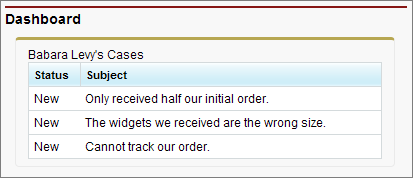
This Visualforce dashboard component displays all of the open cases associated with a contact named “Barbara Levy.”
Create a custom list controller called retrieveCase.
1public class retrieveCase {
2
3    public String getContactName() {
4        return 'Barbara Levy';
5    }
6
7    public List<Case> getCases() {
8        return [SELECT status, subject FROM Case
9                WHERE Contact.name = 'Barbara Levy' AND status != 'Closed' limit 5];
10    }
11}
Create a Visualforce page that uses the retrieveCase custom controller.
1<apex:page controller="retrieveCase" tabStyle="Case">
2    <apex:pageBlock>
3        {!contactName}'s Cases
4        <apex:pageBlockTable value="{!cases}" var="c">
5            <apex:column value="{!c.status}"/>
6            <apex:column value="{!c.subject}"/>
7        </apex:pageBlockTable>
8    </apex:pageBlock>
9</apex:page>
To add the Visualforce page to a dashboard, see Add a Dashboard Component in Salesforce Classic.
See Also
j