


 j
jCreating a Custom Controller Class
Defining Getter Methods
Defining Action Methods
Defining Navigation Methods
Creating a Wizard
Create Advanced Visualforce Dashboard Components
Mass Updating Records with a Custom List Controller
Previous Versions
A custom controller is simply an Apex class. For example, the following code is a valid, though ineffective, controller class:
1public class MyController {
2
3}
You can create a controller class and add it to your page in two different ways:
Add the controller attribute to your page and use a “quick fix” to create the controller class on the fly:
In the page editor, add the controller attribute to the <apex:page> tag. For example:
1<apex:page controller="MyController">
2    <apex:pageBlock title="Hello {!$User.FirstName}!">
3        This is your new page.
4    </apex:pageBlock>
5</apex:page>
Use the quick fix option to automatically create a new Apex class named MyController.
Create and save the controller class in the Apex editor of your choice, and then reference it in your page:
Quick Find box, then select Apex Classes and click New to create a new class.controller attribute to the <apex:page> tag as described in the example above.A page can only reference one controller at a time. You can’t use both the standardController attribute and the controller attribute in an <apex:page> tag.
Note
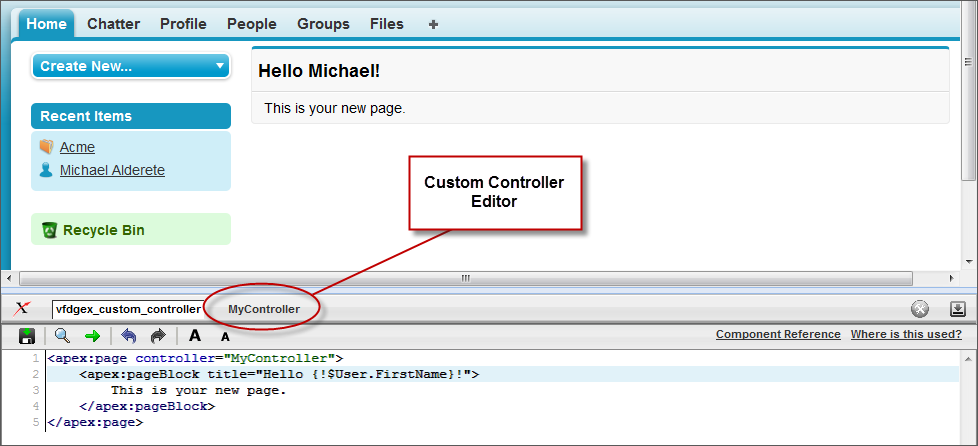
As soon as you save a page that references a valid custom controller, a second Controller editor tab is available next to the Page Editor. This editor allows you to toggle back and forth between your page markup and the Apex that defines the page’s logic.
j