


Browser Extension
When you write a test for a Salesforce application page, it’s often confusing to know which page objects (POs) to use. To make this page object selection process easier, use UTAM’s browser extension for Google Chrome. It presents you with the appropriate set of POs for the page that you’re currently browsing, and identifies which page elements are affected by the methods in a selected PO.
Here’s a quick introduction to the browser extension.
UTAM Browser Extension Video Intro

Workflow for Browser Extension
This section shows you how to use the browser extension.
Step 1: Install Browser Extension
Install the UTAM Browser Extension from the Chrome Web Store.
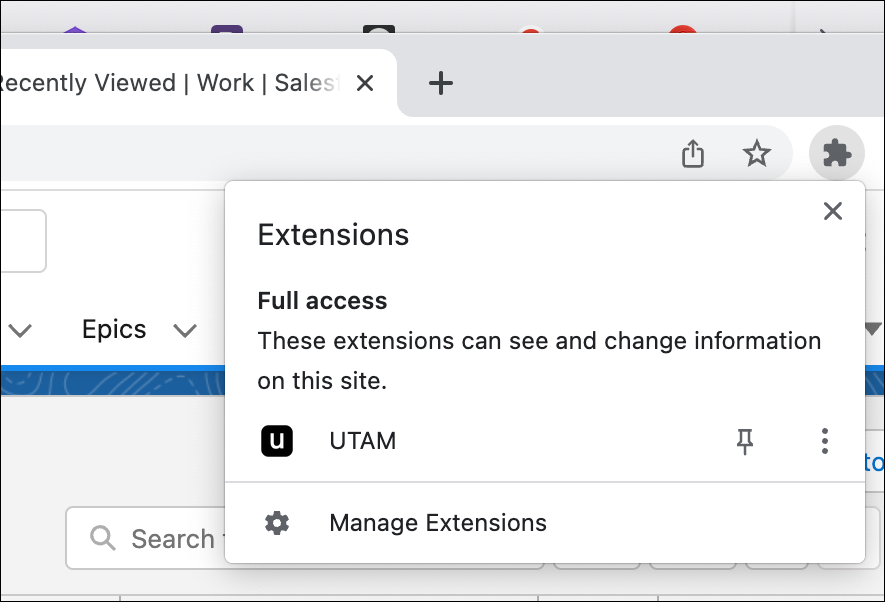
After installation, you can see the extension in your browser’s toolbar.
Step 2: Download Page Object Artifact
The browser extension reads UTAM POs contained in an artifact downloaded from an artifact repository. An artifact is either a zip file (.zip, .jar) or a gzipped tar file (.tar.gz, .tgz).
The browser extension doesn’t automatically download these artifacts. Before you can use the browser extension, you must obtain an artifact as a prerequisite step.
Important
Get UTAM POs from an artifact published to Maven Central Repository or NPM.
To get the artifact for JavaScript page objects, run this command from the command line:
1npm pack salesforce-pageobjectsThis command downloads a gzipped tar file of the artifact to the current directory.
For more information about the PO artifacts for Java and JavaScript, see Downloads.
Step 3: Load Page Objects into the Browser Extension
After you install the browser extension, load the page objects that you previously downloaded in the artifact.
- Navigate to a Salesforce page.
- In Chrome, click View > Developer > Developer Tools and click the UTAM subtab in the Developer Tools pane.
- To import the POs from the downloaded artifact, click the Import button.
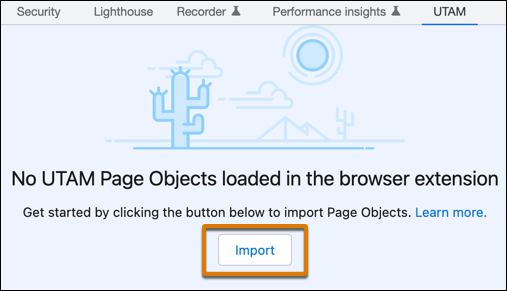
Navigate to the PO artifact that you downloaded earlier and click Open.
Step 4: Identify Page Objects for a Web Page
To use the browser extension on a page to be tested, you must identify a root page object:
-
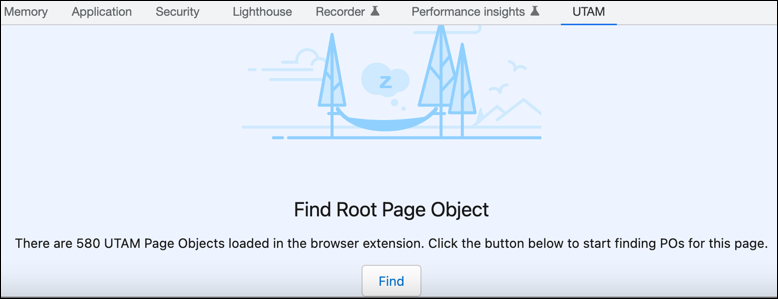
In the UTAM tab, click Find.
-
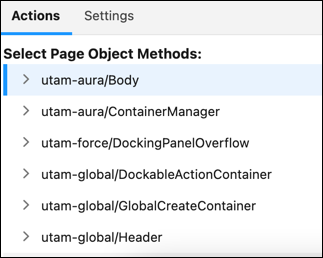
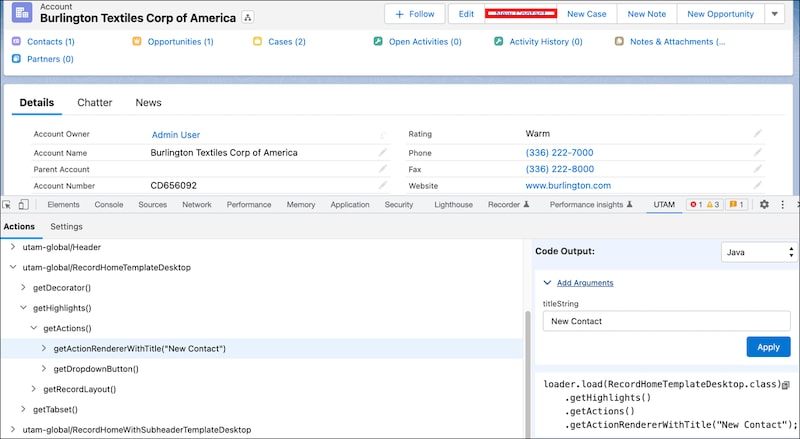
You see a tree list of POs that you can navigate to find methods of interest for your test.
-
Hover over a PO in the list to see an outline in the browser window for the element represented by the PO.
-
Click the
>icon at the beginning of a PO name to see the methods available for the PO. -
If a method takes an argument, you can use the Add arguments input on the right side of the panel to enter an argument value. In this example, we select
getActionRendererWithTitle(text).
-
Enter New Contact in the Add Arguments input and click Apply to highlight the New Contact button in the Account header.
-
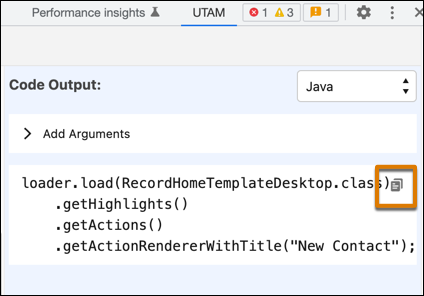
After you’ve selected all the methods of interest, select Java or JavaScript in the Code Output dropdown and click the Copy Generated Code button. The code to access the selected PO methods is copied to the clipboard.
-
Paste the code into a UTAM test in your IDE of choice. In this example, the copied Java code is:
1loader.load(RecordHomeTemplateDesktop.class)
2    .getHighlights()
3    .getActions()
4    .getActionRendererWithTitle("New Contact");
Import a New Page Object Artifact
The Settings subtab in the UTAM panel shows you the current version of the page object artifacts that you’re using.
You can import one or more page object artifacts, which means that you can import your own custom page object artifacts as well as the page object artifact provided by Salesforce.
To import a new page object artifact, click Import new artifact. To remove a page object artifact, click the X button in the upper
right-hand corner of the artifact tile. To remove all page object artifacts, click Clear all imported artifacts.
On the Settings page, you can also choose Java or JavaScript as the default code output to use when you Copy Generated Code to the clipboard. Also on the Settings page, you can customize the format of the highlighter used to highlight elements when selecting page objects in the tree of the Actions page.
Terms of Use
These Terms of Use are a binding agreement between you and Salesforce, Inc. (“Salesforce”). Please read them carefully. We may make changes at any time, so be sure to check back regularly. By continuing to use the browser extension after these Terms have changed, you indicate your agreement to the revised Terms. If you do not agree to the changes, you should stop using the browser extension.
Proprietary Rights. Salesforce grants to you a revocable, non-exclusive, non-transferable, limited, and personal right (without the right to authorize any third party) to use the browser extension, solely in accordance with any applicable documentation and any additional terms made available by Salesforce. You may not, without Salesforce’s prior written consent, access or use the browser extension to commercially distribute your product or service to third parties unless you are authorized to do so pursuant to a separate agreement with Salesforce.
Relationship to Salesforce Services. Any main services agreement you or your organization may have with Salesforce does not apply to use of the browser extension, and the browser extension is not licensed or otherwise provided under such agreement. In addition, any use of the browser extension in connection with any Salesforce services provided under a main services agreement is subject to the restrictions of such main services agreement.
In the event the browser extension includes free or open source software projects that are subject to license terms incompatible with each other, and/or incompatible with your obligations under a main services agreement or another agreement, you are responsible for complying with (a) any main services agreement governing Salesforce services to which you subscribe, and (b) any terms applicable to code or applications you use in connection with such Salesforce services.
Privacy. Salesforce may collect, process, and store device, system, and other information related to your use of the browser extension. Such information may contain Personal Data, which is handled as described in our Privacy Statement at https://www.salesforce.com/company/privacy/.
Disclaimer. SALESFORCE MAKES NO REPRESENTATIONS, WARRANTIES, OR CONDITIONS OF ANY KIND, WHETHER EXPRESS, IMPLIED, STATUTORY, OR OTHERWISE, AND SALESFORCE SPECIFICALLY DISCLAIMS ALL REPRESENTATIONS, WARRANTIES, AND CONDITIONS, WHETHER EXPRESS, IMPLIED, OR OTHERWISE, INCLUDING ANY IMPLIED WARRANTY OR CONDITION OF MERCHANTABILITY, SATISFACTORY QUALITY, FITNESS FOR A PARTICULAR PURPOSE, OR NON-INFRINGEMENT, TO THE MAXIMUM EXTENT PERMITTED UNDER APPLICABLE LAW. THE BROWSER EXTENSION IS MADE AVAILABLE ON AN “AS IS,” “WHERE IS,” AND “WHERE AVAILABLE” BASIS, EXCLUSIVE OF ANY WARRANTY WHATSOEVER. SALESFORCE HAS NO OBLIGATION TO PROVIDE ANY SUPPORT OR MAINTENANCE SERVICES FOR THE BROWSER EXTENSION.
Limitation of Liability. SALESFORCE WILL NOT HAVE ANY LIABILITY ARISING OUT OF OR RELATED TO USE OF THE BROWSER EXTENSION, WHETHER AN ACTION IS IN CONTRACT OR TORT, REGARDLESS OF THE THEORY OF LIABILITY, AND EVEN IF SALESFORCE HAS BEEN ADVISED OF THE POSSIBILITY OF SUCH DAMAGES OR IF A REMEDY OTHERWISE FAILS OF ITS ESSENTIAL PURPOSE. THE FOREGOING DISCLAIMER WILL NOT APPLY TO THE EXTENT PROHIBITED BY LAW.
Governing Law and Jurisdiction. These Terms will be governed by and construed in accordance with the laws of the state of California and controlling United States federal law, without regard to choice or conflicts of law rules or the United Nations Convention on the International Sale of Goods. You agree to the exclusive jurisdiction of the state and federal courts located in San Francisco, California, submit to the personal jurisdiction of such courts, and waive any defense based on venue or inconvenient forum.
Last Updated: March 30, 2023
 j
j