


 j
jWhen to Use the Salesforce Console Integration Toolkit
Change a Visualforce Page by Using the Salesforce Console Integration Toolkit
Previous Versions
Each implementation of Salesforce Console Integration Toolkit can look different. This example shows how to change the Salesforce console user interface using the Salesforce Console Integration Toolkit.
Due to third-party cookie restrictions in modern web browsers, Visualforce pages can’t load in Salesforce Classic console apps when third-party cookies are disabled. See Visualforce Limitations in Salesforce Classic When Third-Party Cookies are Blocked.
Note
Create a Visualforce page.
Cut and paste the following sample code into your Visualforce page.
This code demonstrates various functions of the Salesforce Console Integration Toolkit:
1<apex:page standardController="Case">
2
3 <apex:includeScript value="/support/console/68.0/integration.js"/>
4 <script type="text/javascript">
5        function openPrimaryTab() {
6            sforce.console.openPrimaryTab(undefined,
7               'https://www.example.com', true, 'example');
8        }
9
10        //The callback function that openSubtab will call once it has the ID for its primary tab
11        var callOpenSubtab=function callOpenSubtab(result) {
12            sforce.console.openSubtab(result.id,
13               'https://www.example.com', true, 'example');
14        };
15
16        function openSubtab() {
17            sforce.console.getEnclosingPrimaryTabId(callOpenSubtab);
18        }
19
20        //Sets the title of the current tab to "Example"
21        function setTitle() {
22            sforce.console.setTabTitle('Example');
23        }
24
25        //The callback function that closeTab will call once it has the ID for its tab
26        var callCloseTab= function callCloseTab(result) {
27            sforce.console.closeTab(result.id);
28        }
29
30        function closeTab() {
31            sforce.console.getEnclosingTabId(callCloseTab);
32        }
33  </script>
34
35   <A HREF="#" onClick="openPrimaryTab();return false">Open A Primary Tab</A>
36   <p/><A HREF="#" onClick="openSubtab();return false">Open A Subtab</A>
37   <p/><A HREF="#" onClick="setTitle();return false">Set Title to Example</A>
38   <p/><A HREF="#" onClick="closeTab();return false">Close This Tab</A>
39
40</apex:page>
Create a custom link for cases that use your Visualforce page.
Edit the page layout for cases and add your custom link.
Add any domains to the console’s allowlist.
To see this example in action, click the custom link on a case. For more information, see Define Custom Buttons and Links in Salesforce Help.
Note
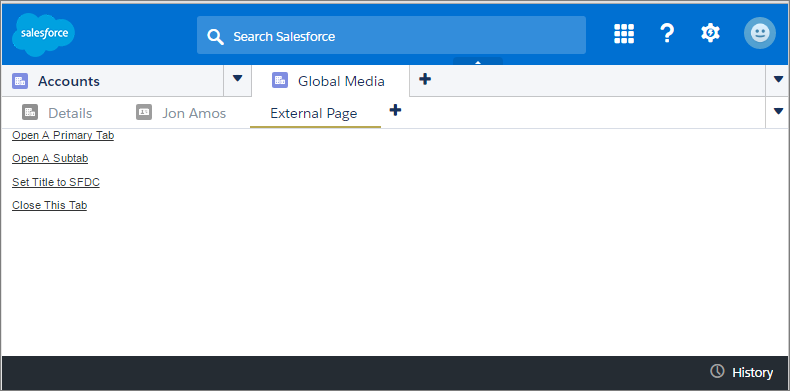
Here’s the sample Visualforce page loaded in the console.
See Also
j